This is the abridged developer documentation for Throughline
# Quick Start
> Your first ten minutes in the Throughline App: write a scene in live screenplay format, see your story as cards, and export an industry-standard PDF.
This page takes you from a blank page to a screenplay PDF in about ten minutes: a scene written in live screenplay format, your story laid out as cards, and a title page ready to send. Don’t have the Throughline App yet? Start with [Installation](/docs/getting-started/installation/). Want to poke around first? The home screen has a complete demo project under **Demos**, with Beats, Characters, Settings and Arcs already built out. Change anything you like: it resets when you leave. 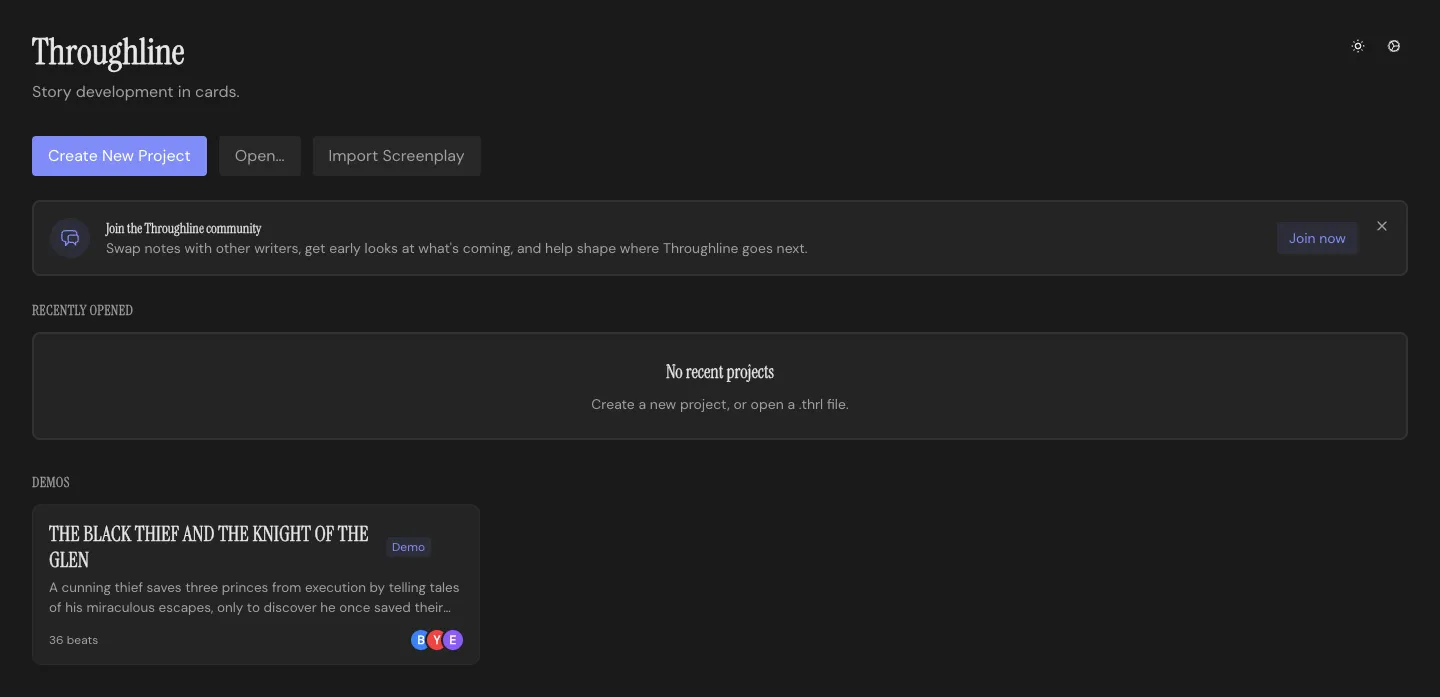 ## Already have a script? [Section titled “Already have a script?”](#already-have-a-script) Click **Import Screenplay** on the home screen and pick a Final Draft, Fountain, PDF or plain text file. The Throughline App turns it into a new project: scene headings become Beats, locations become Setting Cards, and everyone with dialogue becomes a Character. Then skip ahead to [See your story as cards](#see-your-story-as-cards). [Importing](/docs/import-export/importing/) has the details, including what a Final Draft file can’t bring along. ## Create a project [Section titled “Create a project”](#create-a-project) Click **Create New Project** on the home screen, give it a title (and a logline, if you have one), and choose where to save the project file. Everything saves to that file as you go, so there’s no Save button to remember. 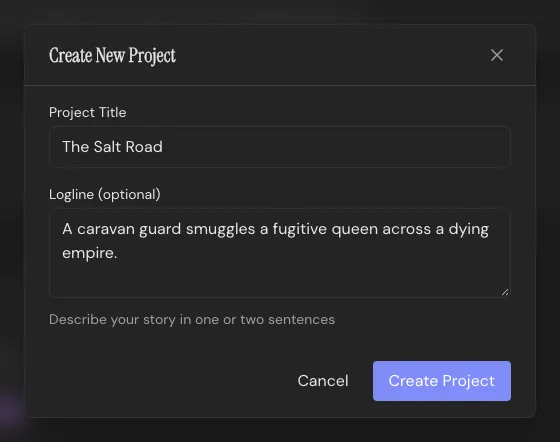 ## Write your first scene [Section titled “Write your first scene”](#write-your-first-scene) New projects open in the Draft Workspace. Press `Cmd/Ctrl+3` to jump to **Write**, where the script happens, and click **Create first beat**. In the Throughline App, every scene is a Beat. Next, choose how you’re writing, with the switch at the top right: **Screenplay** for live screenplay formatting, or **Rich Text** for prose with bold, italic and underline. The rest of this page follows Screenplay. The taskbar above the page builds your scene heading: choose INT or EXT, a Setting for the location, and a time of day. You never type the heading on the page itself. Then just write. `Tab` cycles between action, character and dialogue, and the formatting is live, so the page always looks like a finished script. Start a character cue and the name autocompletes from your cast; type a new name and the app creates that Character’s card and casts them in the scene. `(MORE)` and `(CONT'D)` take care of themselves when dialogue runs across a page break. 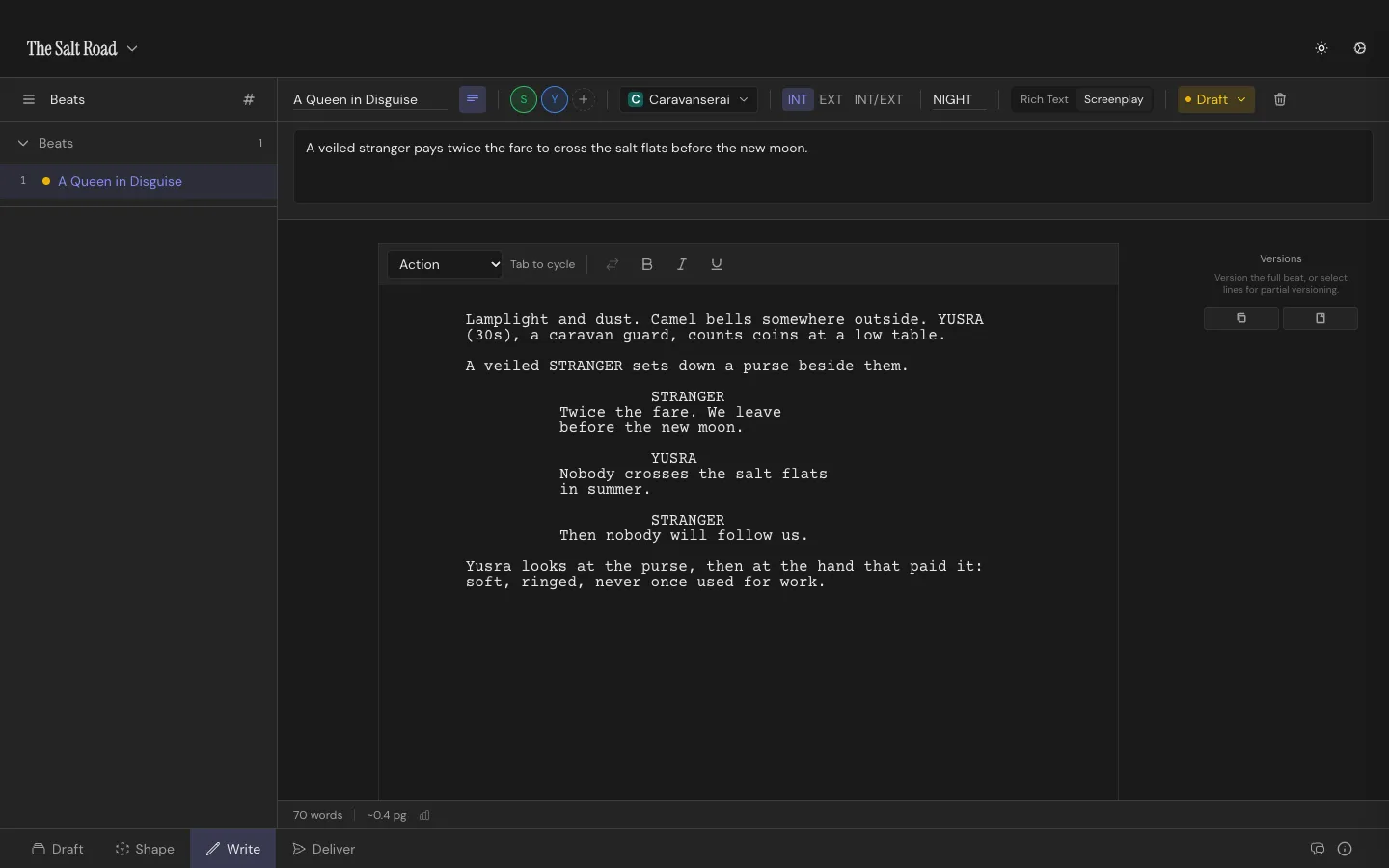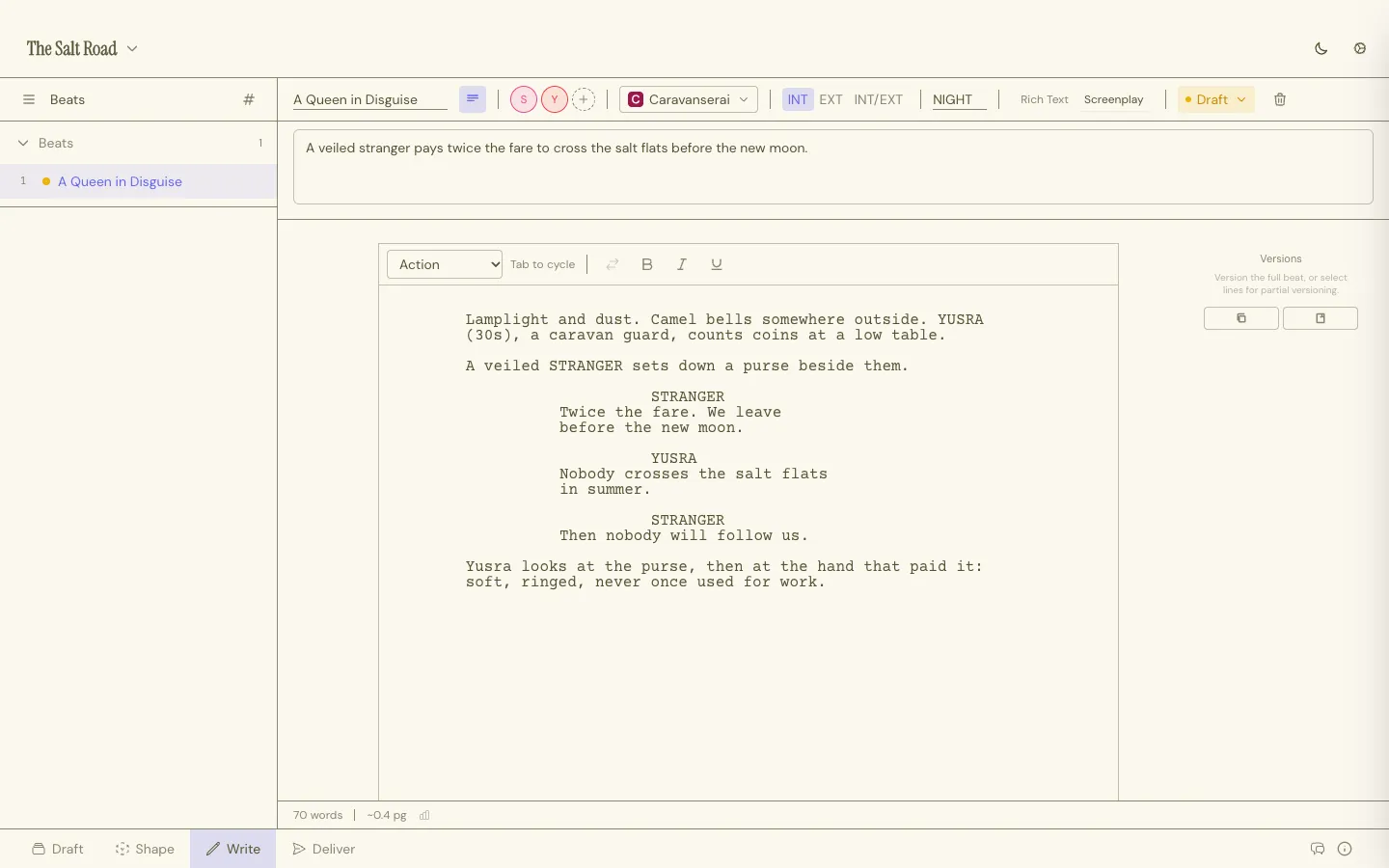 [Formatting & Elements](/docs/screenplay/formatting-and-elements/) covers every element, plus dual dialogue and scene numbering. ## Add the next scene [Section titled “Add the next scene”](#add-the-next-scene) Add another Beat from the sidebar and keep going. To move a scene, hover its row in the sidebar and drag it by its number. Unsure about a scene? **Duplicate** it into a second version, rewrite that one, and compare the two side by side (see [Scene Versions](/docs/screenplay/scene-versions/)). Wrote a line that belongs somewhere else? Select it and press `Shift+Cmd/Ctrl+K`. It moves out of the script and into your [Sparks inbox](/docs/core-concepts/sparks-inbox/) for later. ## See your story as cards [Section titled “See your story as cards”](#see-your-story-as-cards) Press `Cmd/Ctrl+1` for **Draft**. Every scene you wrote is already a Beat Card on the Throughline row, with its Characters and Setting cast onto it. It’s the same project seen from above, so there’s nothing to convert. Open the **Structure** tab in the right sidebar, pick a deck and hit **Add All** to deal the whole template onto the Throughline row. Stack each of your Beats under the Structure Card it fulfills, and you’ll see at a glance which parts of the structure your story already covers and which are still empty. 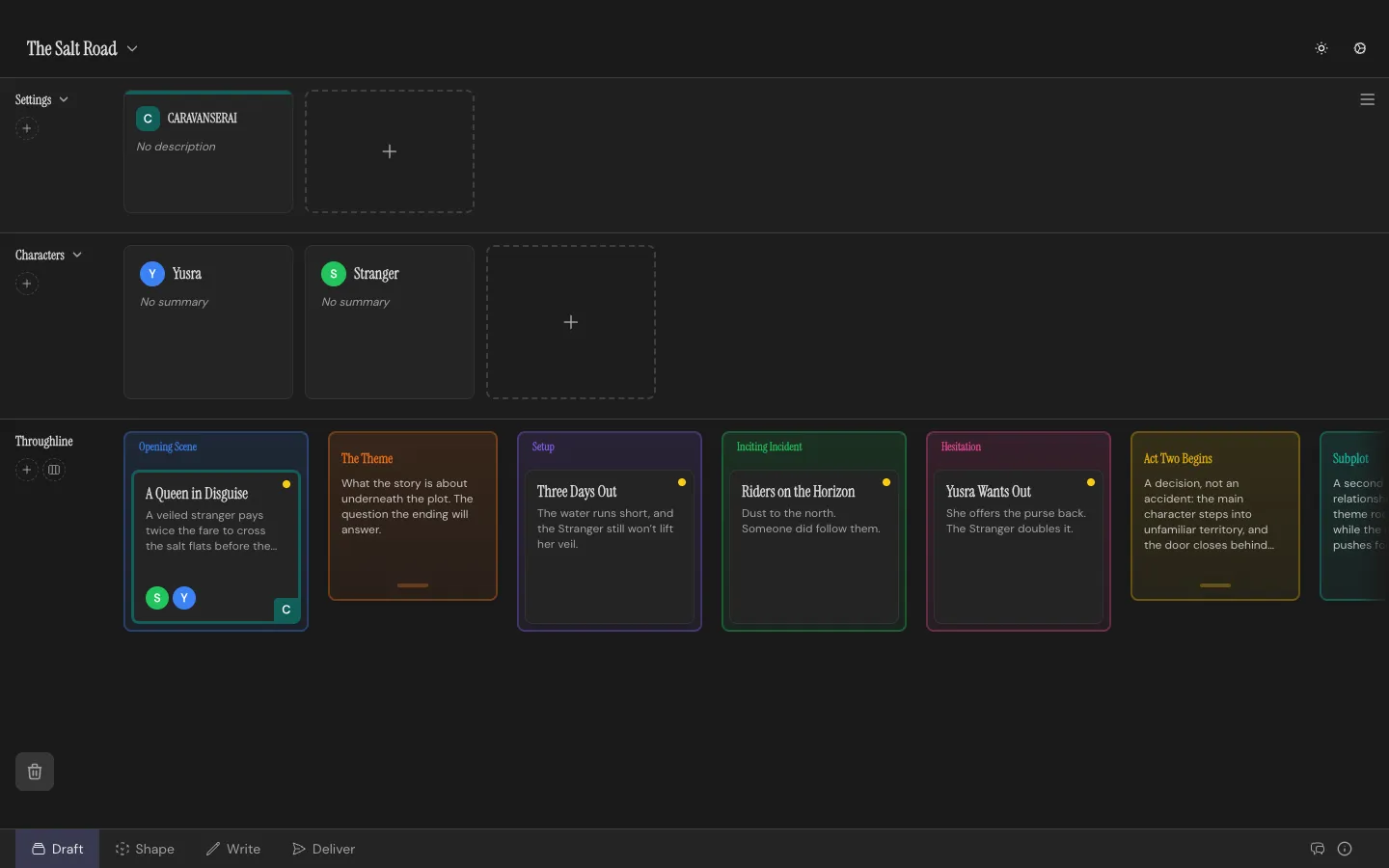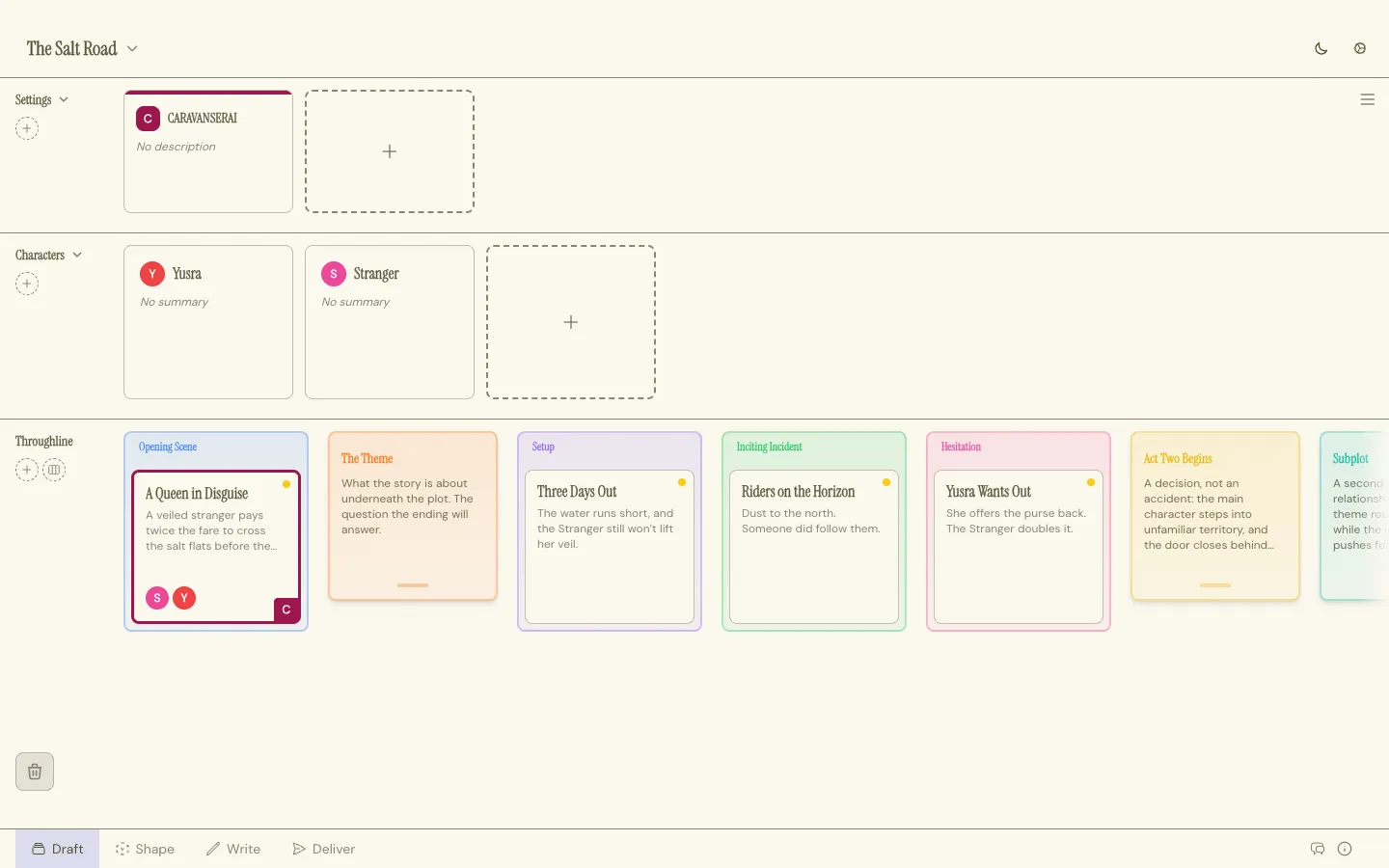 Rearranging the board rearranges the script: drag a Beat Card somewhere new and its scene moves in Write too. ## Chart its emotional shape [Section titled “Chart its emotional shape”](#chart-its-emotional-shape) `Cmd/Ctrl+2` opens **Shape**. Drag each Beat up or down between two Poles you name yourself (hope and despair, for example) and your plot becomes a curve. With two or more Beats charted, overlay a [Story Shape](/docs/core-concepts/story-shapes/) to compare yours with the classics. Switch to **Constellation** in the footer to map how your Characters feel about each other, Beat by Beat. 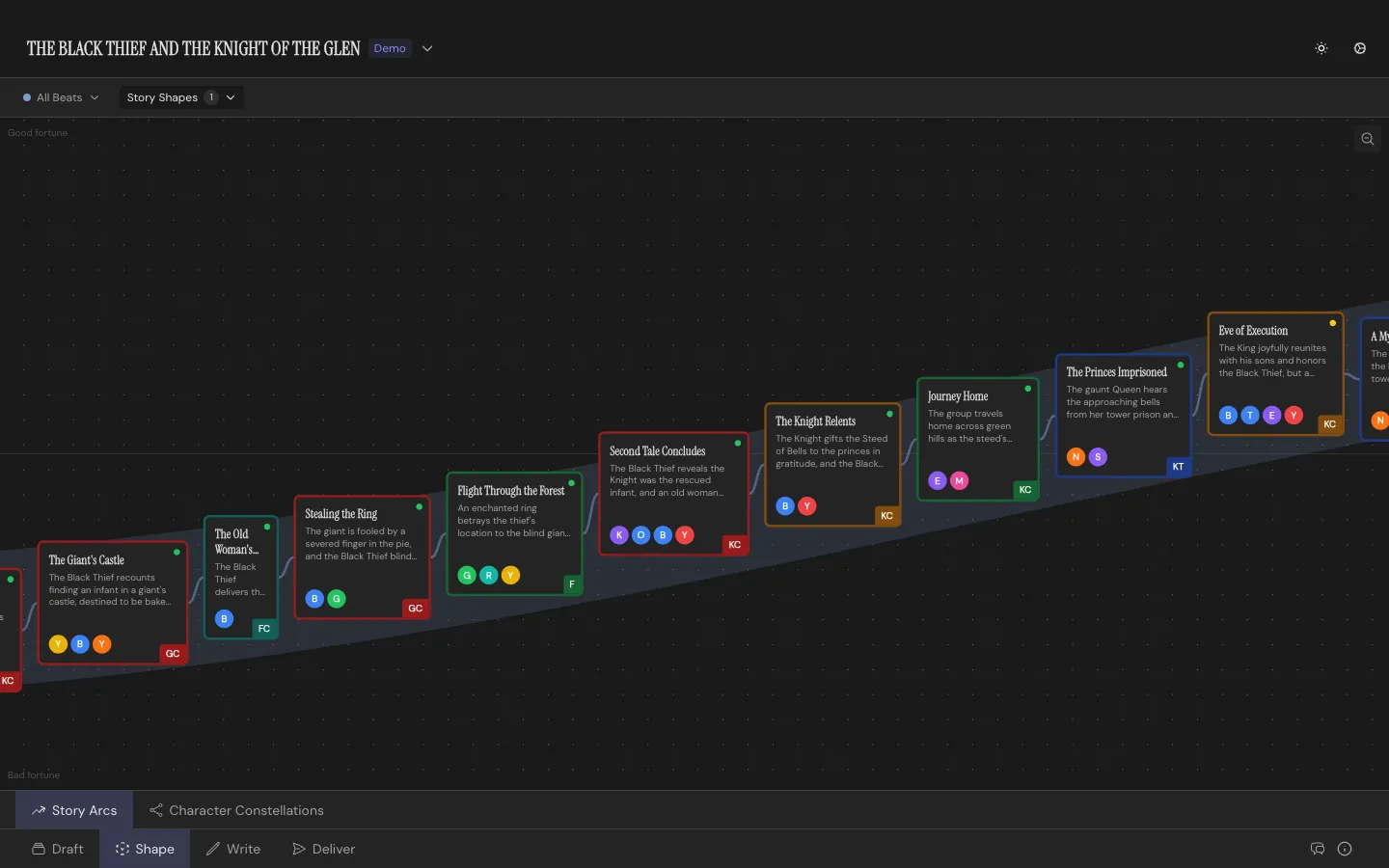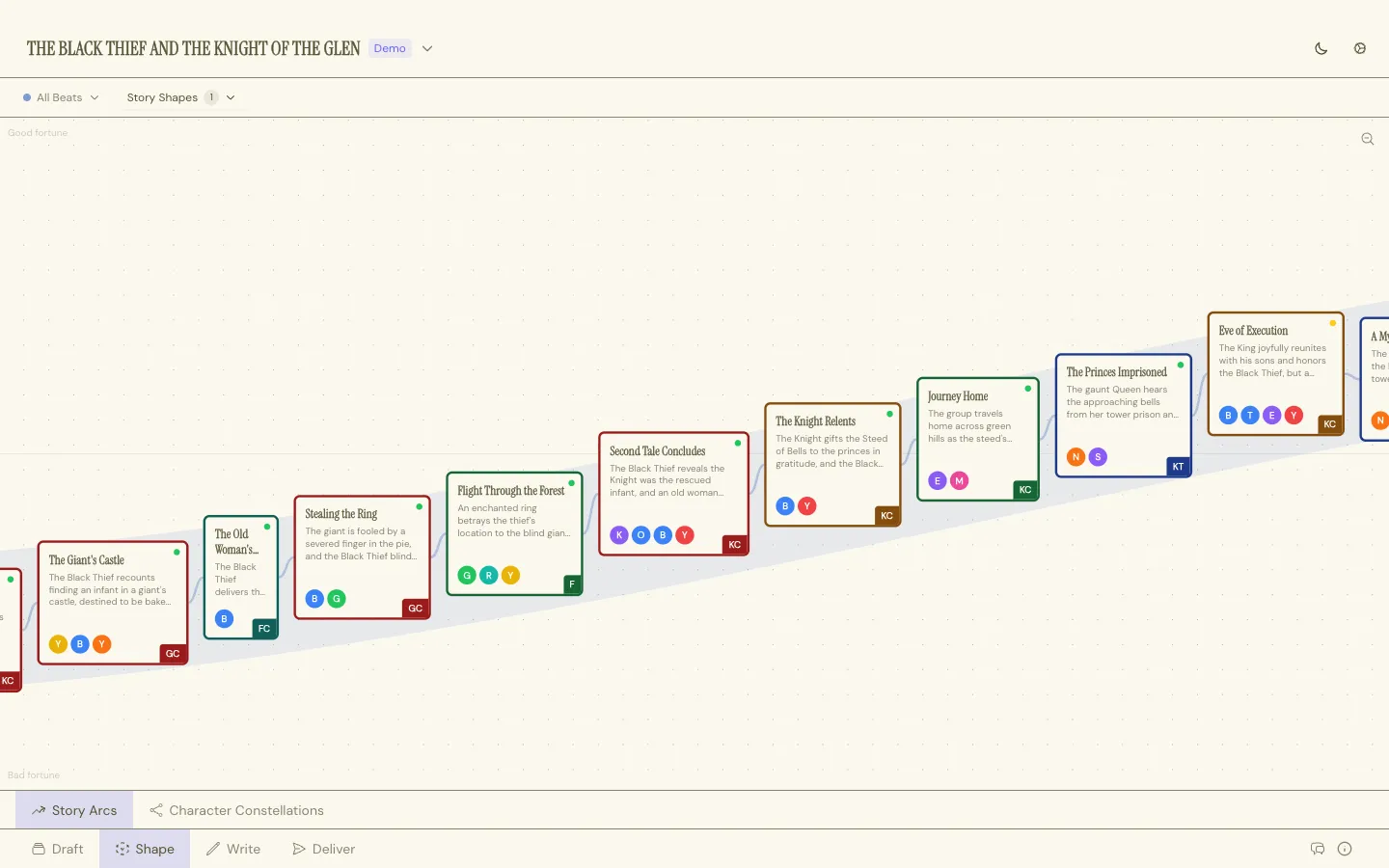 ## Deliver a screenplay PDF [Section titled “Deliver a screenplay PDF”](#deliver-a-screenplay-pdf) `Cmd/Ctrl+4` opens **Deliver**. Pick the Screenplay **PDF**, switch on the **Title page**, and fill it in under **Project Details** (`Cmd/Ctrl+P`): title, credit line and contact details. The preview shows exactly what you’ll get. Hit **Export** and you have an industry-standard script, ready to send. Fountain sits right next to it, for any other screenwriting app. 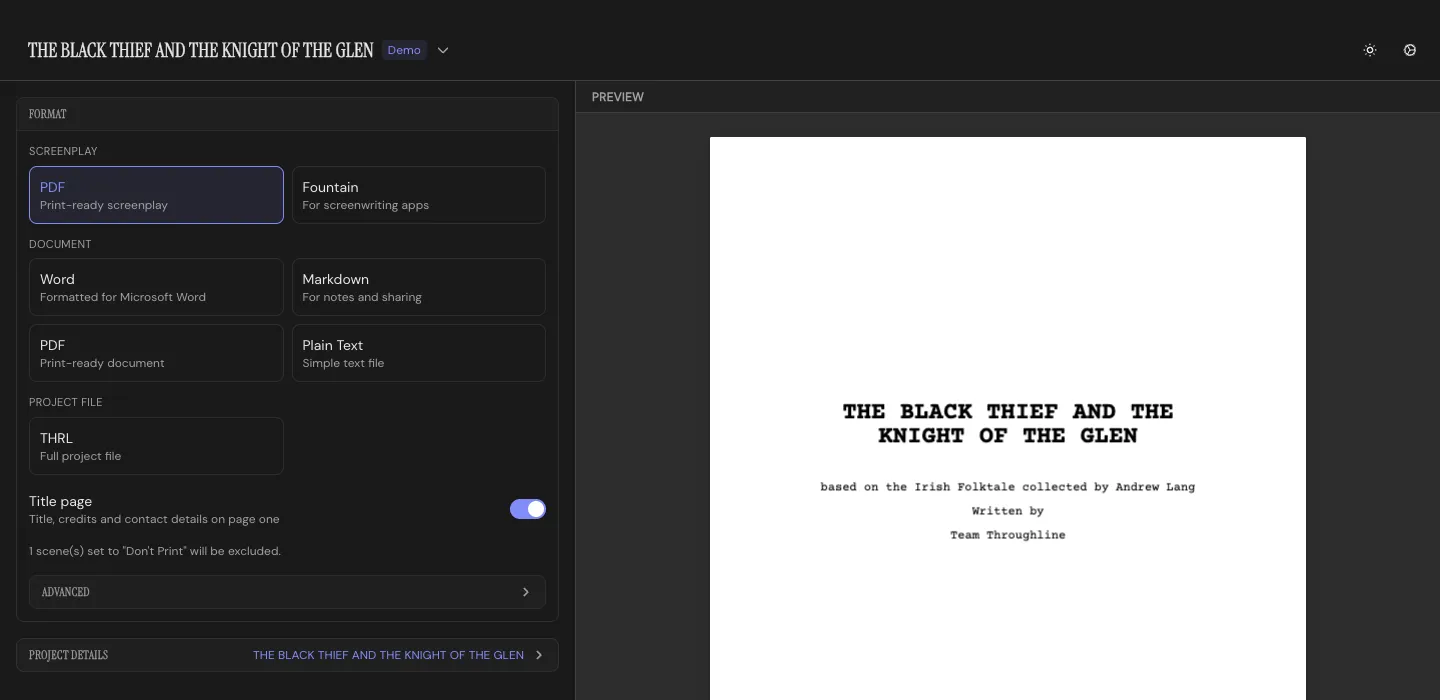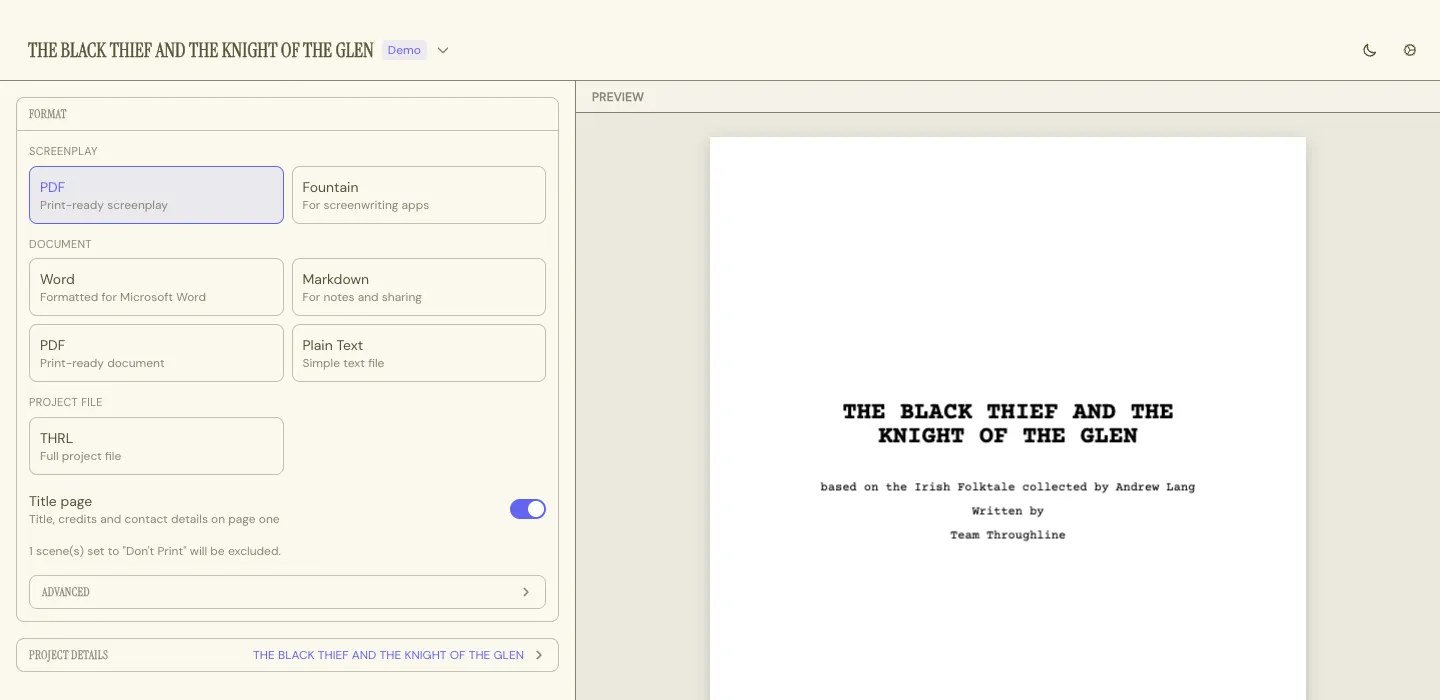 ## Where next [Section titled “Where next”](#where-next) * Press `?` anywhere in the app for every keyboard shortcut. * [Draft](/docs/workspaces/draft/) for everything the board can do, from Stacks to the recycling bin. * [Characters](/docs/core-concepts/characters/) for giving your cast a Want, a Need and a Flaw. * [Projects & Files](/docs/getting-started/projects-and-files/) for where your work lives and how autosaves work.
# Throughline and AI
> Throughline works with AI whenever you want it to. Your own AI app can read, understand and edit a whole story project through a self-describing project file and a three-tool connection for Claude and other AI apps. Throughline contains no AI model, and the writer stays in control of every change.
Throughline is a story development and screenwriting app for macOS and Windows. It keeps your story as structured data, not as one long block of text, and it explains that data to any AI that reads it. So when you bring AI into your work, a model can see the whole story the way you do, and help with it precisely. You never have to use AI. Throughline contains no AI model and runs no AI itself. The AI work happens in the AI app you choose, and the connection to it is off until you turn it on. ## Two ways to work with AI [Section titled “Two ways to work with AI”](#two-ways-to-work-with-ai) | Way | What it is | Where it runs | | ---------------------------------------------- | ----------------------------------------------------------------------------------------------------------- | -------------------------------------------- | | [The .thrl file](/docs/file-format/) | Your project file explains its own structure to any AI model you give it to. | Wherever you send the file | | [MCP: Connect AI Apps](/docs/connect-ai-apps/) | Claude Desktop, Claude Code, Cursor and other MCP apps read and edit the project open in Throughline, live. | The AI app on your computer and its provider | ## Your story as data an AI can understand [Section titled “Your story as data an AI can understand”](#your-story-as-data-an-ai-can-understand) A Throughline project is more than a script. It holds the parts of a story that a model needs to reason about it: * **Beats in story order**, each with a title, a summary, its cast, its setting and its scene text. * **Structure cards** that say what each part of the story must do, with the Beats that fulfill them. * **Characters** with a summary, what they want, what they need and the flaw in their way. * **Relationships** as feelings in both directions, such as “distrusts” or “is indebted to”, and how those feelings change from Beat to Beat. * **Arcs**: each plotline between two poles you name, with an emotional charge from -1 to 1 at every Beat. * **Settings**, grouped into piles, and **Sparks**, your inbox of loose ideas. An AI model that reads this can answer questions such as “where does the second act sag?”, “when does Nina stop trusting her father?” or “which Beats never move the B-story?” from the story itself. ## A file that explains itself [Section titled “A file that explains itself”](#a-file-that-explains-itself) Every `.thrl` file carries a guide written for AI readers. It holds the rules of the story model, the story order already worked out, the number the writer sees beside each Beat, and the names behind every id. Give the file to any model you like, and it reads your project correctly without Throughline’s source code or a plugin. See [The .thrl File Format](/docs/file-format/). Scripts also travel as [Fountain](/docs/import-export/exporting/), the plain-text screenplay format that language models read and write well. ## An AI connection for precise editing [Section titled “An AI connection for precise editing”](#an-ai-connection-for-precise-editing) [MCP: Connect AI Apps](/docs/connect-ai-apps/) gives an AI app three tools: read the project, edit it, and open another project. Each tool carries the full rules of the story model, so the AI app knows them from its first call. * **Names in, names out.** The AI app refers to “Beat 12”, “Nina” or “Inciting Incident”, as you do. When a name fits more than one card, Throughline names the candidates instead of guessing. * **Whole story, any point in time.** The AI app reads relationships and the cast map at any Beat, and sees when each relationship starts and changes. * **Precise scene edits.** The AI app can fix one word or one line inside a scene. Your screenplay formatting stays exactly as it is. * **One batch, one undo step.** The AI app sends its edits in batches. If one edit can’t be made, none of them are. Press Cmd+Z to take a batch back, or ask the AI app to take back its last batch itself. * **Clean layouts.** Throughline lays out the Constellation and the Arcs by its own rules and reports anything that crowds. Layout never blocks a story edit. * **You watch it happen.** Every change shows live in the app and saves to your file like your own edits. ## The writer stays in control [Section titled “The writer stays in control”](#the-writer-stays-in-control) * **Off by default.** The AI connection has its own switch in **Settings → AI Apps**, and it stays off until you turn it on. * **Your AI app, your choice.** Throughline contains no AI model, and there is no Throughline AI service. Use Claude Desktop, Claude Code, Cursor or any other MCP app you already have. It works with its own provider, under its own terms. * **You decide.** Every change from a connected AI app can be undone. AI output can be wrong or incomplete, and it can resemble existing work, so read it before you keep it. What you do with it is your call and your responsibility. * **Your files.** Projects are ordinary files that you save wherever you like. Throughline works offline and needs no account. ## Quick facts [Section titled “Quick facts”](#quick-facts) * Platforms: macOS and Windows. * Project file: `.thrl`, one file per project, with a built-in guide for AI readers. * AI connection: Model Context Protocol (MCP), three tools, local to your computer, off by default. * Built-in AI: none. Throughline contains no AI model and runs no AI itself. * Screenplay import: Fountain, Final Draft (`.fdx`), PDF and plain text. * Screenplay export: PDF and Fountain. Document export: Markdown, Word and PDF. * The full manual as plain text for AI tools: [llms-full.txt](/docs/llms-full.txt), or the shorter [llms-small.txt](/docs/llms-small.txt).
# MCP: Connect AI Apps
> Let Claude Desktop, Claude Code, Cursor and other MCP apps read and edit the project open in Throughline, with every change undoable.
Throughline can work with the AI app you already use. Turn on the connection, and Claude Desktop, Claude Code, Cursor or any other app that speaks the Model Context Protocol (MCP) can read your open project and work on it with you: plan Beats, build Characters and Settings, arrange piles, set Arc charges, lay out the Constellation and write scenes. You watch every change happen live in the app, and you can undo each one. ## Off until you turn it on [Section titled “Off until you turn it on”](#off-until-you-turn-it-on) The connection is off by default. Turn it on under **Settings → AI Apps → MCP: Connect AI Apps → Allow connections**. The status line shows when it’s running. 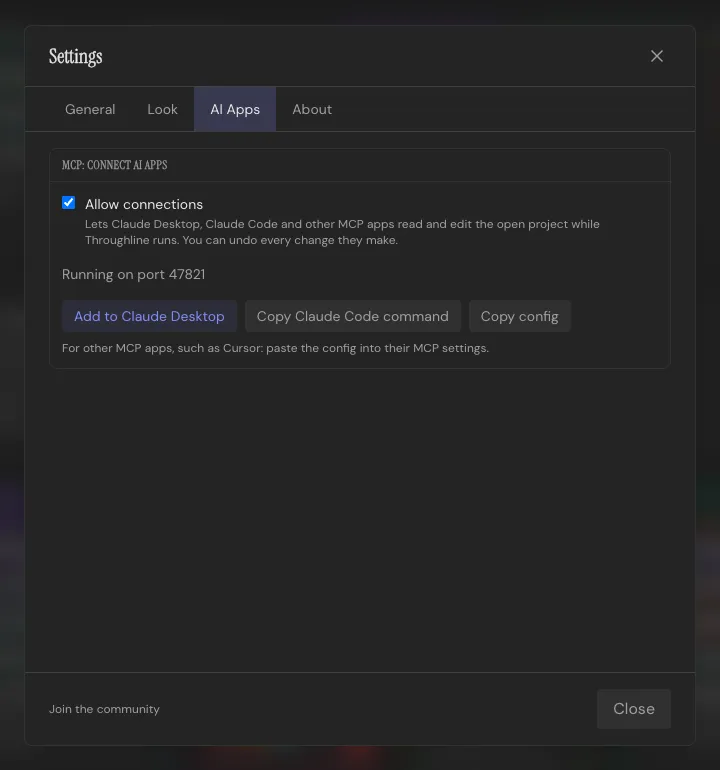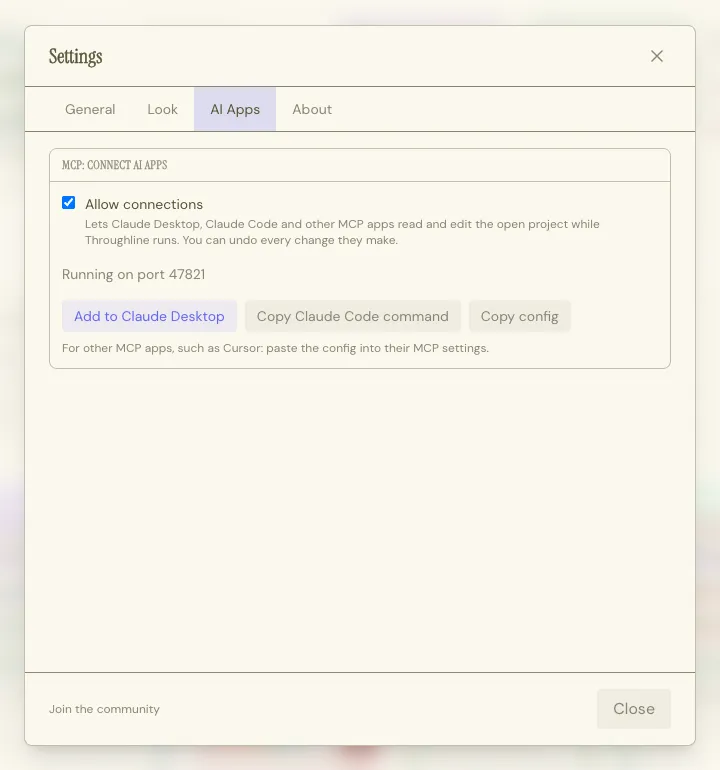 ## Connect Claude Desktop [Section titled “Connect Claude Desktop”](#connect-claude-desktop) 1. Turn on **Allow connections**. 2. Click **Add to Claude Desktop**. 3. Restart Claude Desktop. Claude now lists Throughline among its tools. Ask it something like “Read my project in Throughline and suggest where the second act sags.” On a Mac, move Throughline to your Applications folder first and open it from there. Throughline tells you if it needs this. If **Add to Claude Desktop** can’t find Claude Desktop, click **Copy config**, then open Claude Desktop’s **Settings → Developer → Edit Config** and paste the `Throughline` entry into `mcpServers`. ## Connect Claude Code, Cursor and other apps [Section titled “Connect Claude Code, Cursor and other apps”](#connect-claude-code-cursor-and-other-apps) * **Claude Code**: click **Copy Claude Code command** and run it in your terminal. * **Cursor and other MCP apps**: click **Copy config** and paste it into the app’s MCP settings. No subscription? Command-line apps such as Antigravity CLI (Gemini), Claude Code and Codex CLI can run on your own API key. See [MCP with an API Key](/docs/connect-with-api-key/). To keep everything on your computer, run a model locally with LM Studio or Ollama: see [MCP with a Local Model](/docs/connect-local-model/). ## Permissions [Section titled “Permissions”](#permissions) Throughline gives AI apps three tools: one to read the project, one to edit it, and one to open another project. Claude Desktop asks you once for each tool the first time it’s used, so you’ll see at most three prompts. In Claude Code, you can allow all three at once: run `/permissions` and add the rule `mcp__Throughline`. ## How it works [Section titled “How it works”](#how-it-works) * **Throughline must be running.** The AI app talks to the open app, not to your files. If Throughline is closed, the AI app says so. * **It works on the open project.** The AI app can list your recently opened projects and open another one, the same way you would from the Home screen. It sees your [folders](/docs/getting-started/projects-and-files/#folders) too, so you can say “open the pilot in my Season 2 folder”. * **Every change is yours to keep or undo.** The AI app sends its edits in batches, and each batch is one undo step. Press Cmd+Z (Ctrl+Z on Windows) to take it back. The AI app can also take back its own last batch, as long as you haven’t edited since. If one edit in a batch can’t be made, Throughline makes none of them. Switching projects clears the undo history, as usual. * **Layout never blocks your story edits.** If the AI app can’t lay out the Constellation or an Arc cleanly, it gets a warning and keeps the rest of the batch. * **Changes save like your own edits.** They land in your `.thrl` file through autosave. * **Your typing wins.** If the AI app writes into the scene you’re typing in, your unsaved typing is kept. Undo brings the AI’s version back if you want it. ## Easy for AI apps to use [Section titled “Easy for AI apps to use”](#easy-for-ai-apps-to-use) * **The rules come with the tools.** Each tool explains Throughline’s story model, so the AI app knows how Beats, piles, relationships and Arcs work from its first call. * **Names in, names out.** The AI app refers to Beats by number or title and to Characters, Settings and Arcs by name, as you do. When a name fits more than one card, Throughline lists the candidates instead of guessing. * **The whole timeline.** The AI app sees when each relationship starts, how its feelings change and where it ends. * **Clear results.** Each edit reports what changed, including the feelings it replaced, so the AI app can explain its work to you. ## What the AI app can do [Section titled “What the AI app can do”](#what-the-ai-app-can-do) * **Read**: your Home screen list with its folders, the project overview, Beats in story order, full scene text, Characters and how their relationships change across the story, Settings with their piles, Arcs with their charges and card widths, Sparks, and the recycling bin. * **Create and edit**: Beats, Characters, Settings, Sparks, structure cards, project details and relationships. It writes scenes in Fountain for screenplay projects and in prose for rich text projects, and it can fix a single word or line without rewriting the scene. Your formatting stays as it is. * **Arrange**: move Beats and structure cards, pile and unpile them, reorder Settings and Characters. * **Recycle and restore**: send cards to the recycling bin and bring them back. * **Shape**: create Arcs, name and shape the All Beats Arc, add or remove Beats, set emotional charges, set each Beat’s card width to show how long it lasts, and space an Arc’s Beats evenly again. * **Constellation**: lay out the cast by Throughline’s layout rule or move single Characters. It checks that no two Characters or relationship labels cover each other. ## Privacy [Section titled “Privacy”](#privacy) The connection stays on your computer. Throughline opens it only to apps running on the same machine, and only while the switch is on. Throughline contains no AI model and sends nothing to an AI provider itself. The AI app you connect is a separate program. What it reads from your project goes to its own AI provider under that app’s terms. For example, Claude Desktop sends it to Anthropic. Browser-based apps such as claude.ai or ChatGPT on the web can’t reach a desktop app, so they can’t connect. ## Troubleshooting [Section titled “Troubleshooting”](#troubleshooting) * **“Throughline is not running, or its MCP connection is off.”** Open Throughline and check that **Allow connections** is on. * **“Throughline did not answer in time.”** If Throughline’s window is minimized or hidden, bring it to the front and try again. * **“No project is open.”** Open a project in Throughline, or ask the AI app to open one. * **“Throughline is asking the writer about a file change.”** Your `.thrl` file changed outside the app. Answer the dialog in Throughline, then try again.
# The .thrl File Format
> The .thrl project file format: one file holding your entire story, saved wherever you choose, with its autosaves right next to it.
`.thrl` is Throughline’s own project format: one file holding everything: Beats, Characters, Settings, Structures, Arcs, Sparks, and even your recycling bin. Every project you work on is a `.thrl` file saved wherever you choose, so your whole project is always portable, shareable, and ready to open on any other Throughline install. See [Projects & Files](/docs/getting-started/projects-and-files/) for how creating, opening, and saving work. ## No lock-in [Section titled “No lock-in”](#no-lock-in) Your project already is the file, and it contains all the data of your project. It also notes which copy of Throughline saved it last, so two writers’ copies can be [merged](/docs/lab/merge-projects/) later. Need a separate copy to send someone? Use **Duplicate…**, or export a `.thrl` from the Deliver Workspace. ## Readable by any AI [Section titled “Readable by any AI”](#readable-by-any-ai) Every `.thrl` file carries a guide written for AI readers, so your story can be fully understood and processed by an LLM of your choice. The guide holds: * **The rules of the story model**: how Beats pile under Structure Cards, how relationships and their feelings change from Beat to Beat, what an Arc’s charge means, and how Sparks become cards. * **The story order**, already worked out, so a model never has to sort the Beats itself. * **The Beat numbers** you see in the app, so a model talks about “Beat 12” exactly as you do. * **The names behind every id**, for Characters and Beats. Throughline writes the guide fresh with every save and ignores it when it opens a file, so it never gets in the way. Old `.thrl` files always open in newer versions of Throughline. See [Throughline and AI](/docs/throughline-and-ai/) for all the ways AI can work with your project. ## Autosaves [Section titled “Autosaves”](#autosaves) Throughline keeps regular autosaves of your open project in a folder named `_autosaves`, right next to your `.thrl` file. Pick an interval (5, 10, 15, 30 minutes, 1 or 2 hours, or once a day) and how many to keep, both in **Settings → General → Autosaves**. Every autosave is itself a normal `.thrl` file: double-click one to open it as its own project. Copies kept because of a decision, such as `(legacy THRL 1.5)` or `(changed elsewhere)`, carry that label in their name and are never deleted automatically. **Restore from Autosave**, in the project menu, lists your autosaves by time. Restoring keeps your current state in the autosaves folder first, so you can always go back. See [Autosaves](/docs/getting-started/projects-and-files/#autosaves) for the details.
# Community & Feedback
> Where to send a bug report, a feature idea, or just say hello.
Throughline is built by writers, not a faceless company, which means feedback reaches someone who can act on it. ## Discord [Section titled “Discord”](#discord) Owners get an invite to the Throughline Discord right in the app: open **Settings** and click **Join the community** at the bottom. It’s a place to swap notes with other writers, get early looks at what’s coming, and help shape where Throughline goes next. ## Documentation [Section titled “Documentation”](#documentation) The book icon in the bar at the bottom of the app opens these docs. On macOS, you’ll also find them under **Help → Documentation**. ## Email [Section titled “Email”](#email) For a bug, a question, or anything you’d rather not put in Discord, reach the team at [support at peak-state.com](#). ## Reporting a bug [Section titled “Reporting a bug”](#reporting-a-bug) The more specific, the faster it gets fixed: what you were doing right before it happened, what you expected, and what actually happened. A screenshot helps more than a paragraph most of the time.
# MCP with a Local Model
> Connect Throughline to an AI model running on your own computer with LM Studio or Ollama, so your story never leaves your machine. No subscription, no API key.
You can connect Throughline to an AI model that runs entirely on your own computer. Nothing goes to an AI provider, there’s no subscription and no API key, and it works offline. The connection is the same [MCP connection](/docs/connect-ai-apps/) that Claude Desktop uses. You need an app that runs the model and speaks MCP. LM Studio does both. Ollama runs the model, and a small extra app adds MCP. ## What to expect [Section titled “What to expect”](#what-to-expect) Local models are smaller than Claude, Gemini or GPT, and it shows. * **They make more mistakes with tools.** Throughline’s tools carry the full rules of its story model, and a small model can misread them. Start with questions about your story before you let it edit. Every batch of changes can be [undone](/docs/connect-ai-apps/#how-it-works), and if one edit in a batch fails, none of them land. * **Pick a model that supports tool calling.** A model without it answers in plain text and never touches your project. * **Give it a large context window.** The tool rules alone are long, and a feature-length project is longer. Set the context length to at least 32,000 tokens, and more if your computer can handle it. If the model forgets things or stops mid-answer, the context is too short. * **It needs a capable computer.** A Mac with Apple silicon and plenty of memory, or a PC with a recent graphics card, runs mid-size models well. On smaller machines, answers can be slow. ## Before you start [Section titled “Before you start”](#before-you-start) * Turn on **Settings → AI Apps → MCP: Connect AI Apps → Allow connections** in Throughline. * Keep Throughline running with your project open. * On a Mac, open Throughline from your Applications folder.  ## LM Studio [Section titled “LM Studio”](#lm-studio) [LM Studio](https://lmstudio.ai/) is a free desktop app for downloading and running local models. It supports MCP from version 0.3.17. 1. Install LM Studio and download a model that supports tool calling. 2. Load the model and set its **Context Length** to at least 32,000 tokens. 3. In Throughline, under **Settings → AI Apps**, click **Copy config**. 4. In LM Studio, open the **Program** tab in the right-hand sidebar, then choose **Install → Edit mcp.json**. 5. Paste the `Throughline` entry into `mcpServers` and save. 6. Start a new chat. Throughline appears among LM Studio’s tools. LM Studio asks before the model runs a tool. Approve each call, or allow it for the rest of the chat. ## Ollama [Section titled “Ollama”](#ollama) [Ollama](https://ollama.com/) runs models from the command line but doesn’t speak MCP itself. Add [ollmcp](https://pypi.org/project/mcp-client-for-ollama/), a free terminal chat app that connects Ollama models to MCP servers. 1. Install Ollama and pull a model that supports tool calling. 2. Install ollmcp:
```sh
pip install --upgrade ollmcp
```
3. In Throughline, under **Settings → AI Apps**, click **Copy config**. Save the whole config as a file, for example `throughline-mcp.json` in your home folder. 4. Start ollmcp with that file and your model:
```sh
ollmcp --servers-json ~/throughline-mcp.json --model your-model-name
```
5. Type `/mc` and set `num_ctx` to at least 32,000. ollmcp asks before each tool call. Answer `y` to run it, or `s` to allow the rest of that request. If you already connected Claude Desktop, `ollmcp --claude-desktop` reuses its Throughline entry, and you can skip step 3. ## Privacy [Section titled “Privacy”](#privacy) With a local model, your project stays on your computer. Throughline sends it only to the app on the same machine, and that app sends it only to the model running beside it. Check that your app is really running the model locally. Some apps can also use cloud models, and those send what they read to their provider. ## Other options [Section titled “Other options”](#other-options) * **Prefer a cloud model on your own key?** See [MCP with an API Key](/docs/connect-with-api-key/). * **Other local apps**: any app that runs a local model and speaks MCP can connect. Click **Copy config** in Throughline and add the `Throughline` entry wherever the app keeps its MCP servers.
# MCP with an API Key
> Connect Throughline to Gemini, Claude or OpenAI models with your own API key instead of a subscription, using a command-line AI app such as Antigravity CLI, Gemini CLI, Claude Code or Codex CLI.
You don’t need a Claude or ChatGPT subscription to work with AI in Throughline. A command-line AI app on your computer can connect to Throughline over [MCP](/docs/connect-ai-apps/) and run on your own API key, so you pay the AI provider per use instead. This works well as a backup, too. If your usual AI app is down or you’ve hit its usage limit, a second app on an API key can pick up the same project. Throughline itself never asks for or stores an API key. The key belongs to the AI app. Throughline only provides the connection. ## Before you start [Section titled “Before you start”](#before-you-start) * Turn on **Settings → AI Apps → MCP: Connect AI Apps → Allow connections** in Throughline. * Keep Throughline running with your project open. The AI app talks to the open app, not to your files. * Run the AI app on the same computer as Throughline. The connection is local only. * On a Mac, open Throughline from your Applications folder.  ## Gemini: Antigravity CLI [Section titled “Gemini: Antigravity CLI”](#gemini-antigravity-cli) Google’s command-line AI app is Antigravity CLI (`agy`). It replaced Gemini CLI for most users in 2026. With a Gemini API key, it runs on Google’s Gemini API, including the fast, inexpensive Flash models. ### 1. Install it and add your key [Section titled “1. Install it and add your key”](#1-install-it-and-add-your-key) 1. Install Antigravity CLI by following [Google’s install guide](https://antigravity.google/docs/install?tab=cli). 2. Create a Gemini API key in [Google AI Studio](https://aistudio.google.com/apikey). 3. Tell Antigravity CLI to use the Gemini API. Open (or create) `~/.gemini/antigravity-cli/settings.json` and add:
```json
{
"modelProvider": "gemini"
}
```
4. Save your key as the environment variable `GEMINI_API_KEY`. * **macOS**: add this line to `~/.zshrc`, then open a new Terminal window:
```sh
export GEMINI_API_KEY="your-api-key"
```
* **Windows**: run this in PowerShell, then open a new PowerShell window:
```powershell
setx GEMINI_API_KEY "your-api-key"
```
Both steps are needed. The key alone does nothing until `modelProvider` is set, and with `modelProvider` set, Antigravity CLI won’t start without the key. ### 2. Connect it to Throughline [Section titled “2. Connect it to Throughline”](#2-connect-it-to-throughline) 1. In Throughline, under **Settings → AI Apps**, click **Copy config**. 2. Open `~/.gemini/config/mcp_config.json` (on Windows, `%USERPROFILE%\.gemini\config\mcp_config.json`). * If the file doesn’t exist yet, create it and paste the whole config. * If it already exists, paste the `Throughline` entry into its `mcpServers`. 3. Start Antigravity CLI with `agy`, then type `/mcp`. Throughline should show as active. Now ask it something like “Read my project in Throughline and list the Beats where the B-story doesn’t move.” ### 3. Permissions [Section titled “3. Permissions”](#3-permissions) Antigravity CLI asks before each Throughline tool it uses. To allow all of them at once, add a `permissions` rule to the same `settings.json` from step 1:
```json
{
"modelProvider": "gemini",
"permissions": {
"allow": ["mcp(Throughline/*)"]
}
}
```
Every change is still yours to [undo](/docs/connect-ai-apps/#how-it-works) in Throughline. ### Still on Gemini CLI? [Section titled “Still on Gemini CLI?”](#still-on-gemini-cli) If you already use Gemini CLI with a `GEMINI_API_KEY`, it connects the same way. Click **Copy config** in Throughline and paste the `Throughline` entry into `mcpServers` in `~/.gemini/settings.json`. Type `/mcp` in Gemini CLI to check the connection. ## Claude: Claude Code [Section titled “Claude: Claude Code”](#claude-claude-code) [Claude Code](https://code.claude.com/docs) can run on an Anthropic API key instead of a Claude subscription. Create a key in the [Claude Console](https://console.anthropic.com/), then either sign in to Claude Code with your Console account or set the key as `ANTHROPIC_API_KEY`. Then connect it as usual: click **Copy Claude Code command** in Throughline and run it in your terminal. See [Connect Claude Code, Cursor and other apps](/docs/connect-ai-apps/#connect-claude-code-cursor-and-other-apps). ## OpenAI: Codex CLI [Section titled “OpenAI: Codex CLI”](#openai-codex-cli) [Codex CLI](https://developers.openai.com/codex) can run on an OpenAI API key. Sign in with your key as OpenAI’s Codex docs describe. Codex adds MCP servers the same way Claude Code does. Click **Copy Claude Code command** in Throughline, paste it into your terminal, change `claude` at the start to `codex`, and run it:
```sh
codex mcp add Throughline -- "/Applications/Throughline.app/Contents/MacOS/throughline" --mcp
```
The path in your copied command is the right one for your computer. Codex keeps its servers in `~/.codex/config.toml`. ## Other AI apps [Section titled “Other AI apps”](#other-ai-apps) Any AI app that speaks MCP and accepts your own API key can connect. Click **Copy config** in Throughline and add the `Throughline` entry wherever the app keeps its MCP servers. To skip the provider altogether, run a model on your own computer. See [MCP with a Local Model](/docs/connect-local-model/). Browser-based apps such as Google AI Studio, claude.ai or ChatGPT on the web can’t reach a desktop app, so they can’t connect. ## Cost and privacy [Section titled “Cost and privacy”](#cost-and-privacy) * **You pay per use.** With an API key, the provider bills you for what the AI app reads and writes. Reading a whole feature-length project uses many more tokens than a short prompt. Check your provider’s prices and set a spending limit in its console. * **Your project goes to that provider.** What the AI app reads from Throughline goes to the provider behind your key, under that provider’s API terms. Those terms can differ between free and paid tiers, including whether what you send may be used to improve the provider’s products. Read them before you share unpublished work. * **Keep your key private.** Don’t paste it into a project, a script or a shared file.
# Beat Cards
> The building block of your story: what a Beat Card holds and how it connects to everything else.
A Beat Card is a span of time in your story. In a screenplay, we recommend treating them like scenes. In a novel, they can represent chapters or even just important moments. In the Draft Workspace, you can order them by stacks and group them using Structure Cards. In the Shape Workspace, you can position them along emotional Arcs. ## What’s on a Beat [Section titled “What’s on a Beat”](#whats-on-a-beat) A single Beat holds: * **Title** * **Summary**: a short single or multi-line text which is shown on the card. * **Content**: the full text of your story, which can be seen and edited in the Write Workspace. * **INT/EXT and time of day**, for scene-heading purposes * **Status**: Draft, Done, or Don’t Print Mark a Beat as “Don’t Print” and it’s skipped by most exports, without you having to delete it. Good for a scene that’s still too rough, or that you’re not sure survives the cut but aren’t ready to lose yet. Beyond that, each Beat can be associated with: * **Characters**: multiple Characters, shown as round chips * **Setting**: one Setting, its colored “sleeve” 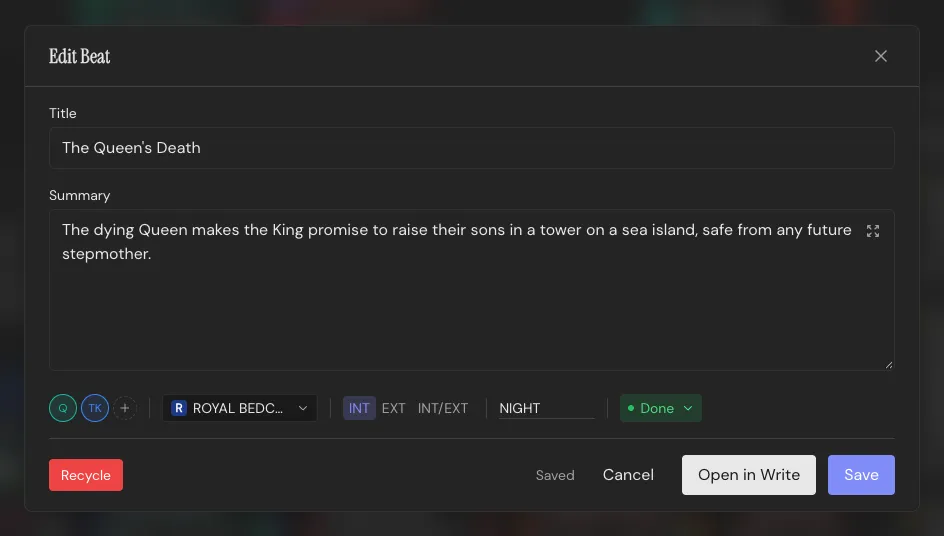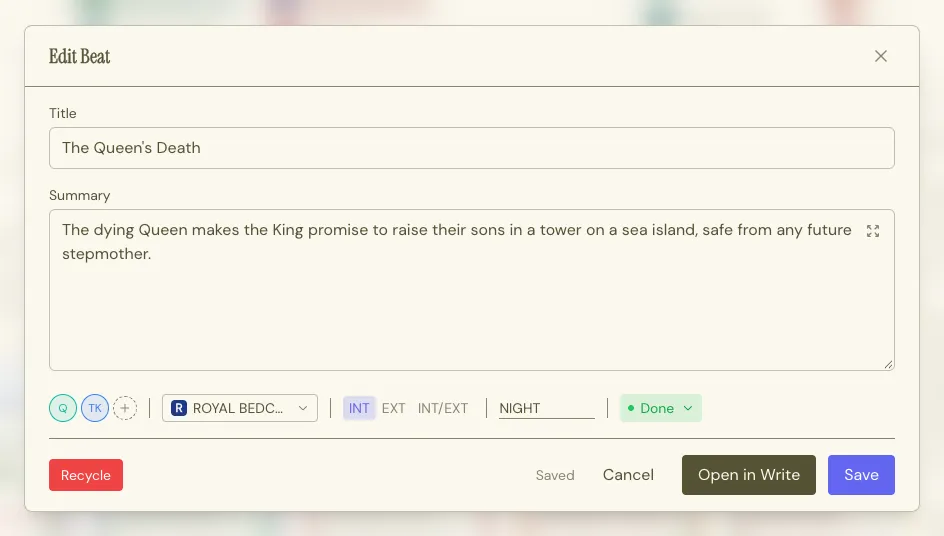 ## Casting a Beat [Section titled “Casting a Beat”](#casting-a-beat) Characters and Settings live in their own rows above the Throughline in the Draft Workspace. Drag a Character Card or chip down onto a Beat and they’re associated with it; drag a Setting Card and it becomes the Beat’s Setting, visible as its colored sleeve. You can also manually enter Character names and Settings in the Beat dialog, or in the Beat’s top bar in the Write Workspace. See [Characters](/docs/core-concepts/characters/) and [Settings](/docs/core-concepts/settings/) for what those cards hold. ## Stacking [Section titled “Stacking”](#stacking) Drop a Beat directly onto another Beat, or onto a Structure Card, and it stacks. Stacks can be expanded and collapsed with the control on the left of the Throughline in the Draft Workspace. See [Structure Decks](/docs/core-concepts/structure-decks/) for the template side of that relationship, and [Draft](/docs/workspaces/draft/) for the full board.
# Characters
> Who your story happens to: what a Character Card holds, and how you cast one into a Beat.
Characters live in their own row above the Throughline in the Draft Workspace. Create a Character Card, then drag it or its chip down onto a Beat to cast it there. ## What’s on a Character [Section titled “What’s on a Character”](#whats-on-a-character) A Character Card holds: * **Name** * **Color**, which follows them everywhere: their chip, their dialogue highlighting in the Write Workspace, their node in the Shape Workspace’s Constellation * **Summary** * **Want, Need and Flaw**: what they’re chasing on the surface, what they actually require, and what’s preventing them from getting it 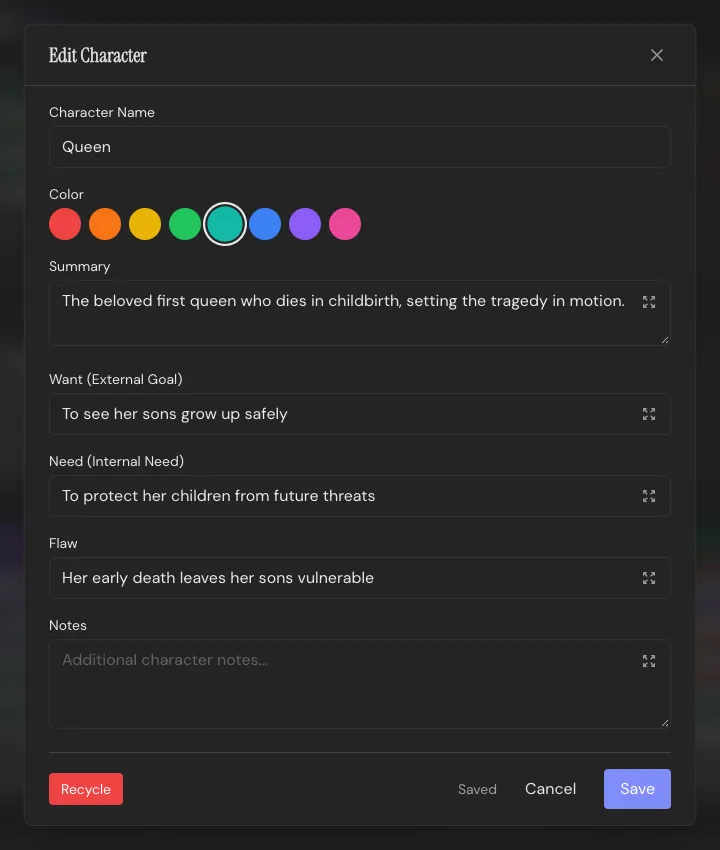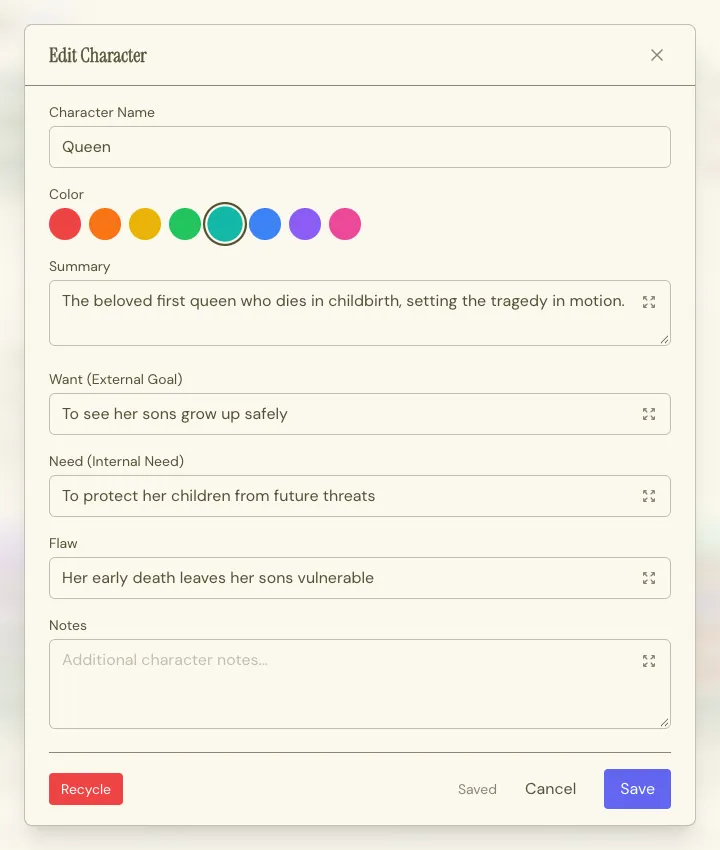 ## Casting [Section titled “Casting”](#casting) Drag a Character Card or its chip onto a Beat and they’re in the cast for that scene. The Beat lights up while you hover over it, so you can see where the Character lands. A Beat can hold as many Characters as you need. You can also enter Character names manually in the Beat dialog, or in the Beat’s top bar in the Write Workspace. Characters aren’t locked to one Beat. Cast the same Character into every scene they appear in; the relationship is just a drag, so restructuring later costs nothing. Remove a Character from a scene they still speak in, and Throughline asks who takes their lines there. Pick another Character, or type a new name to create one right in the dialog. Their cues and name mentions in that scene move over. Their lines in other scenes stay theirs. **Keep them in the scene** changes nothing, and a Character you typed there is not created. One undo (`Cmd/Ctrl+Z`) brings the old Character back into the scene and removes a Character you created there. ## In the Constellation [Section titled “In the Constellation”](#in-the-constellation) In the Shape Workspace’s Constellation, Characters are nodes you can connect to one another, with a relationship labelled in each direction. See [Shape](/docs/workspaces/shape/) for that side of it. ## In the script [Section titled “In the script”](#in-the-script) Character names autocomplete in the Write Workspace, and `(V.O.)` and `(O.S.)` cues stay attached to whichever Character they belong to. Rename a Character and Throughline offers to rename them throughout the script too, with a preview of how many scenes and lines are affected. A Character the script doesn’t name yet just takes the new name. See [Formatting & Elements](/docs/screenplay/formatting-and-elements/). ## Recycling [Section titled “Recycling”](#recycling) Drag a Character onto the recycling bin, or click **Recycle** in its editor, and it’s recycled, not gone. Open the bin and you can restore it exactly where it was. If the Character is still in a scene’s cast, speaks dialogue or has relationships, Throughline names the scenes and asks which Character takes them over. Pick one from the list, or type a new name to create one right in the dialog. Nothing is created until you confirm, so **Cancel** leaves the project as it was. Their cast places, dialogue cues and relationships move over. One undo (`Cmd/Ctrl+Z`) brings the old Character back and removes a Character you created there. Only when the project has no other Character can you recycle without a replacement: leave the name field empty. A typed name is then enough, without a click on **Create**, and the button names the new Character. Without a replacement, the dialogue lines keep the name, and the cast places and relationships are removed.
# Settings
> Where your story happens: what a Setting Card holds, and how it sleeves a Beat.
Setting Cards represent locations in your story. They live in their own row above the Throughline in the Draft Workspace, alongside [Characters](/docs/core-concepts/characters/). ## What’s on a Setting [Section titled “What’s on a Setting”](#whats-on-a-setting) A Setting Card holds: * **Title** * **Color**, used to wrap Beats * **Description** ## Casting [Section titled “Casting”](#casting) Drag a Setting Card onto a Beat and it becomes that Beat’s Setting, shown as a colored “sleeve” around the card. This works for a card out of a pile too. The Beat lights up while you hover over it, so you can see where the Setting lands. Unlike Characters, a Beat can only be associated with one Setting. You can also pick a Setting in the Beat dialog, or in the Beat’s top bar in the Write Workspace. ## Grouping [Section titled “Grouping”](#grouping) Drop a Setting onto another to stack it there, for example every room of a palace in one pile. With the Setting row collapsed to capsules, every Setting still gets its own capsule. A stack’s capsules sit close together, the card on top first, so you see every room at a glance and can open any of them with a click. With full cards, a stack shows as a pile. Turn on **Expand stacks** on the board and the stacked Settings spread out side by side, just like stacked Beats. Name them place first, then a dash and the room: “KING’S PALACE - GREAT HALL”. When cards in a pile are named after the place of the card on top, the pile shows that place once above it, and those cards show only their room. Hover a card to see its full title. Your titles stay as you wrote them, and scene headings and exports use them in full. ## In the script [Section titled “In the script”](#in-the-script) A Setting’s title feeds the location half of a scene heading, and stays linked. Change the Setting’s title later and the scene headings follow. See [Formatting & Elements](/docs/screenplay/formatting-and-elements/). ## Recycling [Section titled “Recycling”](#recycling) Drag a Setting onto the recycling bin and it’s recycled, not gone. Open the bin and you can restore it exactly where it was.
# Sparks Inbox
> Where a half-formed idea waits until it's ready to become a Beat, Character, or Setting.
Not every idea arrives ready to be a Beat, Character or Setting. A Spark is a scrap in your project’s inbox. ## Capturing one [Section titled “Capturing one”](#capturing-one) Open the Sparks inbox from the Draft Workspace sidebar, type, hit Enter. `Shift+Enter` gives you a line break if you need more than one line in a Spark. That’s it. For a longer idea, click the expand button in the corner of the field to write it full screen. There, Enter is a line break. Press `Esc` or click the close button to bring the text back to the field, then hit Enter to add it. While you write, you can also catch an idea straight from the script. In the Write Workspace, select the text, right-click it and choose **Save as Spark**, or press `Shift+Cmd/Ctrl+K`. The text moves out of the script and into a new Spark, with one line per screenplay element or paragraph. One undo puts it back. See [Write](/docs/workspaces/write/#saving-a-line-as-a-spark). New Sparks appear at the top of the inbox. ## Turning a Spark into a card [Section titled “Turning a Spark into a card”](#turning-a-spark-into-a-card) Drag a Spark onto any of the three rows and it becomes that kind of card: * Onto the **Throughline** and it becomes a Beat * Onto the **Character Row** and it becomes a Character * Onto the **Setting Row** and it becomes a Setting The Spark’s **first line becomes the new card’s name or title**, depending on the card type. A Character or Setting name keeps the first 50 characters. The rest becomes the Beat’s or Character’s summary, or the Setting’s description. For a Character, lines that start with `Want:`, `Need:`, `Flaw:` or `Notes:` fill those fields instead. Everything before the first such line is the summary. Sparks reorder within the inbox by dragging, same as anything else. ## Turning a card back into a Spark [Section titled “Turning a card back into a Spark”](#turning-a-card-back-into-a-spark) You can pull an existing card back into a Spark by dropping it on the inbox’s drop zone, useful when an idea you promoted too early needs to go back to being just an idea. The card’s name or title becomes the Spark’s first line, and its text follows below: * A **Beat** keeps its title and full summary. * A **Character** keeps its name, summary, Want, Need, Flaw and notes. Each field after the summary gets its own labelled line, such as `Want: the truth`. * A **Setting** keeps its title and description. Drag that Spark back onto the same row and you get the same text again. What a Spark can’t hold is lost, so Throughline asks before it converts a card that would lose something: * A **Beat** loses its Setting, its Characters, and any text you’ve written in it. * A **Character** loses its places in scenes, its dialogue lines and its relationships. Throughline names the scenes and asks which Character takes them over. Pick one, or type a new name to create one right in the dialog. Only when the project has no other Character can you convert without a replacement: leave the name field empty. The dialogue lines then keep the name, so they match again when the Character comes back. * A **Setting** loses the scenes set in it, and Throughline names them. If the Setting is part of a pile, it leaves the pile, and the rest of the pile stays together. A card that loses nothing converts straight away. Changed your mind? One undo (`Cmd/Ctrl+Z`) turns the Spark back into the card. Of course, Sparks don’t need to get promoted at all. Some just need to sit somewhere.
# Story Shapes
> Six classic emotional-arc curves you can lay over your own, right in the Shape Workspace.
Kurt Vonnegut argued that most stories follow one of a handful of emotional shapes. Story Shapes are those curves, built into the Shape Workspace as overlays to compare your own Arc against. For where the idea comes from, see [Kurt Vonnegut’s shapes of stories](https://getthroughline.com/learn/kurt-vonnegut-shapes-of-stories/). ## The six shapes [Section titled “The six shapes”](#the-six-shapes) * **Man in Hole**: things get worse before they get better * **Boy Meets Girl**: a rise, a fall, and a rise again * **Cinderella**: steady rise, sudden drop, steady rise to a high * **Tragedy**: a long, steady fall * **Creation Story**: a flat, steady climb * **Oedipus**: a fall, a partial rise, then a steeper fall ## Comparing your Arc [Section titled “Comparing your Arc”](#comparing-your-arc) In the [Shape Workspace](/docs/workspaces/shape/), toggle one or more shapes on top of your own Arc. You’ll see whether your middle actually sags the way it feels like it does, or whether your Tragedy is quietly turning into an Oedipus. Toggle more than one at once to compare candidates, and clear the selection just as easily. The overlay is a reference line, not an edit; nothing about it changes your Arc. Every Arc in your project gets its own shape comparison, since every plotline has its own emotional journey worth checking.
# Structure Decks
> Drag-and-drop story templates: four built in, plus your own.
A Structure Deck is a named, ordered set of guidance cards. Drop them onto the Throughline as scaffolding, then stack your own Beats underneath. You don’t need to know story structure theory to use Throughline; that’s what decks are for. ## The four built-ins [Section titled “The four built-ins”](#the-four-built-ins) * **15 Beats**: 15 cards, for a compelling screenplay or story beat by beat * **Hero’s Journey**: 12 cards, Joseph Campbell’s monomyth * **Story Circle**: 8 cards, a character moving from comfort through change and back ([Dan Harmon’s Story Circle, explained](https://getthroughline.com/learn/dan-harmon-story-circle/)) * **Three-Act Structure**: 4 cards, the classic beginning, middle, and end Open the deck panel from the Draft Workspace sidebar, pick one, then drag individual Structure Cards onto the Throughline or hit **Add All** to deal the whole deck at once. The built-in decks come in English and German. New cards take the [project language](/docs/screenplay/formatting-and-elements/#project-language) set in Project Details, so a German project gets German guidance even if you run the app in English. Cards already on the board keep their text. 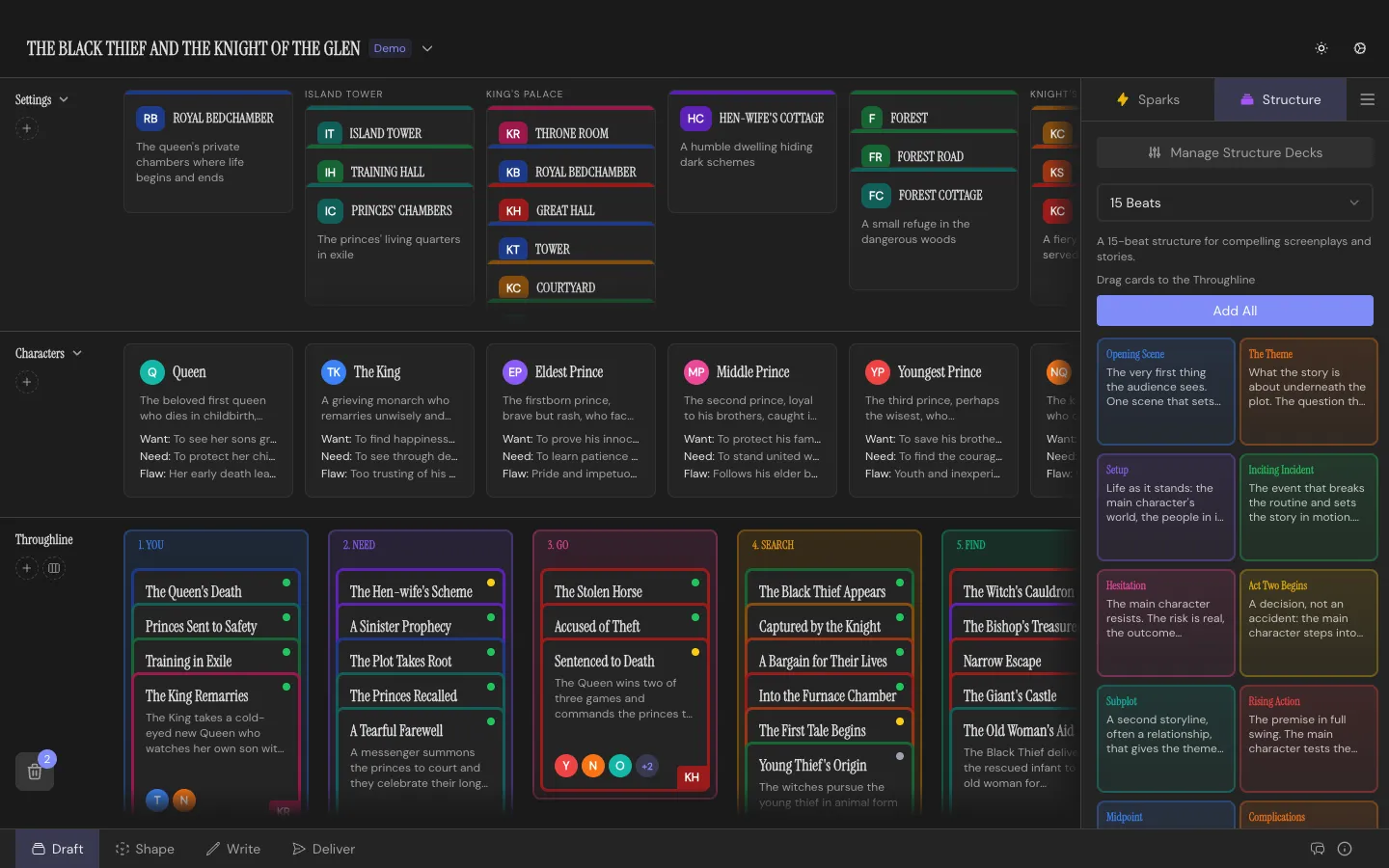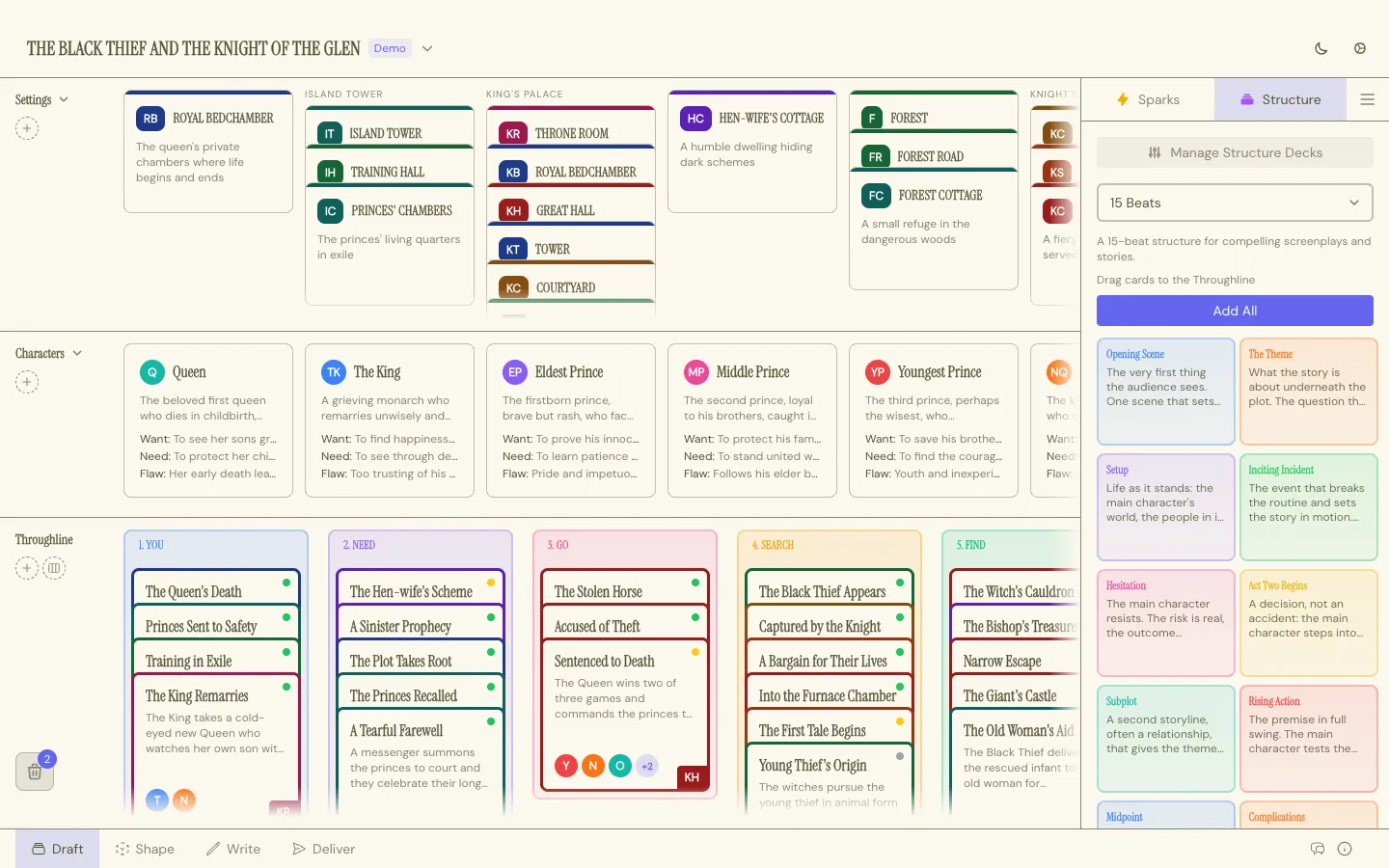 ## They’re yours once you place them [Section titled “They’re yours once you place them”](#theyre-yours-once-you-place-them) A placed Structure Card is a snapshot, not a live reference to the deck it came from. Edit its title, guidance text, or color and it just changes: no separate “override” step, no drift back to a shared template. Stack your own Beats underneath as you write toward fulfilling it. ## Editing and building decks [Section titled “Editing and building decks”](#editing-and-building-decks) Open the **Structure Deck Manager** from the Draft Workspace sidebar to see everything: your defaults, any custom decks, and the card count for each. Edit a default deck and Throughline saves your changes as a personal override, badged “Modified”, without touching the original. Restore it to stock at any time. **+ New** gets you a blank deck to name and fill with your own cards, reordered however you like. Decks export to a JSON file and import the same way, so a template you like can travel between projects, or come from someone else entirely.
# Themes
> Five built-in looks for Throughline, plus your own, all purely cosmetic.
Themes change how Throughline looks. No theme touches your story data, so switching around costs you nothing. ## The built-ins [Section titled “The built-ins”](#the-built-ins) Bay, Default, Grayscale, Medieval, and Pumpkin ship with the app. Switch between them in **Settings → Look**. A separate light/dark toggle in the top bar applies to whichever theme you’re on. 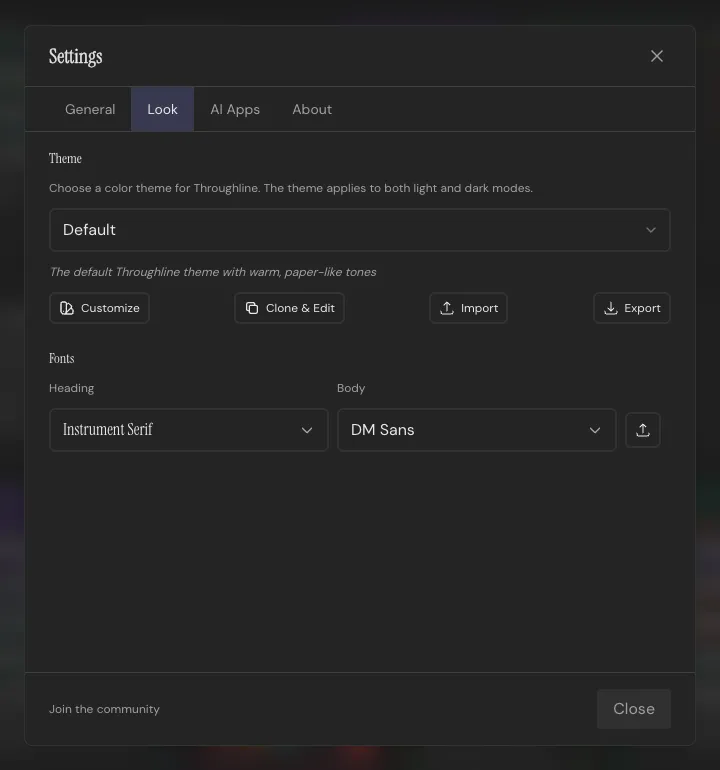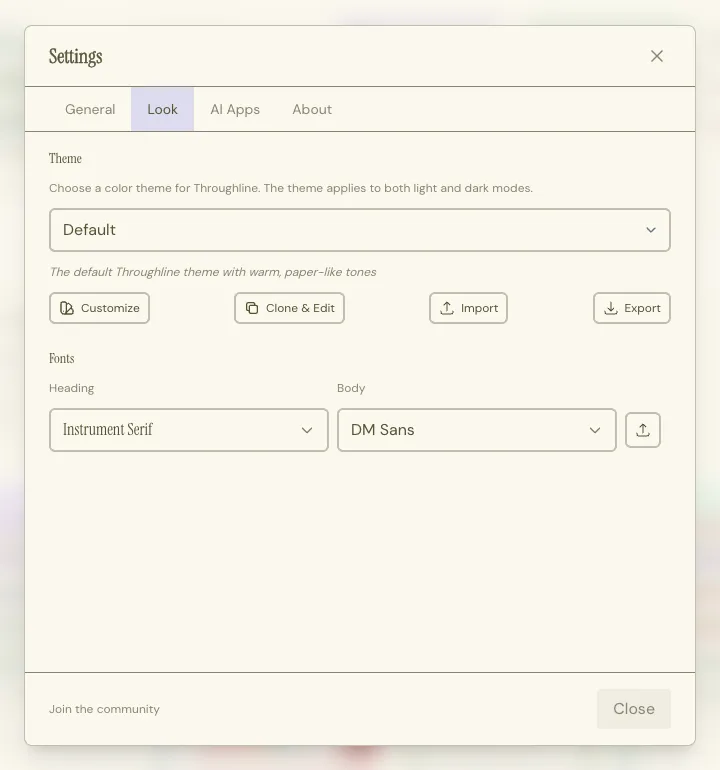 ## Making one your own [Section titled “Making one your own”](#making-one-your-own) Pick **Customize** on any theme to open a color-by-color editor: background, surface, accent, borders, all of it. **Clone & Edit** duplicates a theme as a new user theme first, so the built-in version stays intact underneath your changes. 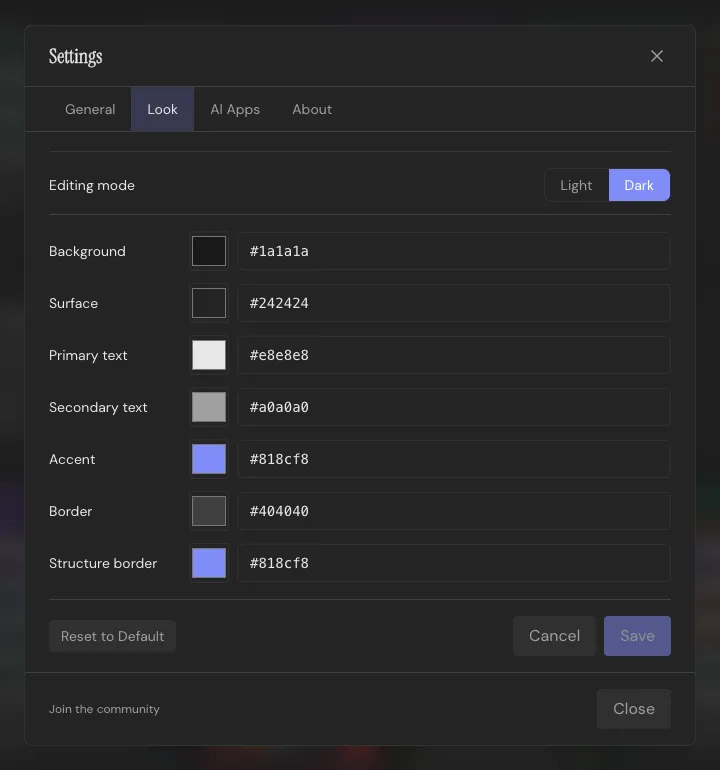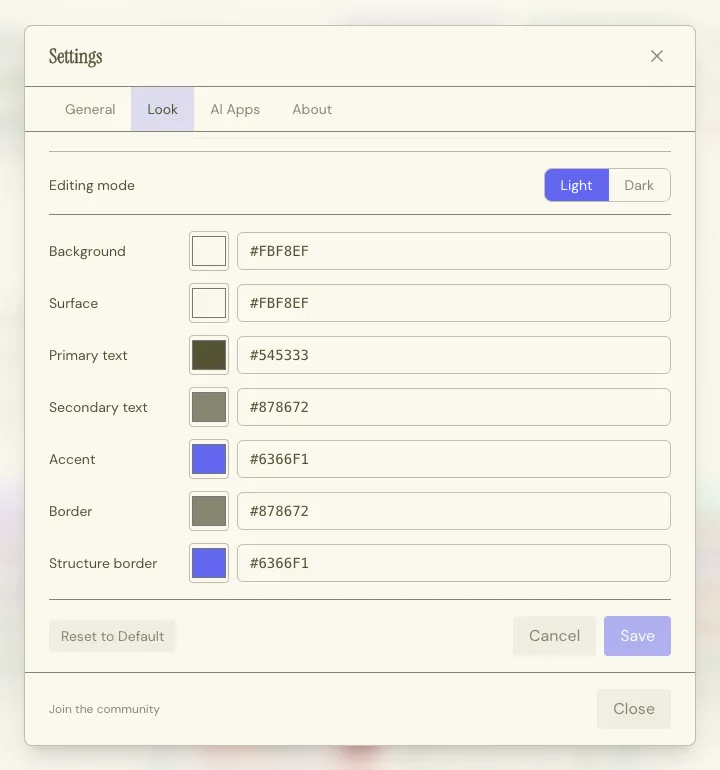 Themes export to a JSON file and import the same way. A theme missing a color or two still imports; Throughline fills the gaps from Default rather than refusing the file. Delete a custom theme and Throughline falls back to Default. ## Fonts [Section titled “Fonts”](#fonts) Heading and body fonts are separate pickers in the same panel, independent of theme. Import a custom font file (`.ttf`, `.otf`, `.woff`, `.woff2`) if you have one you’d rather write in. **Reset Theme & Fonts** in Settings puts everything back to stock. Cosmetic only; your projects are untouched.
# Frequently Asked Questions
> Answers to the questions that come up most once you're actually using Throughline.
### Where does my data live? [Section titled “Where does my data live?”](#where-does-my-data-live) In files you own. Every project is a `.thrl` file saved wherever you choose, with its autosaves in a folder right next to it. There’s no account and no Throughline cloud. See [Projects & Files](/docs/getting-started/projects-and-files/) for the full picture. ### Does Throughline sync between devices? [Section titled “Does Throughline sync between devices?”](#does-throughline-sync-between-devices) No. Throughline has no cloud sync and no account to sign into. Each project is an ordinary `.thrl` file, so you can save, move, and copy it like any other document, and open it on any computer with Throughline installed. ### Does Throughline work without an internet connection? [Section titled “Does Throughline work without an internet connection?”](#does-throughline-work-without-an-internet-connection) Yes, fully, as soon as your License Key is activated. Nothing about writing, planning, or exporting a project needs a connection at any point. When you’re online, Throughline checks for a new version after it starts. Offline, it simply skips that check. ### How does the card system work? [Section titled “How does the card system work?”](#how-does-the-card-system-work) Your story’s spine is a row of Beat Cards. Characters and Settings sit above it, and you drag those down onto a Beat to cast it. Deal a Structure Card onto the board and stack your own Beats on top of it. A Beat can hold your actual prose or screenplay text, or just notes if you’re writing somewhere else. See [Beat Cards](/docs/core-concepts/beat-cards/). ### Is Throughline for screenwriters or novelists? [Section titled “Is Throughline for screenwriters or novelists?”](#is-throughline-for-screenwriters-or-novelists) Both. The Cards, Arcs, and Characters work the same regardless of what you’re writing, and the [Write Workspace](/docs/workspaces/write/) toggles between prose and screenplay formatting on the same document, with nothing to convert or re-import. ### Can I write and format a screenplay in Throughline? [Section titled “Can I write and format a screenplay in Throughline?”](#can-i-write-and-format-a-screenplay-in-throughline) Yes; see [Formatting & Elements](/docs/screenplay/formatting-and-elements/) for the full rundown. You can even important standard Screenplay formats like Fountain and `.fdx`! ### What file formats does Throughline support? [Section titled “What file formats does Throughline support?”](#what-file-formats-does-throughline-support) Throughline projects are `.thrl` files, which you open directly. Import: Fountain, Final Draft (`.fdx`), PDF, and Plain Text. Document export: Markdown, PDF, Plain Text, Word. Screenplay export: PDF and Fountain, plus `.thrl` project files. See [Importing](/docs/import-export/importing/) and [Exporting](/docs/import-export/exporting/) for the details on each. ### Can I test the Throughline App? [Section titled “Can I test the Throughline App?”](#can-i-test-the-throughline-app) There are two ways to get the full version of the Throughline App for free: as a customer of the Curious Refuge AI Animation 2.0 course or the Curious Refuge All-Access Membership, through a discount code in the course portal. Otherwise, the app is a one-time purchase: no subscription, you buy it once and it’s yours. See [Can I Test the Throughline App?](/docs/getting-started/testing-throughline/) for how to claim it, and for the best ways to look at every feature before you buy. ### Where do I find my license key? [Section titled “Where do I find my license key?”](#where-do-i-find-my-license-key) At the top of your Throughline purchase page on Gumroad, which you reach from [getthroughline.com/access](https://getthroughline.com/access/), and in your receipt email. See [License Keys](/docs/getting-started/license-keys/) for activation and troubleshooting. ### How do I update Throughline? [Section titled “How do I update Throughline?”](#how-do-i-update-throughline) When a new version is out, Throughline tells you on launch. Download the latest build from [getthroughline.com/access](https://getthroughline.com/access/) and install it over the old one. Your projects are not affected. See [Updating Throughline](/docs/getting-started/updating/). ### Gumroad says it can’t find my account [Section titled “Gumroad says it can’t find my account”](#gumroad-says-it-cant-find-my-account) You probably bought as a Gumroad guest, without creating an account. Open your Gumroad receipt email and click **View content** to reach your download and license key. To get a Gumroad library for next time, sign up at Gumroad with the same email address you bought with. See [If Gumroad can’t find your account](/docs/getting-started/updating/#if-gumroad-cant-find-your-account), including what to do if the receipt is gone. ### Does Throughline use AI? [Section titled “Does Throughline use AI?”](#does-throughline-use-ai) Not by itself. Throughline contains no AI model and has no built-in AI features. If you already use an AI app such as Claude Desktop, you can connect it to the running app, so it can read and edit your open project. That connection is off by default: see [MCP: Connect AI Apps](/docs/connect-ai-apps/). [Throughline and AI](/docs/throughline-and-ai/) gives the full picture. ### Is there a Throughline community? [Section titled “Is there a Throughline community?”](#is-there-a-throughline-community) Yes, there’s a Discord for owners of the software. The invite lives in the app: open **Settings** and click **Join the community** at the bottom. See [Community & Feedback](/docs/community/) for that and the other ways to reach the team. ### Every word is underlined in red [Section titled “Every word is underlined in red”](#every-word-is-underlined-in-red) Check the **Project language** in **Project Details** (`Cmd/Ctrl+P`). Spell check uses that language’s dictionary, so an English script set to German looks misspelled almost everywhere. On Windows, the new dictionary takes effect after a restart: Throughline offers one when the languages don’t match. Prefer no underlines at all? Turn off **Settings → General → Spell check**. ### Do I need to know story structure theory? [Section titled “Do I need to know story structure theory?”](#do-i-need-to-know-story-structure-theory) No. The most common structures and beat sheets are built in as [Structure Decks](/docs/core-concepts/structure-decks/), ready to drag onto the board. Build your own or import someone else’s if you outgrow the defaults. ### I’m running an alpha or beta build of Throughline. Is that safe to write in? [Section titled “I’m running an alpha or beta build of Throughline. Is that safe to write in?”](#im-running-an-alpha-or-beta-build-of-throughline-is-that-safe-to-write-in) Betas are close to release quality: your projects are `.thrl` files in a folder you choose, saved as you write, and autosaves run as always. Alphas are rougher. They keep their own settings and list of recent projects, but they open and save your real `.thrl` files, so try an alpha on copies of anything important (**Duplicate…**). One thing to know before going back to an older stable version: older versions keep projects inside the app rather than in files. To bring a project over, import its `.thrl` file there.
# Installation
> Get Throughline running on macOS or Windows.
Throughline runs natively on macOS and Windows. There’s no web account and no login. The app lives on your machine, and your work lives in `.thrl` files wherever you choose to keep them. ## Buy and download [Section titled “Buy and download”](#buy-and-download) Get Throughline at [shop.getthroughline.com](https://shop.getthroughline.com/). It’s a one-time purchase, no subscription. Your download link appears right after checkout, and again in your receipt email. Your purchase also includes a license key; see [License Keys](/docs/getting-started/license-keys/) for where to find it and how to activate. Pick the build for your platform: * **macOS**: a `.dmg`. Open it, drag Throughline into Applications, done. * **Windows**: a setup `.exe`. Run it and follow the prompts. The last page has a box labeled **Open Throughline Community Invite**. It is ticked by default, so your browser opens the Discord invite when you click Finish. Untick it if you do not want that. ## First launch [Section titled “First launch”](#first-launch) Throughline opens on the home screen, with the demo project ready to explore and room for your own story. From here you can create a new project, open a `.thrl` file, or import a screenplay; see [Quick Start](/docs/) for that first walk-through. Coming from an earlier version of Throughline? On first launch, Throughline asks you to choose one folder for your existing projects and saves each of them there as a `.thrl` file. Nothing is deleted. See [Upgrading from an earlier Throughline](/docs/getting-started/projects-and-files/#upgrading-from-an-earlier-throughline). Beta builds greet you with a short welcome note on first launch, and an occasional reminder after that: your projects are now `.thrl` files in a folder you choose, saved as you write, autosaves run as always, and the team wants to hear about anything that feels off. Alpha builds are rougher company. They open and save your real project files, so try them on copies of anything important. ## Getting updates [Section titled “Getting updates”](#getting-updates) Throughline checks for a new version when it launches. If one is out, you get a dialog telling you what’s new, with a Download button. Updates come from your Throughline purchase on Gumroad, the same place you got the app. See [Updating Throughline](/docs/getting-started/updating/) for the steps, including what to do if you bought without a Gumroad account.
# Interface Overview
> A labeled tour of Throughline's top bar, Workspace switcher, and Settings.
Every project opens into the same shell, whichever Workspace you’re in. ## The Workspace switcher [Section titled “The Workspace switcher”](#the-workspace-switcher) The tab bar along the bottom holds the four Workspaces: **Draft**, **Shape**, **Write**, and **Deliver**. Switch instantly, or use `Cmd/Ctrl+1` through `4`. Nothing exports or re-imports between them: it’s one project, four views of it. Each gets its own page under [Workspaces](/docs/workspaces/draft/). ## The top bar [Section titled “The top bar”](#the-top-bar) The top bar sits above whichever Workspace you’re in: * **Project Details** (`Cmd/Ctrl+P`, or **Edit Project Details** in the project menu): a window that opens over whichever Workspace you’re in: title, logline, project language, author info, and created and modified dates. The project language sets the script terms, the language of exported documents and new Structure Cards, and the spell check dictionary (see [Project language](/docs/screenplay/formatting-and-elements/#project-language)). Title, logline, and author info end up on the title page * **Export** (`Cmd/Ctrl+E`): takes you straight to the Deliver Workspace * **Undo and Redo** (`Cmd/Ctrl+Z`, `Shift+Cmd/Ctrl+Z`, and `Ctrl+Y` on Windows): undo takes back your most recent action, wherever you made it: the board, the Sparks inbox, Project Details, the Shape Workspace, and writing. In Write it also works with the cursor in the script. With a card open, it first takes back the changes you haven’t saved yet. The home screen has its own undo for folders and **Remove from Projects Menu** (see [Folders](/docs/getting-started/projects-and-files/#folders)) Click the project title to open the project menu, which includes **Duplicate…**, **Merge with…** (with [Merge Projects](/docs/lab/merge-projects/) turned on), **Show in Finder** (on Windows, **Show in Explorer**), and **Restore from Autosave**. Your project saves to its file on its own, so a status shows up beside the title only when something needs your attention. See [Projects & Files](/docs/getting-started/projects-and-files/). The gear icon opens **Settings**, with tabs for General (language, spell check, autosaves, license and reset options), Look (theme and fonts), AI Apps (the [MCP connection](/docs/connect-ai-apps/) for your own AI apps), Lab (new features to try early: [Writer Assignment](/docs/lab/writer-assignment/) and [Merge Projects](/docs/lab/merge-projects/)), and About (version, licenses, privacy and legal notes). A light/dark toggle sits in the top bar on its own, separate from the theme picker in Settings, since it’s the one thing you’ll want to flip without digging through a menu. 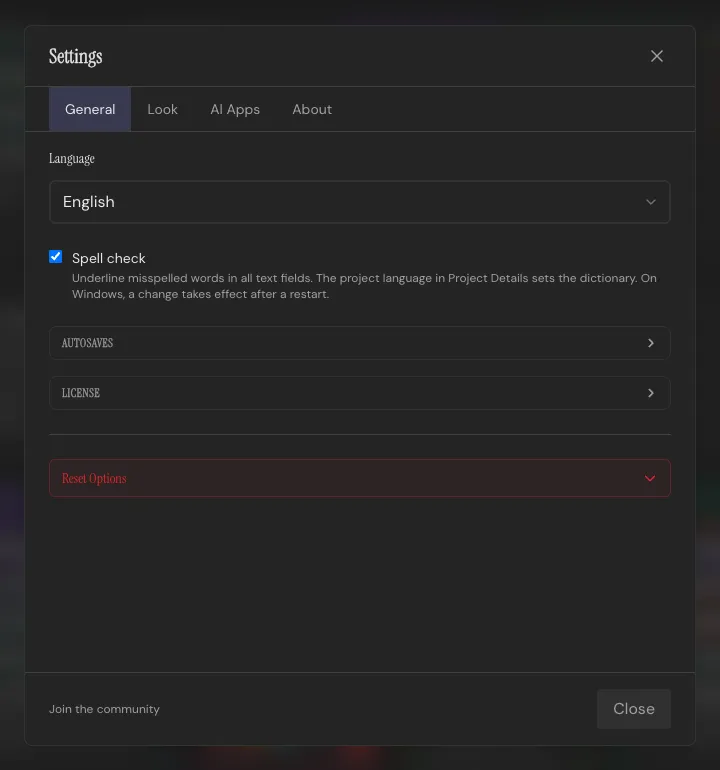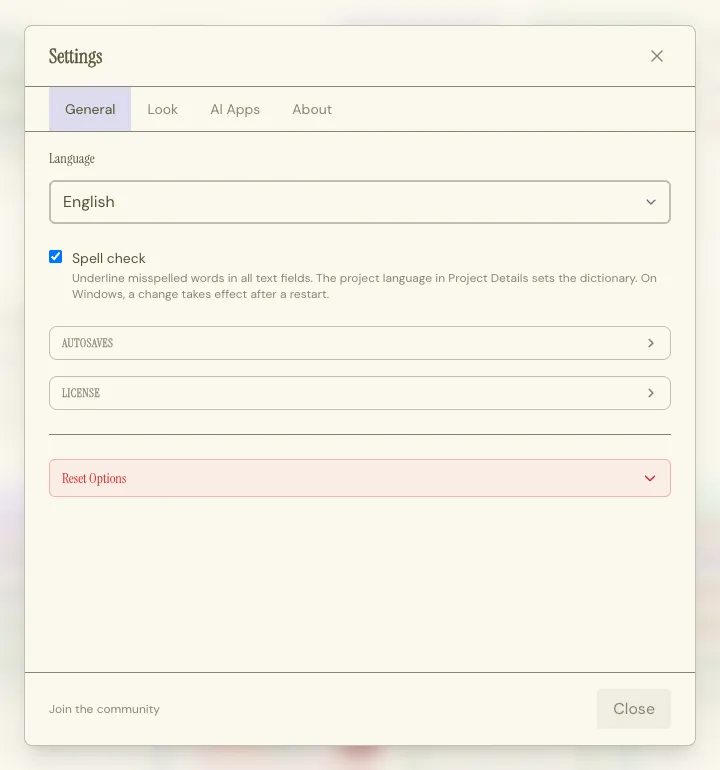 **Spell check**, under **Settings → General**, underlines misspelled words in every text field. It’s on by default and applies to the whole app. The dictionary follows the open project’s **Project language**, set in Project Details. On Windows, a language change takes effect after a restart, and Throughline offers one when it’s needed. See the [FAQ](/docs/faq/#every-word-is-underlined-in-red). See [Themes](/docs/core-concepts/themes/) for the customization side of it. ## Getting help [Section titled “Getting help”](#getting-help) Press `?` anywhere in the app for the full keyboard shortcuts list. See [Keyboard Shortcuts](/docs/reference/keyboard-shortcuts/) for the complete table. These docs are one click away: the book icon in the bar at the bottom of the window opens them, on macOS and Windows. On macOS, **Help → Documentation** does the same.
# License Keys
> Where to find your Throughline license key, how to activate this screenwriting software offline, and what happens to your projects if you don't.
Throughline is a one-time purchase from [shop.getthroughline.com](https://shop.getthroughline.com/). No subscription, and no Throughline account to create. Every purchase comes with a license key, and keys were generated retroactively for everyone who bought before they existed, so yours is waiting even if you’ve owned the app for a while. Curious Refuge customers get theirs free: see [Can I Test the Throughline App?](/docs/getting-started/testing-throughline/). ## Where to find your key [Section titled “Where to find your key”](#where-to-find-your-key) Go to [getthroughline.com/access](https://getthroughline.com/access/) and open your Throughline purchase, either from your Gumroad library or, if you bought as a guest without a Gumroad account, with the **View content** button in your Gumroad receipt email. The key sits at the top of the purchase page. It’s also in the receipt email itself. Can’t find the receipt, or Gumroad says it can’t find your account? See [If Gumroad can’t find your account](/docs/getting-started/updating/#if-gumroad-cant-find-your-account). Keys look like this:
```plaintext
XXXXXXXX-XXXXXXXX-XXXXXXXX-XXXXXXXX
```
## Activating [Section titled “Activating”](#activating) Enter your key when the app asks for it, or any time under **Settings → General → License**. Activation needs a brief internet connection, once. After that, Throughline works fully independently of any Throughline servers. A key covers a limited amount of activations to prevent piracy. Reinstalls count toward that, so if you run out, just email or reach out to a dev in the [Community](/docs/community/). ## Managing a device [Section titled “Managing a device”](#managing-a-device) **Settings → General → License** shows when you activated and a masked version of your key, plus a “Deactivate on this device” button. Deactivating removes the key from that machine only; it does not free up an activation on the key itself. If you need one back, that’s the support email again. ## Your projects are yours regardless [Section titled “Your projects are yours regardless”](#your-projects-are-yours-regardless) Your projects are `.thrl` files in folders you choose, and they stay yours with or without a license. Even while Throughline is waiting for a key, it offers a one-click “back up all projects and show folder” that works offline, and autosaves keep running in the background. Unlike other expensive writing tools, **Throughline never holds your work hostage.** ## Troubleshooting [Section titled “Troubleshooting”](#troubleshooting) **“Key not recognized”**: almost always a typo. Copy it fresh from your Gumroad library or your receipt rather than retyping it. **“Activation limit reached”**: you’ve used all activations, usually across reinstalls. Email for a reset. **“Couldn’t reach the license server”**: check your connection and try again. Activation is the only step that needs one, so this won’t come back once you’re through it. Keys from refunded purchases can’t be activated.
# Projects & Files
> Every Throughline project is a .thrl file you keep wherever you like: creating, opening, saving, and autosaves.
Every Throughline project is a `.thrl` file, saved wherever you choose: your Documents folder, an external drive, any folder you like. You can see it, move it, copy it, and send it like any other document. There’s no account and no Throughline cloud. Your files go where you put them, and nowhere else. ## The home screen [Section titled “The home screen”](#the-home-screen) Throughline opens on the home screen. Under **Recently opened** you get a card for each project file you opened, most recent first, showing where the file lives and when you last opened it. The top three also show their logline, cast, and beat count. The first nine cards show right away. Click **Show all** below them for the rest, and **Show fewer** to fold the list again. Click a card to pick up where you left off. To keep related projects together, put them in [folders](#folders). Three buttons sit above the list: * **Create New Project**: asks for a title and, if you have one, a logline, then asks where to save the file. * **Open…**: opens an existing `.thrl` file. * **Import Screenplay**: brings in a Fountain, Final Draft, PDF, or plain text screenplay as a new project, then asks where to save it. See [Importing](/docs/import-export/importing/). Below them, the **Demos** section holds the bundled demo project, ready to explore. ### The card menu [Section titled “The card menu”](#the-card-menu) Each card has a **⋮** menu: * **Show in Finder** (on Windows, **Show in Explorer**): jumps to the file on disk. * **Duplicate…**: makes a new project from all of this one or from the parts you pick, such as only its Characters and Settings. See [Duplicating a project](#duplicating-a-project). * **Merge with…**: brings another copy of this project into it. Shown with [Merge Projects](/docs/lab/merge-projects/) turned on in **Settings → Lab**. * **Move to folder**: puts the card into one of your [folders](#folders), or into a new one. * **Remove from Projects Menu**: takes the card off your home screen. The file itself is never touched. The demo’s card has **Duplicate…** and **Delete**. Duplicate the demo if you’d like to keep building on it as your own project, or to start a story of your own with its cast. ### Folders [Section titled “Folders”](#folders) Folders keep related projects together on the home screen: the episodes of a series, say, or your short films. Each folder is a colored frame with its name on a tab. * **Create a folder**: click **New folder** above Recently opened, type a name and press `Enter`. Or pick **Move to folder** › **New folder…** in a card’s **⋮** menu. * **Drag and drop**: drag a project card onto another one to put both in a new folder. Drag a card onto a folder to add it, and drag it out of the folder to take it out again. * **Add a project**: in the card’s **⋮** menu, pick **Move to folder** and then the folder. **Remove from folder** takes it out again. * **Rename, recolor, dissolve**: use the **⋮** button on the folder’s frame, or double-click the folder’s name to rename it. Pick a new color from the swatches in that menu. **Dissolve folder** puts its projects back in the list as loose cards. * **Undo**: press `Cmd/Ctrl+Z` on the home screen to take back your last change: a new, renamed, recolored or dissolved folder, a project moved in or out, or a card removed from the list. A dissolved folder comes back with its projects. `Shift+Cmd/Ctrl+Z` (or `Ctrl+Y` on Windows) redoes it. The home screen keeps its own undo history until you quit, separate from your projects’ histories, so undo inside a project never touches your folders. A folder takes the place of its most recently opened project in Recently opened. Its projects sit in a stack, like a stack of cards on the board: the most recently opened one in front, the others peeking out above it with their titles. Hover over a title to bring that card to the front, and click it to open the project. Folders only live on the home screen of this computer. They never touch, move or rename your files, and they aren’t saved in your `.thrl` files. If you remove a project from the list, it stays in its folder and comes back there the next time you open it. The demo can’t go into a folder. ### When a file has moved [Section titled “When a file has moved”](#when-a-file-has-moved) If a project’s file was moved, renamed, or deleted outside Throughline, its card says “File not found. Click to locate it.” and offers two ways forward: * **Locate…**: point Throughline at the file’s new place. * **Save elsewhere…**: saves the project to a new file, so nothing is lost even if the original is gone. ## Opening a project [Section titled “Opening a project”](#opening-a-project) **Open…** (`Cmd+O` on macOS, `Ctrl+O` on Windows) opens a `.thrl` file itself, not a copy of it: everything you change is saved back to that file. You can also double-click a `.thrl` file in Finder or Explorer. To work on a copy instead, use **Duplicate…**. ## Duplicating a project [Section titled “Duplicating a project”](#duplicating-a-project) **Duplicate…** makes a new project from an existing one. You’ll find it in a card’s **⋮** menu on the home screen, in the project menu, and on macOS in the **File** menu (`Shift+Cmd/Ctrl+S`). A dialog asks for the new project’s name and what it starts with. The name is filled in for you: “Episode 1” becomes “Episode 2”, and any other title gets ” - Copy” on the end. Change it if you like. Everything is checked to begin with, which gives you a full copy. Uncheck the parts you don’t want. Writing the next episode, a sequel or a spin-off? Keep only Characters, Relationships and Settings, and none of the story. * **Characters**, with their color, their details and their place in the Constellation * **Relationships** between them. These need Characters, so they’re grayed out without them. * **Settings**, stacks included * **Beats and scene text** * **Structure cards** * **Story arcs** * **Sparks** * **Recycling bin** Some parts depend on each other, and the dialog tells you when one is missing: * Without Characters, Beats have no cast, and there are no relationships. * Without Settings, Beats have no Setting. * Without Beats, relationships come as they are at the story start, and Story arcs keep their names and poles but start empty. * Without structure cards, the Beats stacked on a structure card take its place. * The recycling bin keeps only the kinds of cards you copy. Click **Save Copy…** and choose where to save the new file. Throughline suggests the project’s name as the file name. If you pick another file name, the project keeps the name from the dialog. The new project opens right away. If the original is in a [folder](#folders), the new project joins that folder too. Your author info and title page lines, the editor mode, the project language and your export settings always come along. Without Beats, the logline, the date and version lines of the title page and the dialogue and scene number counters start fresh. From then on the two projects are separate files. Changing a Character in one doesn’t change it in the other, and the original project stays exactly as it was. To bring two copies back together later, use [Merge Projects](/docs/lab/merge-projects/). ## Saving [Section titled “Saving”](#saving) Throughline saves as you go. There’s no Save command to remember. Most of the time you won’t see any save status at all. A message appears beside the project title only when something needs your attention: * **“Couldn’t save, retrying”**: Throughline couldn’t write to the file for a moment and keeps trying. * **“File not found”**: the file was moved or deleted while the project was open. Click **Save elsewhere…** to save it to a new location. ## File commands [Section titled “File commands”](#file-commands) On macOS these live in the **File** menu. On Windows the same shortcuts work with `Ctrl`. | Command | Shortcut | | ---------------------------------------------------------------------------- | ------------------ | | **New Project…** | `Cmd/Ctrl+N` | | **Open…** | `Cmd/Ctrl+O` | | **Duplicate…** | `Shift+Cmd/Ctrl+S` | | **Merge with…** (with [Merge Projects](/docs/lab/merge-projects/) turned on) | | | **Open Recent** (macOS, your six most recent files) | | | **Show in Finder** | | Inside a project, click the project title in the top bar to open the project menu, which has **Duplicate…**, **Merge with…** (with Merge Projects turned on), **Show in Finder** (on Windows, **Show in Explorer**), and **Restore from Autosave**. ## Autosaves [Section titled “Autosaves”](#autosaves) On top of saving every change, Throughline keeps regular autosaves of your project in a folder named `_autosaves`, right next to your `.thrl` file. Pick how often they’re made and how many to keep in **Settings**. Some copies are kept because of a decision you made, and those carry a label in their name, such as `(changed elsewhere)`, `(before merge)`, or `(legacy THRL 1.5)` for the original of a file updated from an older version. Those are never deleted automatically. Every autosave is a normal `.thrl` file. Double-click one to open it as its own project, look around, and take what you need. ### Restoring an autosave [Section titled “Restoring an autosave”](#restoring-an-autosave) **Restore from Autosave**, in the project menu, lists the project’s autosaves, plus any backups made by earlier versions of Throughline. Restoring keeps your current state in the autosaves folder first, so a restore can always be undone. ## When a file changes elsewhere [Section titled “When a file changes elsewhere”](#when-a-file-changes-elsewhere) When you open a project whose file changed since you last saved it on this computer, for example on another computer or by another writer, Throughline opens the new version. A short notice says who or what changed it, such as “Anna changed “Pilot” since you last saved it on this computer.” If you also have changes that were never saved to the file, for example because Throughline quit before it could save them, a dialog, “Unsaved changes”, asks first. Each choice keeps both versions: * **Open the file**: opens the file as it is now. Your unsaved changes are kept in the autosaves folder. * **Restore unsaved changes**: saves your unsaved changes over the file. The file’s current version is kept in the autosaves folder. * **Keep both as separate files…**: saves your unsaved changes as a new file, then opens the file in this window. If the file changes while the project is open, Throughline never swaps it in silently. A dialog, “This file was changed elsewhere”, explains what happened and offers three choices. Each one keeps both versions: * **Load the changed file**: replaces what’s open with the file. What was open is kept in the autosaves folder. * **Keep what’s open here**: saves what’s open over the file. The changed file is kept in the autosaves folder. * **Keep both as separate files…**: saves what’s open as a new file, then loads the changed file in this window. ## Files from other versions of Throughline [Section titled “Files from other versions of Throughline”](#files-from-other-versions-of-throughline) * **Saved by a newer version**: Throughline asks before opening it, because editing it here may lose anything that uses newer features. Choose **Open Anyway**, **Update Throughline**, or **Cancel**. * **Saved by an earlier version**: the file needs to be updated to open. This doesn’t change any of your content, and the original is kept in the autosaves folder, labelled with its format version, such as `(legacy THRL 1.5)`. Choose **Update** or **Cancel**. ## Using more than one computer [Section titled “Using more than one computer”](#using-more-than-one-computer) Throughline doesn’t sync anything itself, but a project file opens on any computer with Throughline installed. If you move your files between computers yourself, avoid editing the same project in two places at the same time. If it happens anyway, the [changed elsewhere](#when-a-file-changes-elsewhere) dialog keeps both versions. ## Upgrading from an earlier Throughline [Section titled “Upgrading from an earlier Throughline”](#upgrading-from-an-earlier-throughline) Earlier versions of Throughline kept projects in a library inside the app. The first time you launch this version, Throughline asks you to move them out: click **Export Projects…**, choose a folder, and each project is saved there as a `.thrl` file, including in a folder synced by Dropbox, Google Drive, or Syncthing. Your exported projects then wait for you under **Recently opened**. The demo stays built in.
# Can I Test the Throughline App?
> How to get the full version of the Throughline App for free through Curious Refuge, and how to look at every feature in detail before you buy.
There are two ways to get the full version of the Throughline App for free: as a customer of the [Curious Refuge AI Animation 2.0](https://curiousrefuge.com/ai-animation) course, or of the [Curious Refuge All-Access Membership](https://curiousrefuge.com/curious-refuge-membership). Otherwise, the app is a one-time purchase from [shop.getthroughline.com](https://shop.getthroughline.com/): no subscription, you buy it once and it’s yours. ## Claiming it as a Curious Refuge customer [Section titled “Claiming it as a Curious Refuge customer”](#claiming-it-as-a-curious-refuge-customer) Your course portal has a 100% discount code for the Throughline App. Enter it at checkout on [shop.getthroughline.com](https://shop.getthroughline.com/) and you get the same download and [License Key](/docs/getting-started/license-keys/) as anyone who paid. ## A closer look before you buy [Section titled “A closer look before you buy”](#a-closer-look-before-you-buy) These docs walk through every Workspace and feature in detail, with screenshots of the actual app. Good places to start are the [Quick Start](/docs/), the [Draft Workspace](/docs/workspaces/draft/) and [Formatting & Elements](/docs/screenplay/formatting-and-elements/). For a feature-by-feature comparison with Final Draft, Arc Studio and Scrivener, see the [comparison page](https://getthroughline.com/compare/). Wondering whether the Throughline App does one specific thing you need? Email and we’ll tell you straight. ## Feature wishes [Section titled “Feature wishes”](#feature-wishes) Once you own the Throughline App, you’re welcome in our Discord (see [Community & Feedback](/docs/community/)). That’s where to suggest what’s missing for your kind of project, and we build plenty of those wishes into the app.
# Updating Throughline
> How to update Throughline on macOS or Windows.
To update Throughline, download the latest build from your Throughline purchase on Gumroad and install it the same way you installed the first one. Your projects are not affected. The one page to bookmark is [getthroughline.com/access](https://getthroughline.com/access/). It shows both ways to reach your download: through a Gumroad account, or through your receipt email if you bought without one. ## How you hear about an update [Section titled “How you hear about an update”](#how-you-hear-about-an-update) The latest versions of Throughline check for a new version when they launch. If one is out, a dialog tells you what’s new and offers a **Download** button. When you’re offline, Throughline skips this check. A regular release only tells you about the next regular release. A beta build also tells you about newer betas, so testers always hear about the next one. Another way is to keep an eye on Announcements in the Discord community. See [Community & Feedback](/docs/community/#discord) for how to join. Opening a project that was saved by a newer version of Throughline will also prompt you to **Update Throughline**. See [Files from other versions of Throughline](/docs/getting-started/projects-and-files/#files-from-other-versions-of-throughline). ## Download the new version [Section titled “Download the new version”](#download-the-new-version) 1. If you have a Gumroad Account, go to [getthroughline.com/access](https://getthroughline.com/access/) and follow the link to your Gumroad library. 2. Log in and open Throughline. 3. Download the latest build for your platform: the `.dmg` for macOS, the setup `.exe` for Windows. Never made a Gumroad account, don’t have your password handy, or Gumroad says it can’t find your account? Skip to [If Gumroad can’t find your account](#if-gumroad-cant-find-your-account). ## Installing Updates [Section titled “Installing Updates”](#installing-updates) Quit Throughline first, then install the new build as you did the first time (see [Installation](/docs/getting-started/installation/)): * **macOS**: open the `.dmg` and drag Throughline into Applications. When macOS says an item with that name already exists, replace it. * **Windows**: run the new setup `.exe` and follow the prompts. ## What stays after Updates [Section titled “What stays after Updates”](#what-stays-after-updates) In the latest versions of the Throughline App, your projects are `.thrl` files in folders you choose, separate from the app, so installing a new version doesn’t touch them. If a release updates the project file format, Throughline asks before changing a file and keeps the original in the autosaves folder. See [Projects & Files](/docs/getting-started/projects-and-files/). You shouldn’t need to enter your license key again. If Throughline does ask for it, enter it as before; [License Keys](/docs/getting-started/license-keys/) covers where to find it and what to do about an activation limit. ## If Gumroad can’t find your account [Section titled “If Gumroad can’t find your account”](#if-gumroad-cant-find-your-account) You may not have a Gumroad account at all. Gumroad lets you buy without one, as a guest checkout with no password. Your purchase is still yours, with every update. You reach it through your receipt instead of a library. 1. Find your Gumroad receipt for Throughline in your email. 2. Open it and click **View content**. Gumroad may ask for the email address you bought with. 3. That opens Throughline’s download page, with the latest builds. Download the one for your platform and [install it](#install-it). Your license key is in that receipt email too. ### Getting a Gumroad library [Section titled “Getting a Gumroad library”](#getting-a-gumroad-library) If you’d rather log in next time, create a free Gumroad account at [gumroad.com/signup](https://gumroad.com/signup) with the exact email address you bought Throughline with. Gumroad links purchases made with that address to the new account, so Throughline shows up in your library from then on. ### Can’t find the receipt [Section titled “Can’t find the receipt”](#cant-find-the-receipt) * Search your inbox for “Gumroad”, and check your spam folder. * Use Gumroad’s [license key lookup](https://gumroad.com/license-key-lookup). Enter the email you bought with, and Gumroad sends your receipt, license key included, to that address again. * Try any other email address you might have used at checkout. * Still nothing? Email with the address you think you bought with.
# Exporting
> Export an industry-standard screenplay as PDF or Fountain, a document as Markdown, Word, or PDF, or your full project as a .thrl file.
Everything you can export lives in the [Deliver Workspace](/docs/workspaces/deliver/), grouped by kind. ## Documents [Section titled “Documents”](#documents) * **Markdown**: for notes and sharing * **PDF**: a print-ready document * **Plain Text**: nothing but the words * **Word**: formatted for Microsoft Word ## Screenplay [Section titled “Screenplay”](#screenplay) * **PDF**: a print-ready, industry-standard screenplay * **Fountain**: plain-text screenplay format, for opening in another screenwriting app. It holds exactly what the Screenplay PDF shows, so your Beat summaries and **Don’t Print** Beats stay in your project. There’s no `.fdx` export, because all that extra story data from your Throughline project has no place to go in Final Draft. Fountain is the industry-standard bridge if you need your pages in Final Draft or a similar tool; see [Migrating from Final Draft](/docs/migrating/from-final-draft/) if that’s where you’re headed. ## Project file [Section titled “Project file”](#project-file) A `.thrl` file: your full project, not a lesser export of it. Your project already lives in a `.thrl` file, so this is a quick way to hand someone a copy, just like **Duplicate…** in the project menu. See [The .thrl File Format](/docs/file-format/) for what the format holds and how autosaves fit alongside it. ## Options and preview [Section titled “Options and preview”](#options-and-preview) Every format has its own advanced options: outline mode, included sections, numbering, page size, and more, all detailed in [Deliver](/docs/workspaces/deliver/). The preview pane updates live, so you see the real output before you commit to a file.
# Importing
> Open a .thrl project, or start a new one from a Final Draft, Fountain, PDF, or plain text screenplay.
Throughline reads five kinds of file: Fountain, Final Draft (`.fdx`), PDF, Plain Text, and its own `.thrl`. ## Opening a Throughline project [Section titled “Opening a Throughline project”](#opening-a-throughline-project) A `.thrl` file doesn’t need importing: it is your project. Click **Open…** on the home screen (`Cmd/Ctrl+O`), or double-click the file in Finder or Explorer, and Throughline opens the file itself, saving your changes back to it. If the file was last edited in a newer version of Throughline, you’ll see a warning before it opens. See [Projects & Files](/docs/getting-started/projects-and-files/) for more. ## Importing a screenplay as a new project [Section titled “Importing a screenplay as a new project”](#importing-a-screenplay-as-a-new-project) Click **Import Screenplay** on the home screen. Fountain, Final Draft, PDF, and plain text files come in as brand-new projects, not merged into an existing one, and Throughline asks where to save the new project file once the import is done. Because a screenplay is structured, Throughline pulls real data out of it automatically: scene headings become Beats, locations become Setting Cards, and Characters get extracted from dialogue. German screenplay conventions are recognized too. ### Final Draft [Section titled “Final Draft”](#final-draft) `.fdx` files import directly, including scene headings, action, dialogue, parentheticals, transitions, scene numbers, scene summaries, and title page fields. It isn’t lossless, and Throughline shows you the same list before it imports. What doesn’t come in: * Script notes and inline notes * Revision marks and revision colors * Title page layout, draft date, and copyright * Scene properties such as page length * Locked pages, headers, and footers * Shot and General paragraphs, which are kept as plain action lines * Any formatting beyond bold, italic, and underline ### PDF [Section titled “PDF”](#pdf) PDF import uses heuristic detection to make sense of the layout, so results vary more than with a clean Fountain or Final Draft file. Give it a once-over after importing. ### What Throughline adds on top [Section titled “What Throughline adds on top”](#what-throughline-adds-on-top) A normal screenplay file carries the script and nothing else. Throughline’s cards hold more: a Want, a Need, and a Flaw on every Character, and a description on every Setting. No screenplay format has a place for any of that, so a fresh import leaves those fields open, ready to take your story deeper than the file it came from.
# Merge Projects
> Bring two copies of one project back together: new cards come in on their own, and you pick a side wherever the copies disagree.
Two writers took copies of the same project and each wrote different scenes. Or you wrote on two computers and the copies drifted apart. **Merge with…** brings the other copy into the project you have open. Anything only one copy has comes in on its own. Where both copies changed the same thing, you choose which one to keep. Merging works on its own. It goes well with [Writer Assignment](/docs/lab/writer-assignment/), but you don’t need it. It also merges copies saved by older versions of Throughline. ## Turning it on [Section titled “Turning it on”](#turning-it-on) Open **Settings → Lab** and check **Merge versions of a project**. ## Starting a merge [Section titled “Starting a merge”](#starting-a-merge) **Merge with…** sits right below **Duplicate…**: * in the project menu (click the project title in the top bar), * in a project card’s **⋮** menu on the home screen, * on macOS, in the **File** menu. Pick the other copy’s `.thrl` file. Throughline reads it but never opens it as a project, and it never changes that file. A file that shares no cards with your project isn’t a copy of it, so Throughline offers to **Open Separately** instead. If the other copy has nothing new, Throughline tells you so and stops there. ## The merge view [Section titled “The merge view”](#the-merge-view) The merge view opens over your project. Its top line says how much merges on its own and how many choices need you. Your copy is **Current**, on the left. The other one is **Incoming**, on the right, named after whoever saved it, like **ANNA’S**. **New cards.** Beats, Characters, Settings, Sparks and anything else that only the other copy has are listed first, all checked. Uncheck what you don’t want. Something you deleted yourself starts unchecked, so a merge doesn’t bring it back by accident. **Beats with an owner.** With [Writer Assignment](/docs/lab/writer-assignment/) on, a Beat assigned to the other writer comes in from their copy, and a Beat assigned to you keeps yours. No question needed. If both of you added the same person by hand, the merged project has that name once, with all of their Beats. **Your choices.** Every other place where the two copies differ gets a row: the old text on one side, the new text on the other, and the choice in between. Click **‹ Current**, **Incoming ›**, or, for a script, **Both**. **Both** keeps the two scripts as [versions](/docs/screenplay/scene-versions/) of one Beat, with yours active. When one side is empty, the row starts on the side that has something. **Keep All Current** and **Take All Incoming** decide every row at once. The text shows what changed: * **Added** text is green. * **Removed** text is red and struck through. * **Replaced** text is amber on both sides. * A **format change**, such as action that became a transition, is underlined with dots and labeled. Scripts show in screenplay format, and cast lists show as Character chips. **Merge** waits until every row has a choice. The **choices left** button at the bottom takes you to the first open one. ## What the merge takes care of [Section titled “What the merge takes care of”](#what-the-merge-takes-care-of) * **Renamed Characters.** If one of you renamed a Character, it keeps one name. The name you choose also replaces the old one in every scene from the other copy, cues and mentions both. * **Replace All.** A Replace All that only one of you ran is offered for the other copy’s scenes too, so a changed name or term doesn’t come back with their pages. * **Story order and layout.** Your order and layout stay. New cards go next to their neighbors from the other copy. * **Screenplay or Rich Text.** The merged project keeps your mode. Scripts from the other copy are converted to it. ## After a merge [Section titled “After a merge”](#after-a-merge) The whole merge is one step: `Cmd/Ctrl+Z` takes it back. Before it writes anything, Throughline also saves an autosave labeled `before merge`, which you can bring back with **Restore from Autosave** at any time. See [Autosaves](/docs/getting-started/projects-and-files/#autosaves). Then send the merged file back to your partner, and you both carry on from the same project.
# Writer Assignment
> Two writers, two copies of one project: give each Beat to one of you, so neither of you writes over the other's scenes.
Writing with a partner? Each of you works on your own copy of the same `.thrl` file. Writer Assignment lets you split the scenes: every Beat can belong to one of you, or to nobody. A Beat that belongs to your partner is read-only for you, so you never change a scene they are in the middle of. When you’re both done, bring the two copies together with [Merge Projects](/docs/lab/merge-projects/). ## Turning it on [Section titled “Turning it on”](#turning-it-on) Open **Settings → Lab** and check **Assign beats to writers**. Both of you turn it on in your own Throughline. Below the switch you can enter **Your name**. It’s the same in every project, and it’s how Throughline knows you: in a project, the person with your name is you, and the Beats assigned to that person are yours. Your partner sees the name on the Beats you take. If you leave it empty, Throughline asks for it the first time you take a Beat. Names are unique in a project, with capitals and spaces ignored. If your partner already uses the name you type, Throughline keeps your old name in that project and tells you to choose another one. ## Assigning a Beat [Section titled “Assigning a Beat”](#assigning-a-beat) Open a Beat and use **Assign to**. It sits in the Beat’s dialog in the Draft Workspace and in the taskbar of the [Write Workspace](/docs/workspaces/write/). Pick: * Your own name, at the top, to take the Beat yourself. * A person already on the project. * **Add person…**, to add your partner by name before they’ve ever opened the file. If someone on the project already has that name, Throughline picks them instead of adding a second one. * **Unassign**, to give the Beat back to nobody. Each assignment is one undo step. You don’t need to wait for your partner to add you. If you add them as Anna, and Anna enters **Anna** as her name, the Beats you gave her are hers as soon as she opens the project. Throughline asks nothing. If you work on two computers, use the same name on both, and the project treats both as you. ## A Beat that belongs to your partner [Section titled “A Beat that belongs to your partner”](#a-beat-that-belongs-to-your-partner) Beats assigned to someone else are grayed out on the Draft board and in the Write sidebar. Hover one to see who has it. You can still drag it to a new place in the story, stack it, and open it. Open it and the page is read-only, with a note at the top: *Assigned to Anna.* Everything except editing still works: * Read, select and copy the text. * Find matches in it. * See which Characters are in it. * Switch to another [version](/docs/screenplay/scene-versions/) to read it, and compare two versions side by side. Controls that would change the Beat stay visible but don’t respond, and their tooltip says who the Beat is assigned to. To write in it after all, click the button with your name, like **Assign to Ben**. Agree with your partner first: their copy still says the Beat is theirs until you merge. In the Write sidebar, the person button (**Ben’s beats**) shows only the Beats assigned to you. ## Changes across the whole story [Section titled “Changes across the whole story”](#changes-across-the-whole-story) Some changes touch every scene at once. These still reach your partner’s Beats, because a script with half its names changed is no use to anyone: * Renaming a Character in the script. * Numbering dialogue. * Switching between Screenplay and Rich Text. **Replace All** skips your partner’s Beats and tells you how many it skipped. To change them too, check **Include beats assigned to others** in the find bar first. See [Find and replace](/docs/workspaces/write/#find-and-replace). ## Opening the project with the switch off [Section titled “Opening the project with the switch off”](#opening-the-project-with-the-switch-off) Assignments are saved in the `.thrl` file, whether the switch is on or off. With the switch off, Throughline shows no assignments and locks nothing, and it keeps them in the file for your partner. A project that uses assignments tells you so once each time you open it. Its **Open Settings** button takes you to **Settings → Lab**, where you turn the feature on and enter your name.
# Migrating from Arc Studio
> Bringing a project over from Arc Studio, and where each tool actually fits.
Arc Studio is built for writing with other people: real-time collaboration, cloud sync across Mac, Windows, iPad and the browser, revision management. Throughline is built for the opposite situation: working focussed by yourself, offline, without an account to manage. Know which one you’re solving for before you switch. ## Bringing a project in [Section titled “Bringing a project in”](#bringing-a-project-in) Export your script as Fountain from Arc Studio, then [import](/docs/import-export/importing/) it into Throughline as a new project. Once it’s in, your Characters and Settings have room Fountain never offered: a Want, a Need, and a Flaw on every Character, and a description on every Setting, waiting to be filled. ## What you get in Throughline [Section titled “What you get in Throughline”](#what-you-get-in-throughline) A development tool with a full screenplay editor attached, rather than a screenplay editor with outlining bolted on. Cast Characters and Settings onto Beat Cards, give every plotline its own emotional Arc with Poles you name yourself, overlay a classic [Story Shape](/docs/core-concepts/story-shapes/) to see how yours compares, and scrub a timeline to watch your cast’s relationships form and dissolve Beat by Beat. It’s a one-time purchase, and it runs the same whether you’re on a plane or at your desk. ## The trade-off [Section titled “The trade-off”](#the-trade-off) If you write in a room with other people, hand pages to a producer for live notes, or need your script open on an iPad, Arc Studio does things Throughline doesn’t: there’s no real-time collaboration, no cloud sync, and no mobile app here. Two writers can split the scenes of one project between their own copies and merge them later (see [Writer Assignment](/docs/lab/writer-assignment/)), but they don’t write in the same script at the same time. If you’re working alone and trying to find the shape of the story before you commit to writing it, that’s what Throughline was built for. See the [full comparison](https://getthroughline.com/compare/) for the rest.
# Migrating from Final Draft
> Bringing a Final Draft script into Throughline, and what to expect going the other way.
Final Draft is the industry default, and Throughline isn’t trying to replace it at the production end. Throughline is aimed at the part before that, where you’re still working out what the story is. ## Bringing a script in [Section titled “Bringing a script in”](#bringing-a-script-in) Throughline reads `.fdx` directly. [Import](/docs/import-export/importing/) the Final Draft file itself; there’s no Fountain export step in between. Scene headings become Beats, locations become Setting Cards, and Characters get pulled from your dialogue automatically. It isn’t lossless. Script notes, revision marks, title page layout, and locked pages don’t survive the trip, and Throughline lists exactly what it will and won’t carry before you confirm. See [Importing](/docs/import-export/importing/) for the full list. We recommend starting your project in Throughline, so you can focus on your story, and then letting others handle Final Draft once a production team is involved. ## Going back out [Section titled “Going back out”](#going-back-out) Deliver a Screenplay PDF when you’re production-ready, or export Fountain and bring it into Final Draft to finish there. There’s no `.fdx` export; on the way out, the industry-standard and app-agnostic Fountain is the bridge. ## The tradeoff [Section titled “The tradeoff”](#the-tradeoff) Final Draft’s formatting is the reference implementation, and if you’re delivering into a pipeline that expects `.fdx`, that’s a real, practical advantage. What Throughline adds is the part before the script exists: Beat Cards you can cast and reorder, an emotional Arc for every plotline, and a map of how your cast’s relationships change scene to scene, plus a full screenplay editor to write the draft in once you know what it is. See the [full comparison](https://getthroughline.com/compare/) for a feature-by-feature breakdown.
# Migrating from Scrivener
> Scrivener organizes your manuscript. Throughline shows you its shape.
Scrivener is the best long-form organizer there is: a corkboard and binder for chapters and scenes, a place to keep research alongside the manuscript, and a compile step of real depth. Throughline is aimed at a narrower, earlier job: working out whether the story holds together before you commit a manuscript’s worth of pages to it. ## Bringing work in [Section titled “Bringing work in”](#bringing-work-in) There’s no direct Scrivener import. From Scrivener’s compile options, export your manuscript as Plain Text, or as Fountain if it’s screenplay-formatted, then [import](/docs/import-export/importing/) that file into Throughline as a new project. A PDF export works too, with Throughline’s heuristic detection finding what structure it can. Fountain or clean text comes across more reliably. ## The tradeoff [Section titled “The tradeoff”](#the-tradeoff) A Scrivener corkboard tells you the order of your scenes. It doesn’t tell you whether the middle sags, or how your protagonist’s relationship with the antagonist changes across the second act. That’s what Throughline’s [Arcs and Constellations](/docs/workspaces/shape/) are for. In exchange, you’re trading away Scrivener’s research binder and deep compile step, at least for now. ## They don’t have to be exclusive [Section titled “They don’t have to be exclusive”](#they-dont-have-to-be-exclusive) Writers can plan in Throughline, export, and finish the manuscript in Scrivener. Work out the shape first, then organize the long draft wherever you’re most comfortable. See the [full comparison](https://getthroughline.com/compare/) if you’re weighing the two.
# Glossary
> Throughline's own vocabulary, in one place.
**Arc**: A single plotline, tracked on its own curve in the [Shape Workspace](/docs/workspaces/shape/), between two named Poles. **Beat**: A span of time in your story. See [Beat Cards](/docs/core-concepts/beat-cards/). **Card**: Anything that sits on the board: a Beat, a Character, a Setting, or a Structure Card. **Character**: Someone in your story, cast into Beats and mapped in the Constellation. See [Characters](/docs/core-concepts/characters/). **Charge**: Where a Beat sits between its Arc’s two Poles. Its emotional position, dragged into place. **Chip**: A Character or Setting’s small draggable representation, dropped onto a Beat to cast it. **Constellation**: The Shape Workspace’s map of your cast and how they relate to one another. **Dual Dialogue**: Two speeches printed side by side, for characters talking over each other. See [Formatting & Elements](/docs/screenplay/formatting-and-elements/). **License Key**: The key from your purchase that activates Throughline on a device, once, over the internet. See [License Keys](/docs/getting-started/license-keys/). **Pole**: One of two ends of an Arc’s emotional range. You name both yourself, e.g. “hope” and “despair”. **Setting**: A location in your story. See [Settings](/docs/core-concepts/settings/). **Spark**: A quick-capture idea in the project inbox, not yet promoted into a card. See [Sparks Inbox](/docs/core-concepts/sparks-inbox/). **Stack**: Beats piled onto another Beat or a Structure Card. [Beat Cards](/docs/core-concepts/beat-cards/) and [Setting Cards](/docs/core-concepts/settings/) can both form stacks in the [Draft Workspace](/docs/workspaces/draft/). **Structure Card**: A card from a [Structure Deck](/docs/core-concepts/structure-decks/), placed on the Throughline to organize Beat Cards.. **Throughline**: The main row of Beats, your story’s spine, in order. Named after the writing term: see [What is a throughline?](https://getthroughline.com/learn/what-is-a-throughline/) **Workspace**: One of Throughline’s four rooms: Draft, Shape, Write, and Deliver. **.thrl**: Throughline’s own project file format. See [The .thrl File Format](/docs/file-format/).
# Keyboard Shortcuts
> The full list, also available in-app any time by pressing ?
Press `?` anywhere in Throughline to pull this same list up on screen. `Cmd` on macOS, `Ctrl` on Windows. 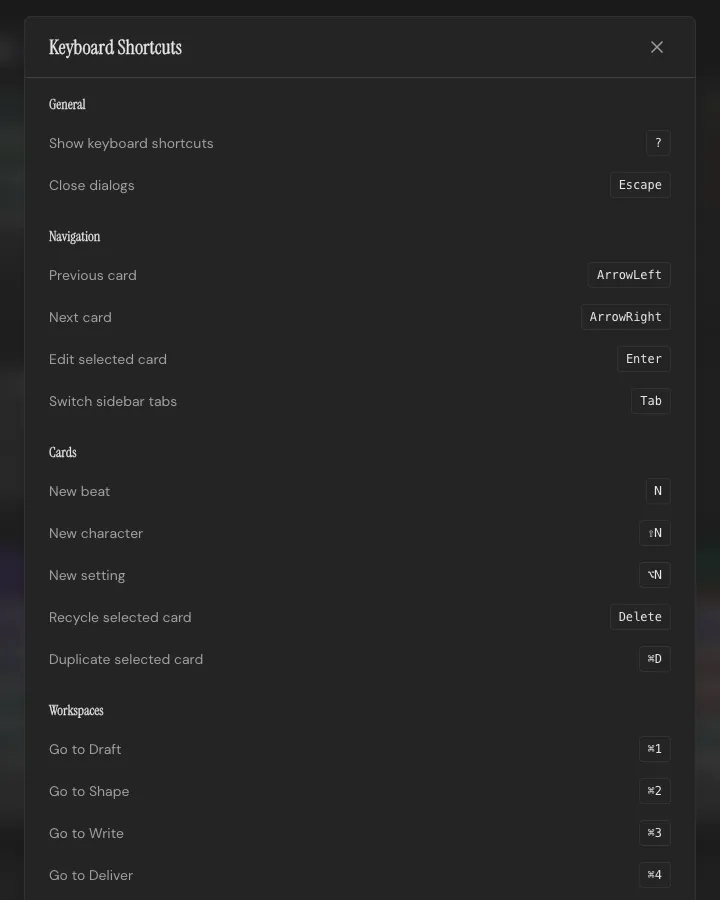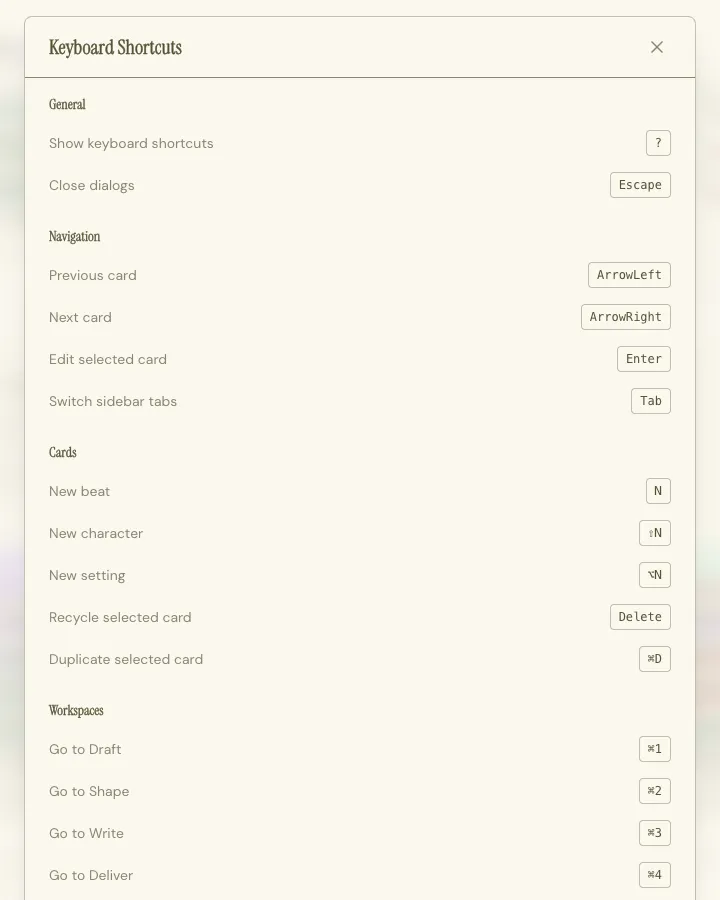 ## General [Section titled “General”](#general) | Shortcut | Action | | -------- | ----------------------- | | `?` | Show keyboard shortcuts | | `Esc` | Close dialogs | ## Navigation [Section titled “Navigation”](#navigation) | Shortcut | Action | | -------- | ------------------- | | `←` | Previous Card | | `→` | Next Card | | `Enter` | Edit selected Card | | `Tab` | Switch sidebar tabs | ## Cards [Section titled “Cards”](#cards) | Shortcut | Action | | ------------ | ----------------------- | | `N` | New Beat | | `Shift+N` | New Character | | `Alt+N` | New Setting | | `Delete` | Recycle selected Card | | `Cmd/Ctrl+D` | Duplicate selected Card | ## Workspaces [Section titled “Workspaces”](#workspaces) | Shortcut | Action | | ------------ | ------------- | | `Cmd/Ctrl+1` | Go to Draft | | `Cmd/Ctrl+2` | Go to Shape | | `Cmd/Ctrl+3` | Go to Write | | `Cmd/Ctrl+4` | Go to Deliver | ## Project [Section titled “Project”](#project) | Shortcut | Action | | ------------------ | -------------------------------------------------- | | `Cmd/Ctrl+N` | New project | | `Cmd/Ctrl+O` | Open a project file | | `Shift+Cmd/Ctrl+S` | Duplicate the project | | `Cmd/Ctrl+E` | Export project | | `Cmd/Ctrl+P` | Project details | | `Cmd/Ctrl+Z` | Undo (in Write also with the cursor in the script) | | `Shift+Cmd/Ctrl+Z` | Redo | | `Ctrl+Y` | Redo (Windows) | Projects save to their file automatically as you write. See [Projects & Files](/docs/getting-started/projects-and-files/). ## Editing [Section titled “Editing”](#editing) | Shortcut | Action | | ------------------ | ------------------------------------------- | | `1` | Mark Beat as empty | | `2` | Mark Beat as Draft | | `3` | Mark Beat as Done | | `Cmd/Ctrl+S` | Save changes | | `Shift+Cmd/Ctrl+K` | Move selected text into a new Spark (Write) | | `Esc` | Cancel editing |
# Formatting & Elements
> Live, industry-standard screenplay formatting: how the six element types work in Write.
Screenplay mode formats as you type in the [Write Workspace](/docs/workspaces/write/). ## The six elements [Section titled “The six elements”](#the-six-elements) Scene Headings are treated with extra care in Throughline. You don’t type them on your page directly; they’re created intelligently based on Settings attached to your Beat in the toolbar at the top of the editor. Action lines, Characters, Dialogues, Parentheticals and Transitions are exactly how you know them from other software. `Tab` cycles between them at your cursor, so you’re never reaching for a menu mid-sentence. Typing a character’s name automatically attaches that Character’s card to your Beat, or asks if you’d like to create a new one. ## Scene headings [Section titled “Scene headings”](#scene-headings) Built in the toolbar from three pieces: INT/EXT, a location, and a time of day. ## Project language [Section titled “Project language”](#project-language) Set the **Project language** in **Project Details** (`Cmd/Ctrl+P`). English and German are available, and a new project starts in the language you use the app in. The project language sets: * **Scene headings**: `INT.` and `EXT.` in English, `INNEN` and `AUSSEN` in German * **Script terms in the Screenplay PDF**: `(MORE)` and `(CONT'D)` in English, `(MEHR)` and `(WEITER)` in German, and the default credit line on the title page (“written by” or “geschrieben von”) * **Document exports**: headings and labels such as “Characters” and “Settings” (in German, “Figuren” and “Schauplätze”) * **Structure Decks**: the language of new Structure Cards you place from a deck * **Spell check**: the dictionary for every text field So a German script reads German from the first scene heading to the last page, even if you run the app itself in English. Fountain files always use `INT.` and `EXT.`, the way other apps expect them. ## Character cues [Section titled “Character cues”](#character-cues) Type a name and Throughline autocompletes it from your project’s cast. `(V.O.)` and `(O.S.)` cues stay attached to whichever Character they belong to, so a voiceover line reads correctly wherever it shows up. `(MORE)` and `(CONT'D)` are automatic in the Screenplay PDF. A dialogue block that runs across a page break gets them without you touching a thing. A Character who speaks again in the same scene with only action in between gets `(CONT'D)` on the new cue too. Typed one yourself? It prints once, never twice. What they mean and when to use them: [(MORE) and (CONT’D) in a screenplay](https://getthroughline.com/learn/more-and-contd-in-a-screenplay/). ## Dual dialogue [Section titled “Dual dialogue”](#dual-dialogue) Two people talking over each other get the classic two-column layout. Toggle it from the toolbar on a dialogue block and that speech prints beside the one before it. It round-trips through Fountain, which marks dual dialogue with a `^`, and it renders in PDF export the way it looks on screen. ## Numbering [Section titled “Numbering”](#numbering) Scenes and dialogue lines can both auto-number. A new insertion between existing numbers gets a letter suffix: scene 42 gains a scene 42A rather than renumbering everything after it. You can also clear numbering entirely if you’d rather work without it. Open the controls with the **#** button at the top of the Beat sidebar. Scenes and dialogue each have their own options: number them, number only the new ones, clear them, and choose whether the numbers print in PDF export. Scene numbers show at the start of each row in the [Beat sidebar](/docs/workspaces/write/#the-beat-sidebar), where you can also change one by hand. Only the active version of a Beat participates in numbering; see [Scene Versions](/docs/screenplay/scene-versions/) for what that means. ## Round-tripping through Fountain [Section titled “Round-tripping through Fountain”](#round-tripping-through-fountain) Fountain export carries your scene structure and dialogue faithfully, but it’s plain text: no dialogue numbers, and no room for the fields only Throughline has, like a Character’s Want, Need, and Flaw or a Setting’s description. Those live in your project and travel in `.thrl` exports. If you need numbered pages for production, export Screenplay PDF instead.
# Scene Versions
> Keep more than one take on a scene, and compare them side by side.
Some pieces of your writing need alternatives before you know which take is right. Versions let you do that. ## Branching a version [Section titled “Branching a version”](#branching-a-version) From any piece of text in a Beat in the [Write Workspace](/docs/workspaces/write/), look at the two buttons available in the sidebar: * **Duplicate** branches a new version starting from what’s already on the page, so you don’t retype shared setup. * **Start Fresh** begins a version with nothing in it, for when the two takes shouldn’t share any text. ## Comparing and switching [Section titled “Comparing and switching”](#comparing-and-switching) Pull up two versions side by side to see where they diverge, or switch the active version once you’ve decided which one’s staying. Delete a version you’ve ruled out. ## What “active” affects [Section titled “What “active” affects”](#what-active-affects) Only the active version of a Beat counts toward scene and dialogue numbering, and only the active version exports. The alternates sit there unnumbered and unexported until you make one of them active. Find looks only in the active version too. Changes across the whole story reach every version, so no alternate keeps an old name: renaming a Character in the script, **Replace All**, and the renames of a [merge](/docs/lab/merge-projects/).
# Deliver
> Turn your project into a document or a screenplay, with a live preview of exactly what you'll get.
The Deliver Workspace has settings on one side and a live preview of the real output on the other. What you see in the preview is what you get.  ## Picking a format [Section titled “Picking a format”](#picking-a-format) Every format sits at the top of the settings side, all at once, grouped by kind. Click one, or use the arrow keys to move between them: * **Screenplay**: PDF, Fountain * **Document**: Word, Markdown, PDF, Plain Text * **Project file**: a full `.thrl` file with it all. Right under the formats sits the switch you’ll reach for most: * **Outline mode** for every document format: beat summaries instead of full text * **Title page** for a screenplay PDF or Fountain file Everything else is under **Advanced**, which opens below the formats, so you can still switch formats while it’s open: * **All document formats**: outline mode (summaries instead of full text), toggles for including Character and Setting sections, Structure guidance, and Beat numbering * **Markdown**: YAML front matter or formatted metadata, and scene headings or prose subheadings * **Document PDF**: page numbers, page size, and page breaks before sections * **Screenplay PDF**: title page, bold scene headings, dialogue highlighting by Character color, scene and dialogue numbers, and page size * **Fountain**: the title page date and scene numbers. These are the same settings as for Screenplay PDF, so the two files hold the same script. Beats marked **Don’t Print** in the Draft or Write workspaces are skipped by every document and screenplay format. A `.thrl` project file keeps them. ## Project details [Section titled “Project details”](#project-details) Below the formats, the **Project Details** button shows your title. It opens a window with your title, logline, and author info (name, company, address, city, country, email, phone), plus a credit line (“Written by…”) and a source note (“Based on the novel by…”) if the project needs one. All of it feeds the title page on a screenplay export. The **Project language** there sets the language of every export: headings and labels in documents, and script terms such as `(CONT'D)` or `(WEITER)` in a Screenplay PDF. See [Project language](/docs/screenplay/formatting-and-elements/#project-language). The same window opens from any Workspace with `Cmd/Ctrl+P`, or with **Edit Project Details** in the project menu, so you never have to leave what you’re doing. The **Add more details in Project Details** link in the export options opens it too. ## Exporting a screenplay as a document [Section titled “Exporting a screenplay as a document”](#exporting-a-screenplay-as-a-document) Throughline warns you first: screenplay formatting doesn’t survive the trip to Markdown or Word, and you’ll lose the page layout. Switch straight to Screenplay PDF from that warning, or export anyway if that’s what you want. ## Getting it out [Section titled “Getting it out”](#getting-it-out) The Print and Export buttons stay at the bottom of the settings side, and the Export button names the format you picked. Copy straight to the clipboard, print natively on macOS, or export to a file. The preview regenerates as you change options, so you already know what you’re getting before you hit the button.
# Draft
> Lay your story out as a row of Beat Cards, and cast Characters and Settings into them.
The Draft Workspace is your beat board. The Throughline is a row of Beat Cards; above it sit the Characters and Settings you cast into them. New to outlining with cards? Start with [How to outline a screenplay with index cards](https://getthroughline.com/learn/outline-a-screenplay-with-index-cards/). 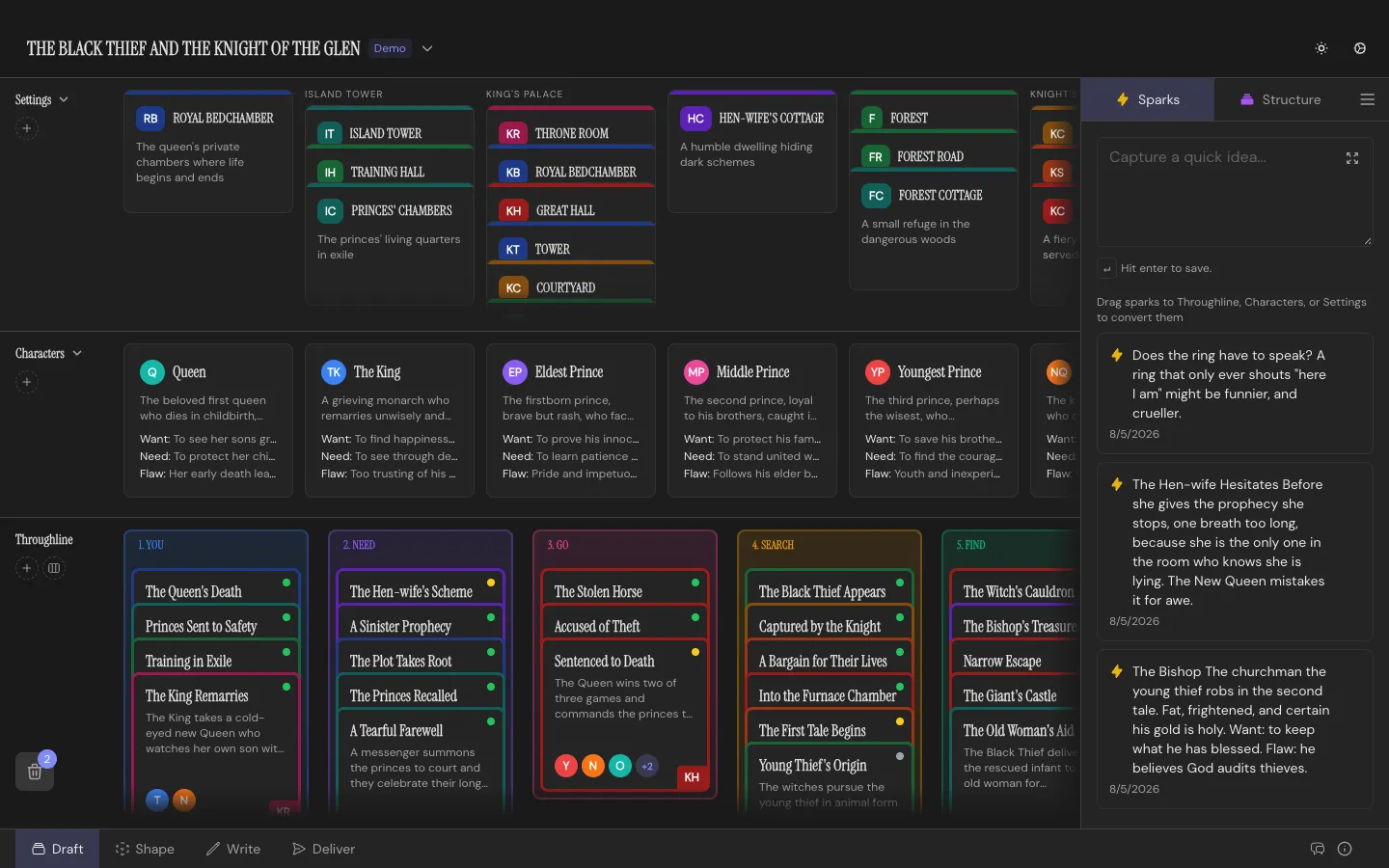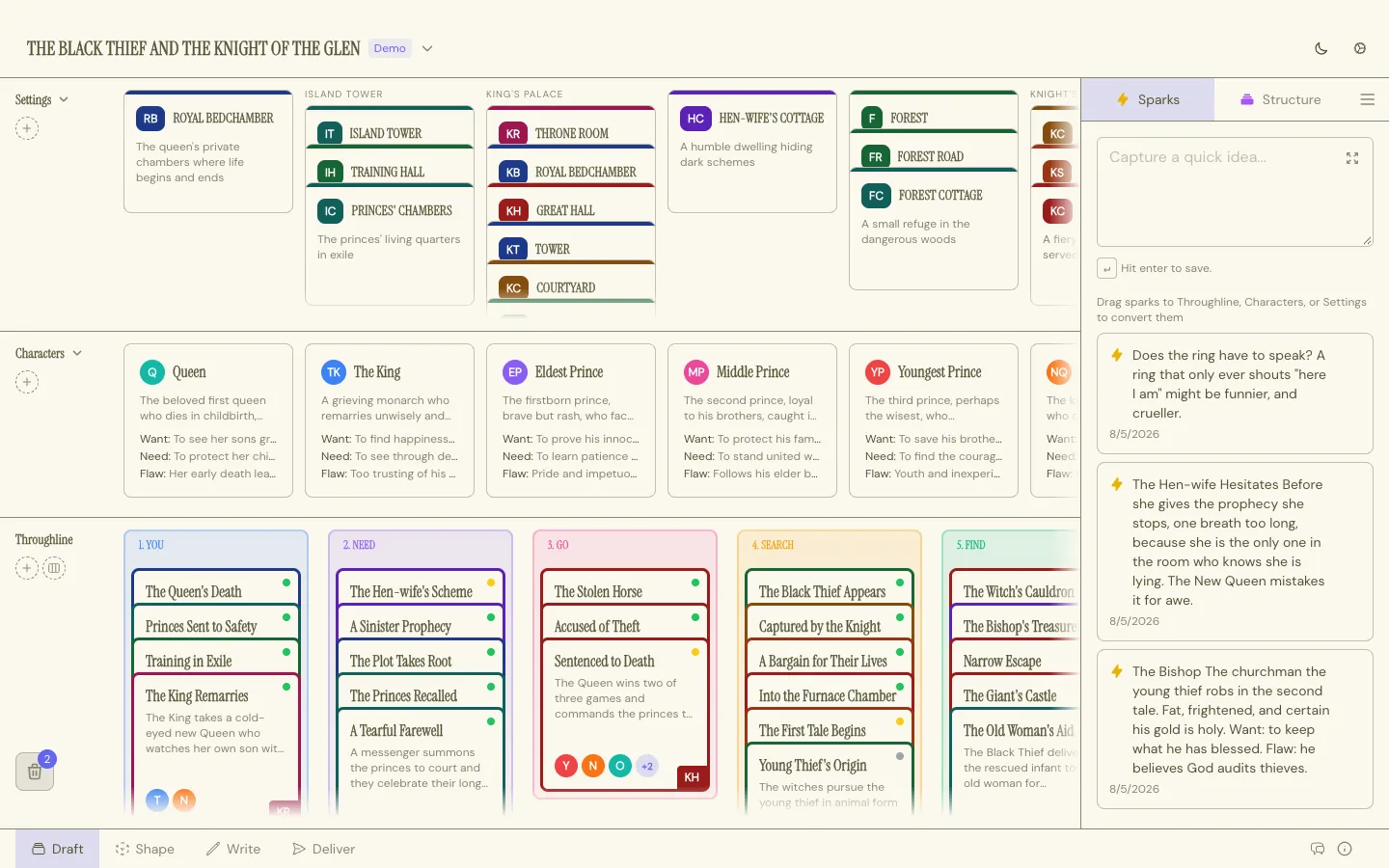 ## The board [Section titled “The board”](#the-board) Three rows, all drag-and-drop: * **Setting Row**: where your story takes place * **Character Row**: everyone in it * **Throughline**: the spine, your Beats, in order Drag a Character or Setting down onto a Beat to cast it there. Reorder Beats by dragging; the story reorders with them. ## Structuring as you go [Section titled “Structuring as you go”](#structuring-as-you-go) Open the right sidebar’s **Structure** tab to deal in a template: 15 Beats, Hero’s Journey, Story Circle, Three-Act, or one of your own. Drag a Structure Card onto the Throughline, or **Add All** to place a whole deck at once. Stack your own Beats underneath a Structure Card as you fulfill it, or under any other Beat if you just want a pile of alternates. The **Sparks** tab holds ideas. Drag one onto any row to convert it into a card; see [Sparks Inbox](/docs/core-concepts/sparks-inbox/) for the conversion rules. ## Editing a card [Section titled “Editing a card”](#editing-a-card) Click any card to open its editor. The fields differ by type, covered in [Beat Cards](/docs/core-concepts/beat-cards/), [Characters](/docs/core-concepts/characters/), and [Settings](/docs/core-concepts/settings/). ## Nothing’s really gone [Section titled “Nothing’s really gone”](#nothings-really-gone) Drag any card onto the recycling bin to soft-delete it. Recycle a Stack and Throughline asks whether you mean the whole pile or just the card on top. Open the bin any time to see what’s been recycled and restore it exactly where it was. ## Shortcuts [Section titled “Shortcuts”](#shortcuts) `N` for a new Beat, `Shift+N` for a Character, `Alt+N` for a Setting. Each drops the card right where you’re looking, with no dialog in the way. The right sidebar collapses with its toggle button to give the Throughline full width.
# Shape
> See your story's emotional arc as a curve, and your cast as a living map of relationships.
The Shape Workspace is where emotional journeys live. It has two sections, switched from the tabs in the footer: **Arc** and **Constellation**. ## Arc [Section titled “Arc”](#arc) Every plotline can get its own Arc: the main plot, a B-story, a Character’s internal journey, a romance. Every project starts with one protected default Arc holding all Beats. Create as many more as you need. An Arc has two Poles you name yourself (hope and despair, trusted and exposed, whatever fits) and Beats you drag up and down between them to chart the story’s **Charge**. Drag a Beat left or right to place it in time, and stretch its width to give it more room on the curve. Beats not yet on the active Arc wait in a ghost strip below the canvas; click one and it flies onto the timeline.  With at least two Beats charted, overlay a [Story Shape](/docs/core-concepts/story-shapes/) to compare your curve to the classics. You can seed a new Arc from specific Characters’ Beats rather than from all of them, useful when you’re isolating one relationship’s journey. **Reset Charges** clears every point on the Arc without deleting it. ## Constellation [Section titled “Constellation”](#constellation) Switch sections and your cast becomes a map: Characters as nodes, relationships as edges between them. Add a relationship between two Characters and label it in both directions; how A feels about B isn’t necessarily how B feels about A, so Throughline keeps those separate. 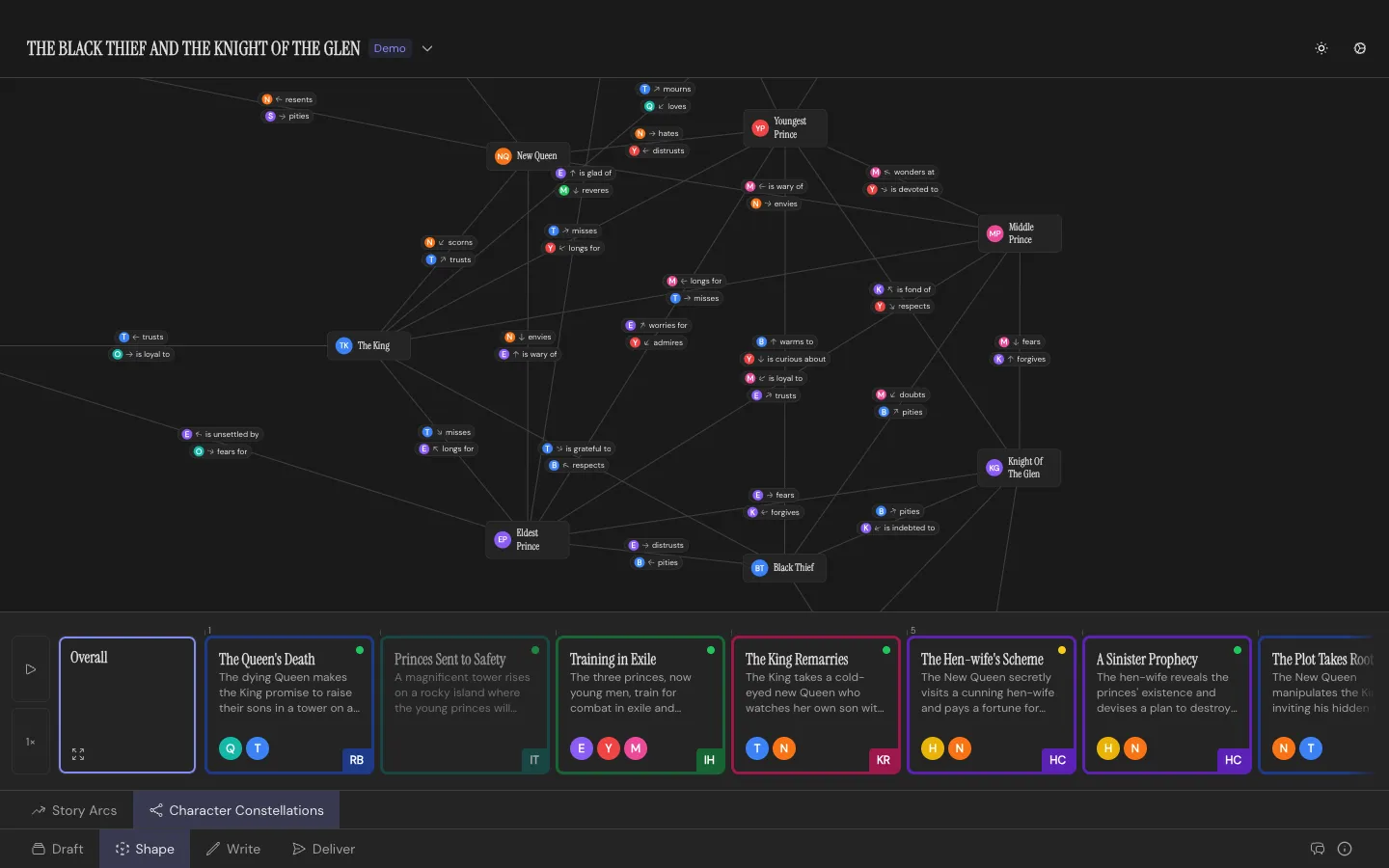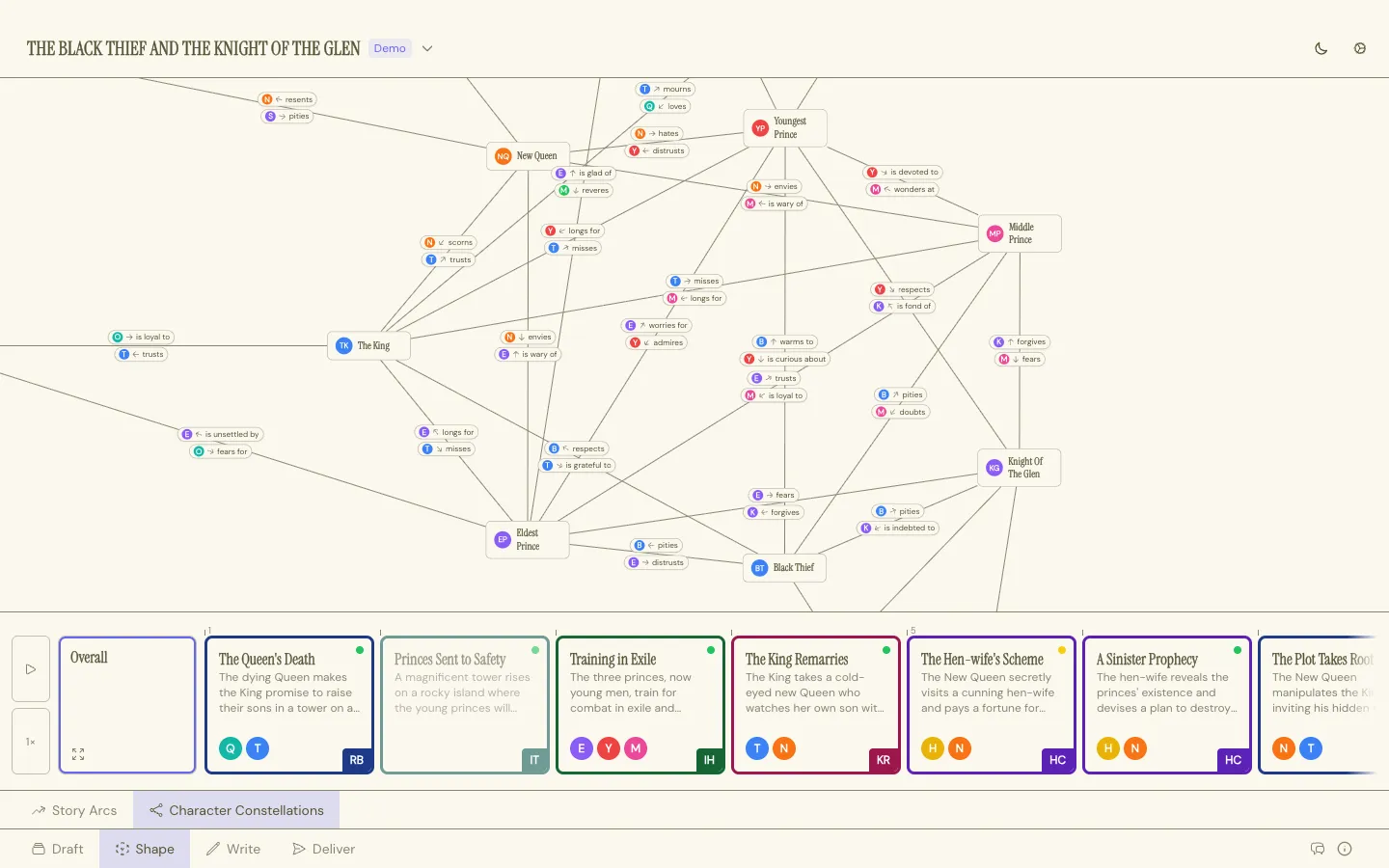 A relationship can start at a specific Beat and dissolve at a later one. The canvas has a play control: scrub through your story Beat by Beat and watch the map update as relationships form, shift, and break. Drag Characters around the canvas to reposition them, with per-Beat overrides if someone’s position should change as the story moves. The Constellation needs at least two Characters before it shows you anything.
# Write
> A full screenplay and prose editor, bound to your Beats, with live industry-standard formatting.
The Write Workspace is where the actual text gets written. 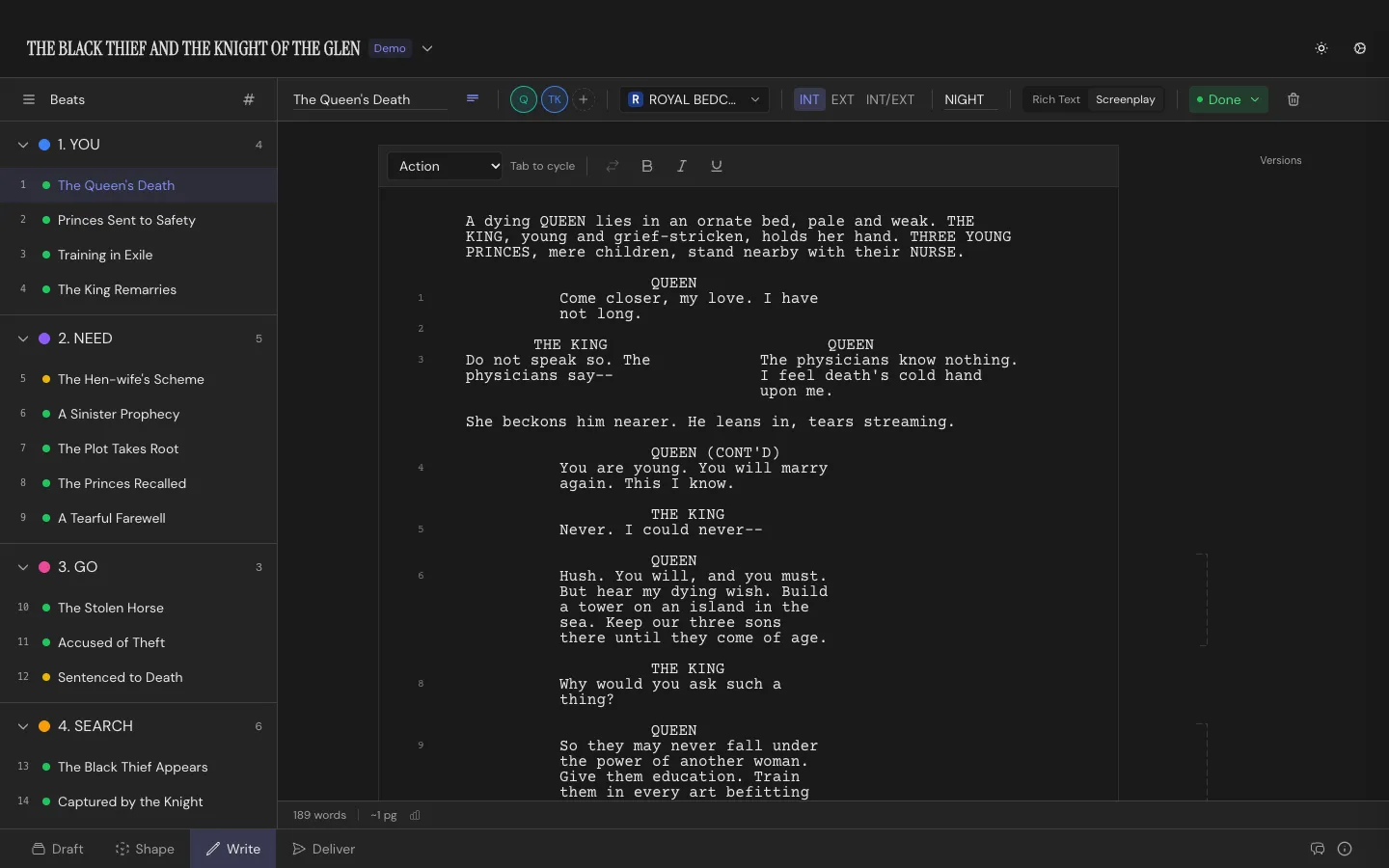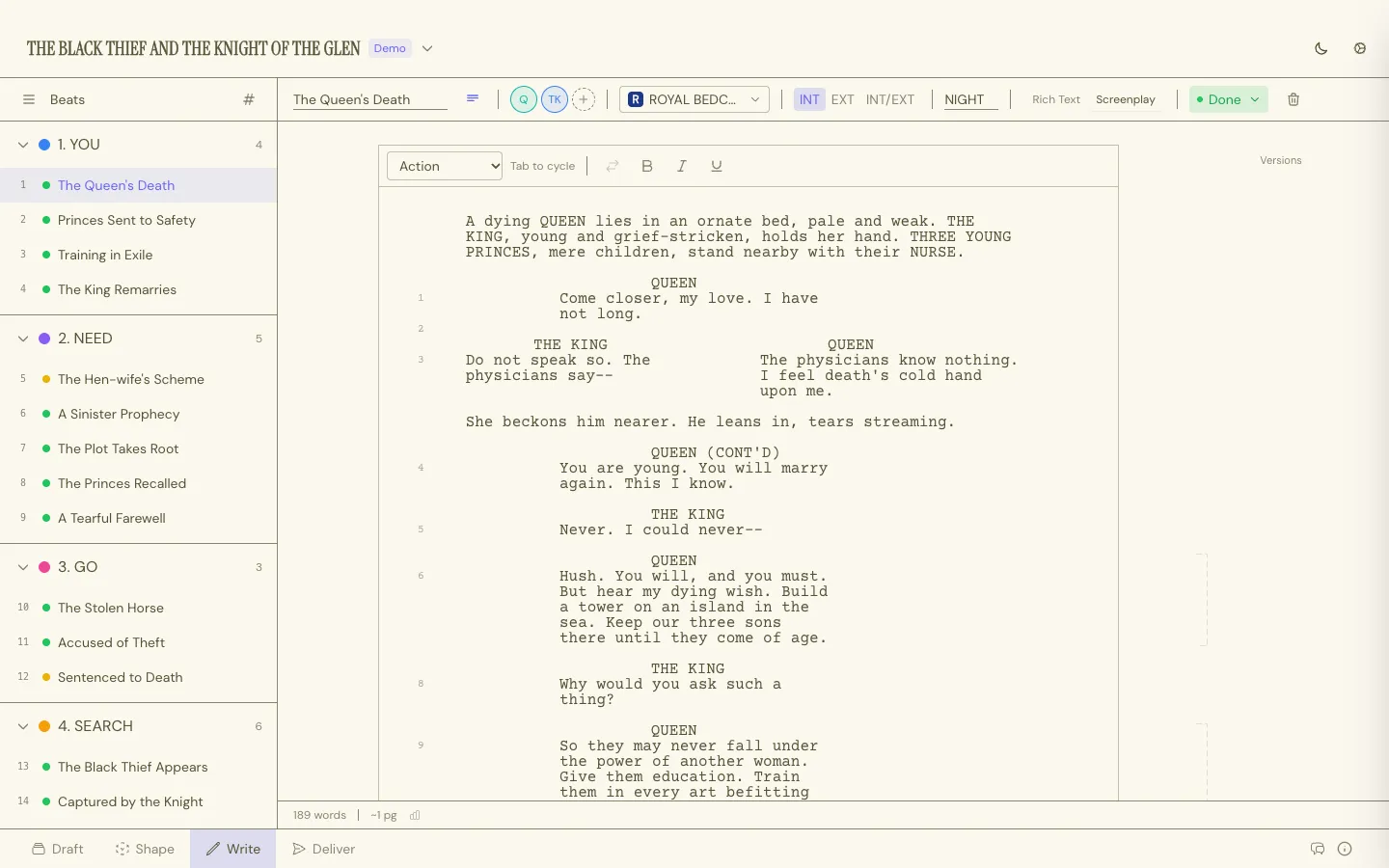 ## Two modes, one document [Section titled “Two modes, one document”](#two-modes-one-document) Every project has a Rich Text mode and a Screenplay mode, toggled per project. The switch sits at the top right of the Write Workspace. Rich Text gets you bold, italic, and underline for prose. Screenplay mode gets you scene headings, action lines, character cues, dialogue, parentheticals, and transition elements, with `Tab` cycling between them as you type. Scene headings build from INT/EXT plus a location and a time of day. Character names autocomplete from your project’s cast, and `(V.O.)` and `(O.S.)` cues stay linked to whichever Character they belong to. Scenes and dialogue can auto-number. See [Formatting & Elements](/docs/screenplay/formatting-and-elements/) for the full element reference. ## The Beat sidebar [Section titled “The Beat sidebar”](#the-beat-sidebar) A list of every Beat in the project, grouped under whatever Structure Card they’re stacked on. Click one to open it in the main editor, or add a new Beat right from the sidebar without leaving the Write Workspace. Each row starts with a number. By default it’s the Beat’s place in story order, counted straight through from the first Beat to the last, across every Structure Card. It follows the story: move a Beat and the numbers update. AI apps you [connect to Throughline](/docs/connect-ai-apps/) use the same numbers, so “Beat 12” means the same Beat to you and to them. Once you number your scenes, a Beat with a scene number shows that number in the row instead. Scene numbers stay fixed when you reorder, so after a move they can differ from the story order. See [Numbering](/docs/screenplay/formatting-and-elements/#numbering). Hover a row and its number turns into a drag handle. Drag it to move the Beat in the story. To change a scene number by hand, click the handle and type the new one. ## Scrolling from Beat to Beat [Section titled “Scrolling from Beat to Beat”](#scrolling-from-beat-to-beat) Keep scrolling at the end of a Beat and the page stretches a little. A round arrow appears below the page, and a ring around it fills as you pull. When the ring is full, the arrow lights up. Pull firmly and the page pops over into the next Beat, so you can read and write through the story without reaching for the sidebar. Scrolling up past the start of a Beat works the same way: the previous Beat opens at its last line, right where it hands over to the one you left. It works with a trackpad swipe and with a mouse wheel (about three notches past the end). A gentle scroll only stretches the page and lets go again, so you never leave a Beat by accident. On a Mac trackpad the stretch holds while your fingers rest, and a slow pull that fills the ring pops when you lift your fingers. `Cmd/Ctrl+↑` and `Cmd/Ctrl+↓` also jump to the previous and next Beat. ## The taskbar [Section titled “The taskbar”](#the-taskbar) Sits above the page for whichever Beat you’re on: title, Characters, Setting, INT/EXT and time of day, status, a short summary for the card back in Draft, and color. Create a new Character or Setting inline from here if the one you need doesn’t exist yet. ## Undo while you write [Section titled “Undo while you write”](#undo-while-you-write) `Cmd/Ctrl+Z` undoes your most recent action, also with the cursor in the script, the title or the summary. That can be typing, a Spark you saved, a Character you cast, a Replace All, or a change from a [connected AI app](/docs/connect-ai-apps/). Typing undoes in steps: each pause in your typing ends one step. `Shift+Cmd/Ctrl+Z` redoes the steps you undid, the last one first. On Windows, `Ctrl+Y` redoes too. An undo can reach a Beat that is not on screen, for example typing in the scene you just left. A short notice then names that Beat, such as *Undid a change in “Arrival”*. The Beat you are on stays open. Redo shows the same notice. ## Saving a line as a Spark [Section titled “Saving a line as a Spark”](#saving-a-line-as-a-spark) Wrote a line that belongs somewhere else, or an idea for a later scene? Select the text, right-click it and choose **Save as Spark**. `Shift+Cmd/Ctrl+K` does the same without the menu. The selected text moves out of your script and into the [Sparks inbox](/docs/core-concepts/sparks-inbox/) as a new Spark, and a Spark card flies to the Draft tab to show where it went. The script closes up as if you had pressed Delete. Each screenplay element or paragraph becomes one line of the Spark, so the first line you selected is the name the Spark gets when it becomes a card. Changed your mind? One undo (`Cmd/Ctrl+Z`) puts the text back in the script and removes the Spark, even with the cursor still in the script. Redo moves it again. **Save as Spark** sits in the system menu, right below **Copy**, so the spelling suggestions stay where they always are. The item shows only when you right-click text you have selected. ## Versions [Section titled “Versions”](#versions) Torn between two takes on a scene? Version it. **Duplicate** branches a new version from the current one; **Start Fresh** begins blank. Switch between versions, compare two side by side, or delete one you’ve decided against. Only the active version of a Beat is counted in scene and dialogue numbering. See [Scene Versions](/docs/screenplay/scene-versions/). ## Renaming a Character [Section titled “Renaming a Character”](#renaming-a-character) Rename a Character anywhere in Throughline and the Write Workspace offers to rename them everywhere they appear in the script too, cues and prose mentions both, with a preview of how many scenes and lines are affected before you commit. If the script doesn’t name them yet, the new name simply applies, with no question asked. The rename reaches every version of a scene, not only the active one. ## Find and replace [Section titled “Find and replace”](#find-and-replace) `Cmd/Ctrl+F` opens the find bar over the script. It searches every Beat in the story. `Enter` jumps to the next match and `Shift+Enter` to the previous one. **Match case** makes the search case-sensitive. **Replace** changes the current match. **Replace All** changes every match in the story, in every [version](/docs/screenplay/scene-versions/) of a scene too, and one undo takes it all back. If the text you replace is a Character’s name in a cue, Throughline asks whether to rename the Character everywhere or to replace only the text. With [Writer Assignment](/docs/lab/writer-assignment/) on, Replace All skips the Beats assigned to someone else and says how many it skipped. Check **Include beats assigned to others** to change those too.