Quick Start
This page takes you from a blank page to a screenplay PDF in about ten minutes: a scene written in live screenplay format, your story laid out as cards, and a title page ready to send. Don’t have the Throughline App yet? Start with Installation.
Want to poke around first? The home screen has a complete demo project under Demos, with Beats, Characters, Settings and Arcs already built out. Change anything you like: it resets when you leave.
Already have a script?
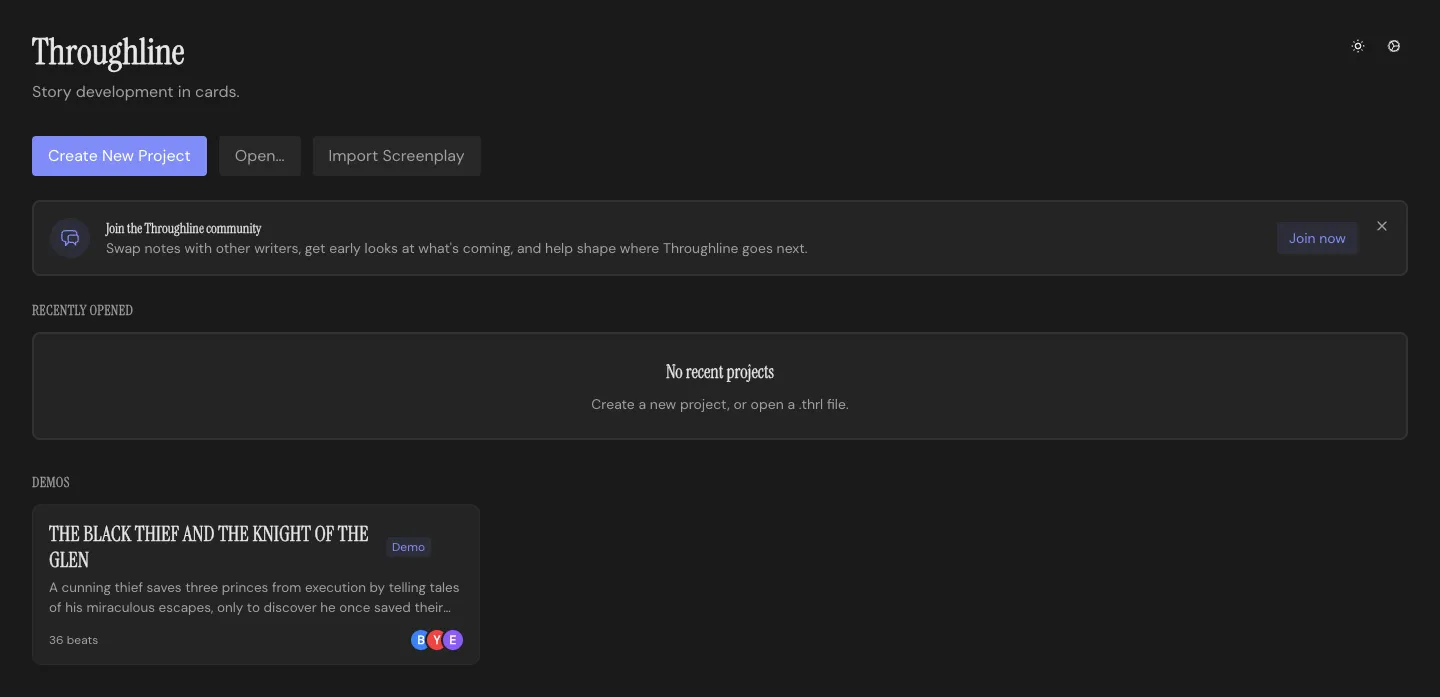
Section titled “Already have a script?”Click Import Screenplay on the home screen and pick a Final Draft, Fountain, PDF or plain text file. The Throughline App turns it into a new project: scene headings become Beats, locations become Setting Cards, and everyone with dialogue becomes a Character. Then skip ahead to See your story as cards. Importing has the details, including what a Final Draft file can’t bring along.
Create a project
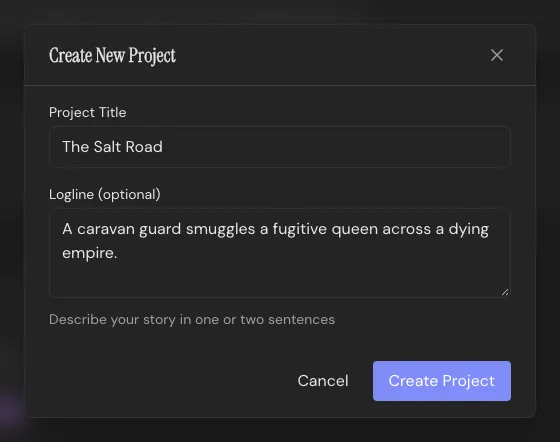
Section titled “Create a project”Click Create New Project on the home screen, give it a title (and a logline, if you have one), and choose where to save the project file. Everything saves to that file as you go, so there’s no Save button to remember.
Write your first scene
Section titled “Write your first scene”New projects open in the Draft Workspace. Press Cmd/Ctrl+3 to jump to Write, where the script happens, and click Create first beat. In the Throughline App, every scene is a Beat.
Next, choose how you’re writing, with the switch at the top right: Screenplay for live screenplay formatting, or Rich Text for prose with bold, italic and underline. The rest of this page follows Screenplay.
The taskbar above the page builds your scene heading: choose INT or EXT, a Setting for the location, and a time of day. You never type the heading on the page itself.
Then just write. Tab cycles between action, character and dialogue, and the formatting is live, so the page always looks like a finished script. Start a character cue and the name autocompletes from your cast; type a new name and the app creates that Character’s card and casts them in the scene. (MORE) and (CONT'D) take care of themselves when dialogue runs across a page break.
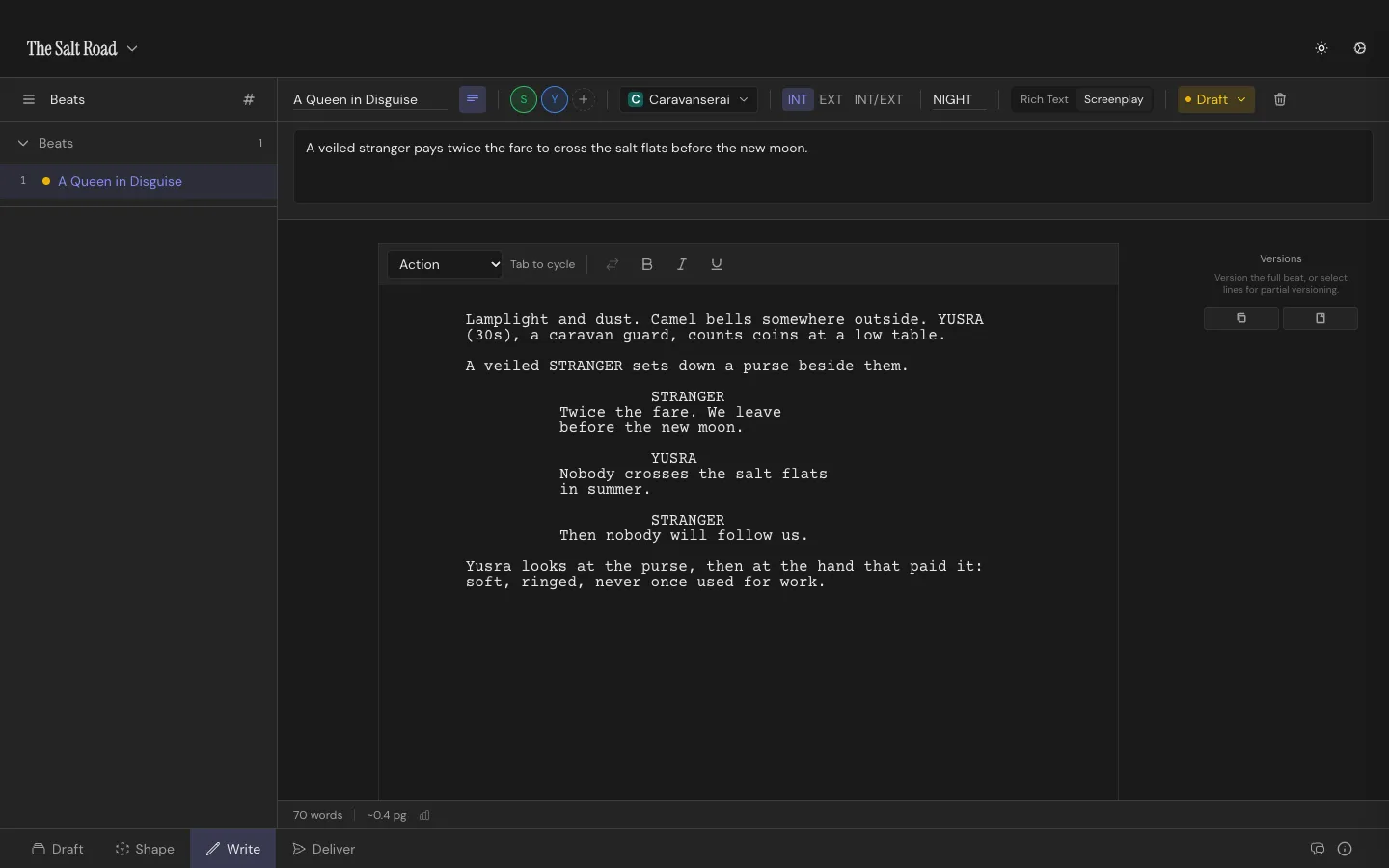
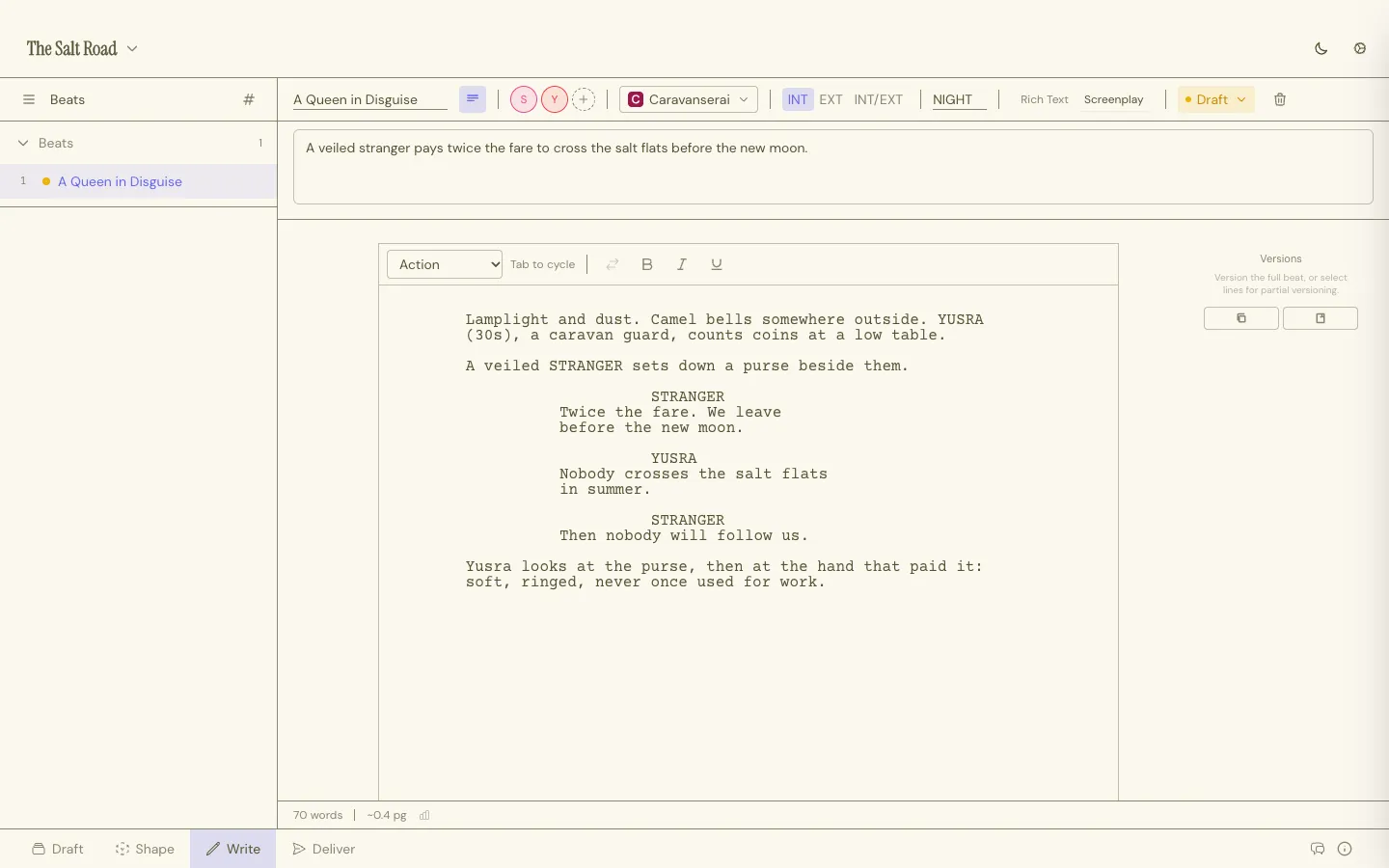
Formatting & Elements covers every element, plus dual dialogue and scene numbering.
Add the next scene
Section titled “Add the next scene”Add another Beat from the sidebar and keep going. To move a scene, hover its row in the sidebar and drag it by its number. Unsure about a scene? Duplicate it into a second version, rewrite that one, and compare the two side by side (see Scene Versions).
Wrote a line that belongs somewhere else? Select it and press Shift+Cmd/Ctrl+K. It moves out of the script and into your Sparks inbox for later.
See your story as cards
Section titled “See your story as cards”Press Cmd/Ctrl+1 for Draft. Every scene you wrote is already a Beat Card on the Throughline row, with its Characters and Setting cast onto it. It’s the same project seen from above, so there’s nothing to convert.
Open the Structure tab in the right sidebar, pick a deck and hit Add All to deal the whole template onto the Throughline row. Stack each of your Beats under the Structure Card it fulfills, and you’ll see at a glance which parts of the structure your story already covers and which are still empty.
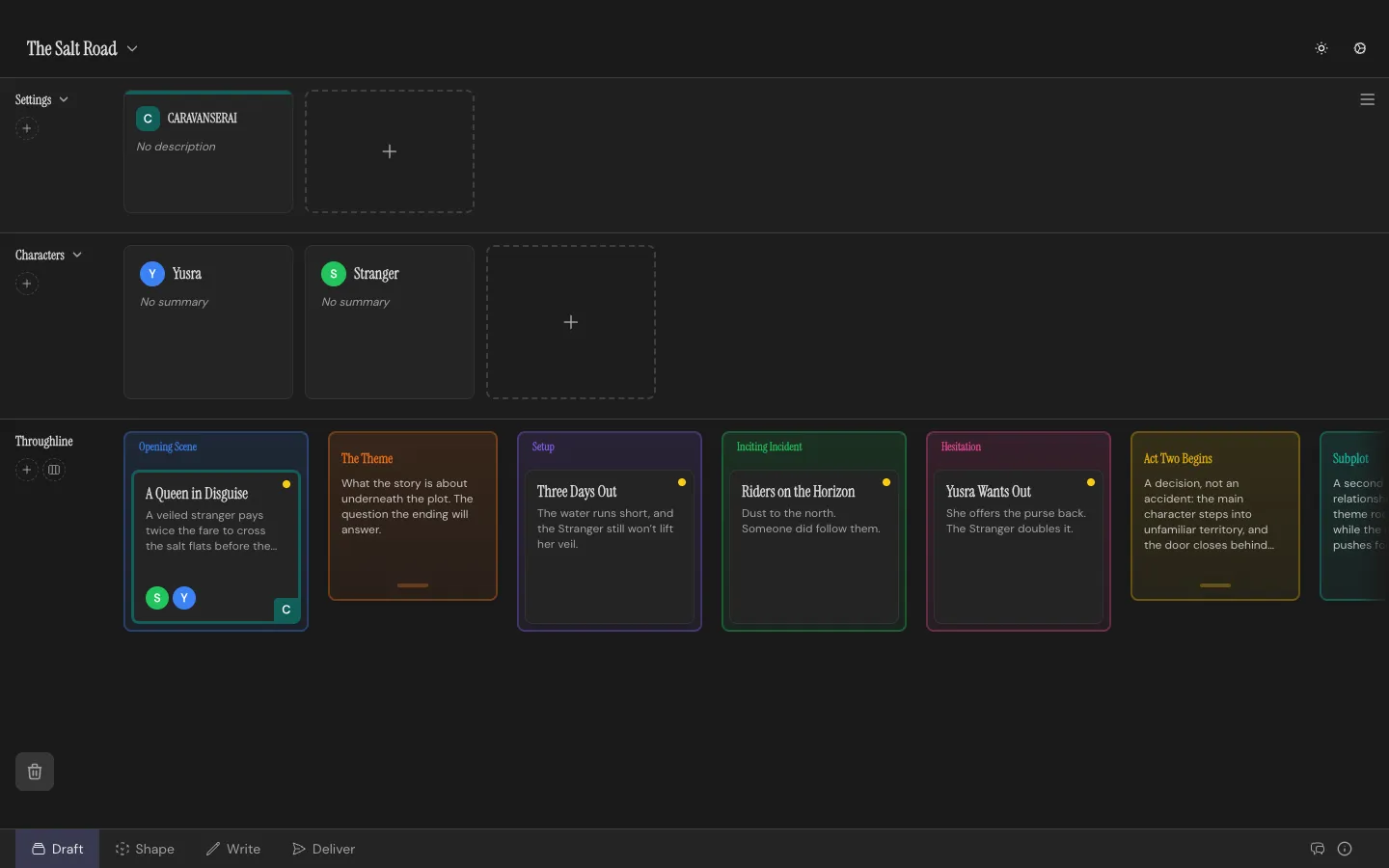
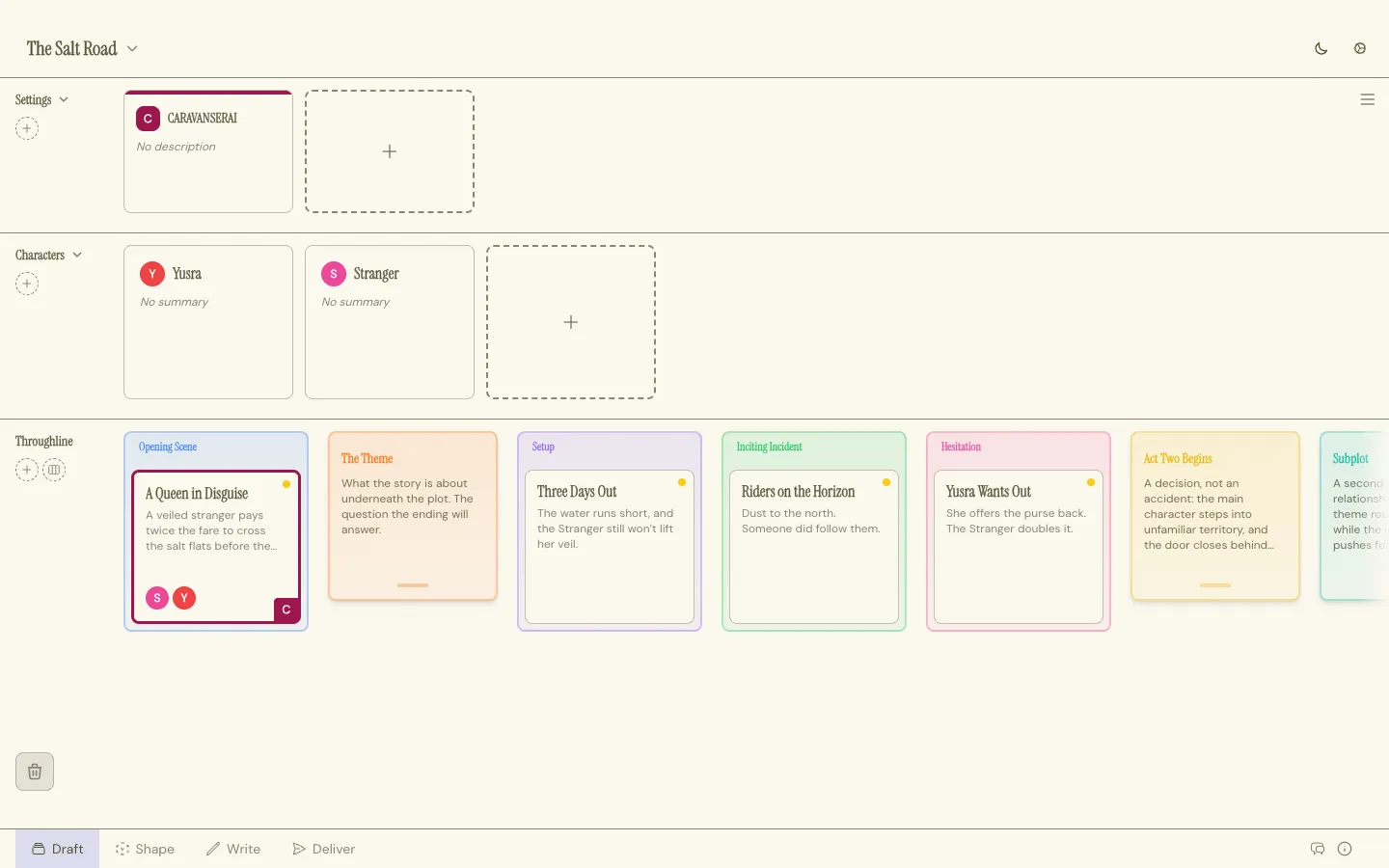
Rearranging the board rearranges the script: drag a Beat Card somewhere new and its scene moves in Write too.
Chart its emotional shape
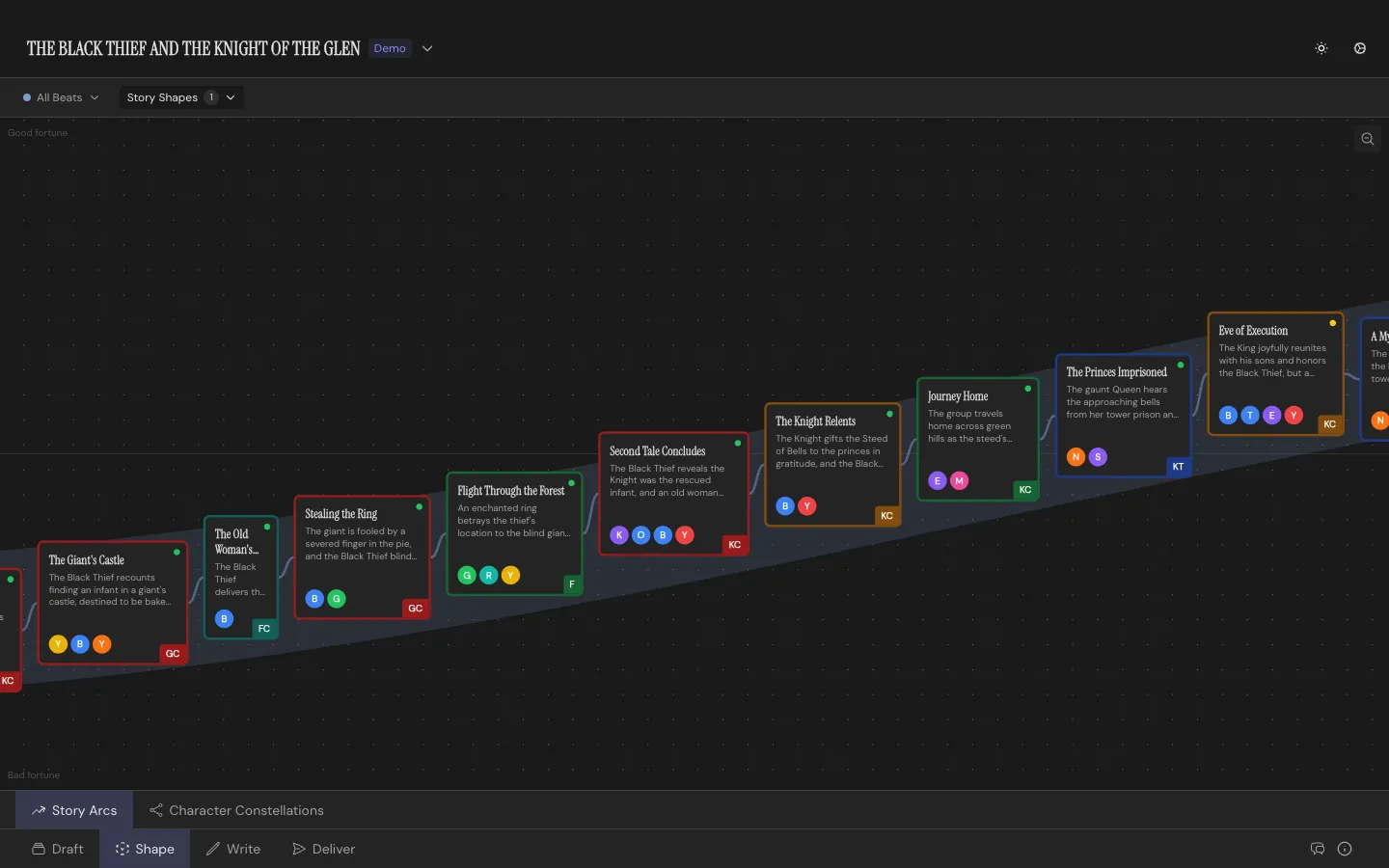
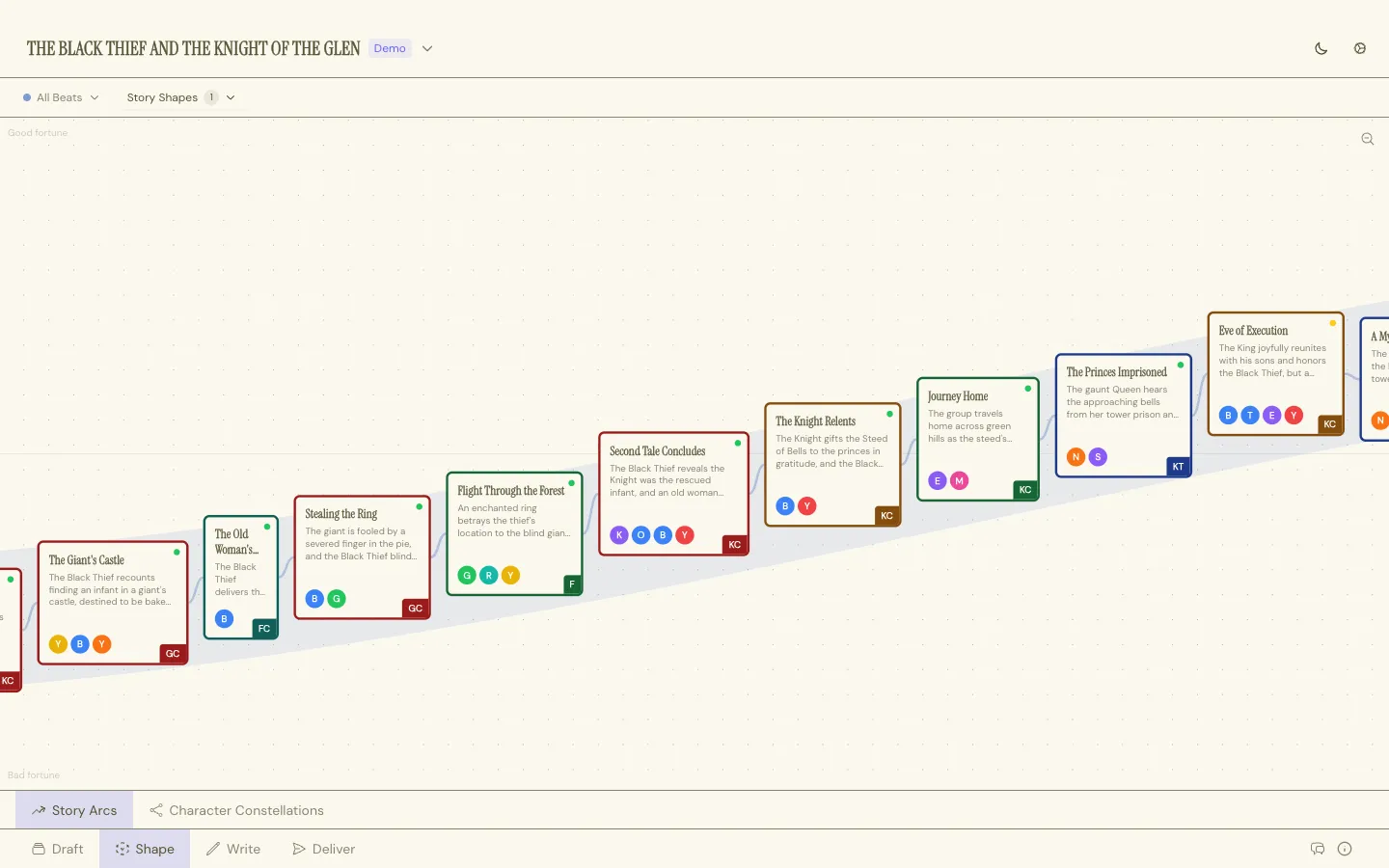
Section titled “Chart its emotional shape”Cmd/Ctrl+2 opens Shape. Drag each Beat up or down between two Poles you name yourself (hope and despair, for example) and your plot becomes a curve. With two or more Beats charted, overlay a Story Shape to compare yours with the classics. Switch to Constellation in the footer to map how your Characters feel about each other, Beat by Beat.
Deliver a screenplay PDF
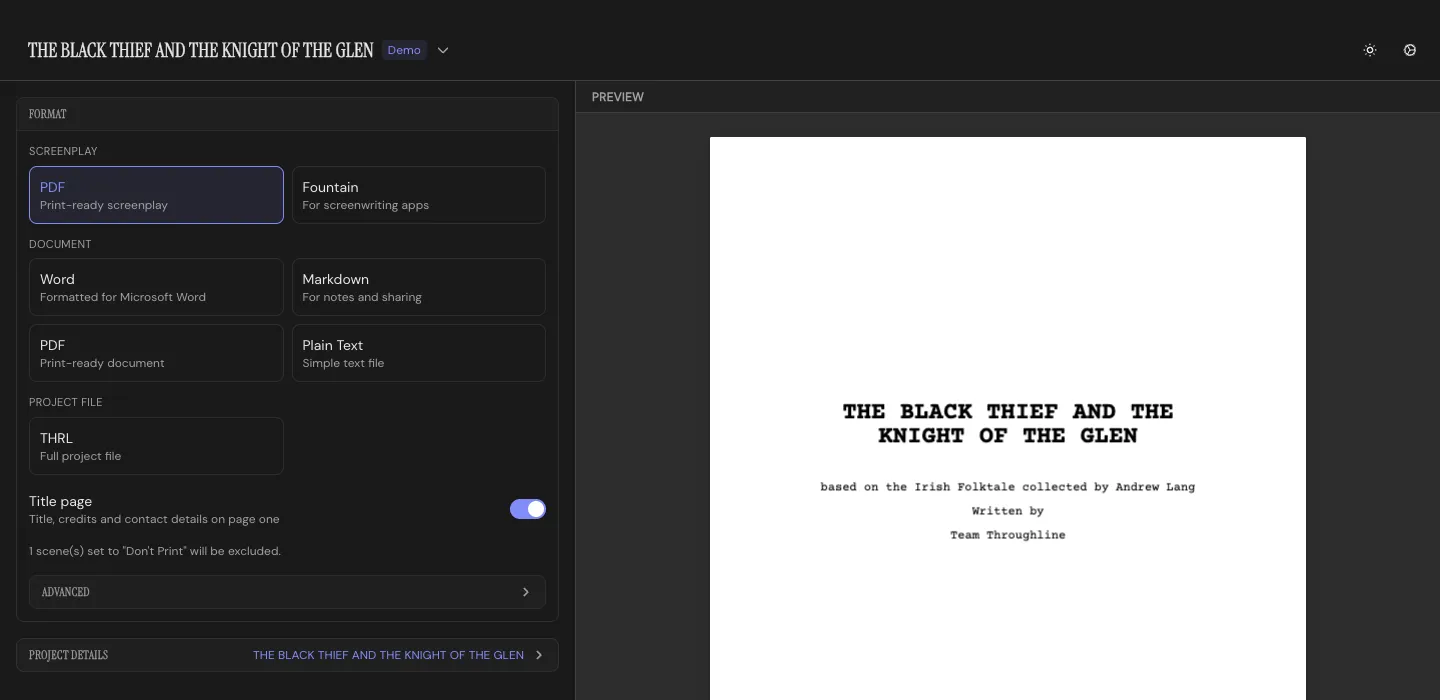
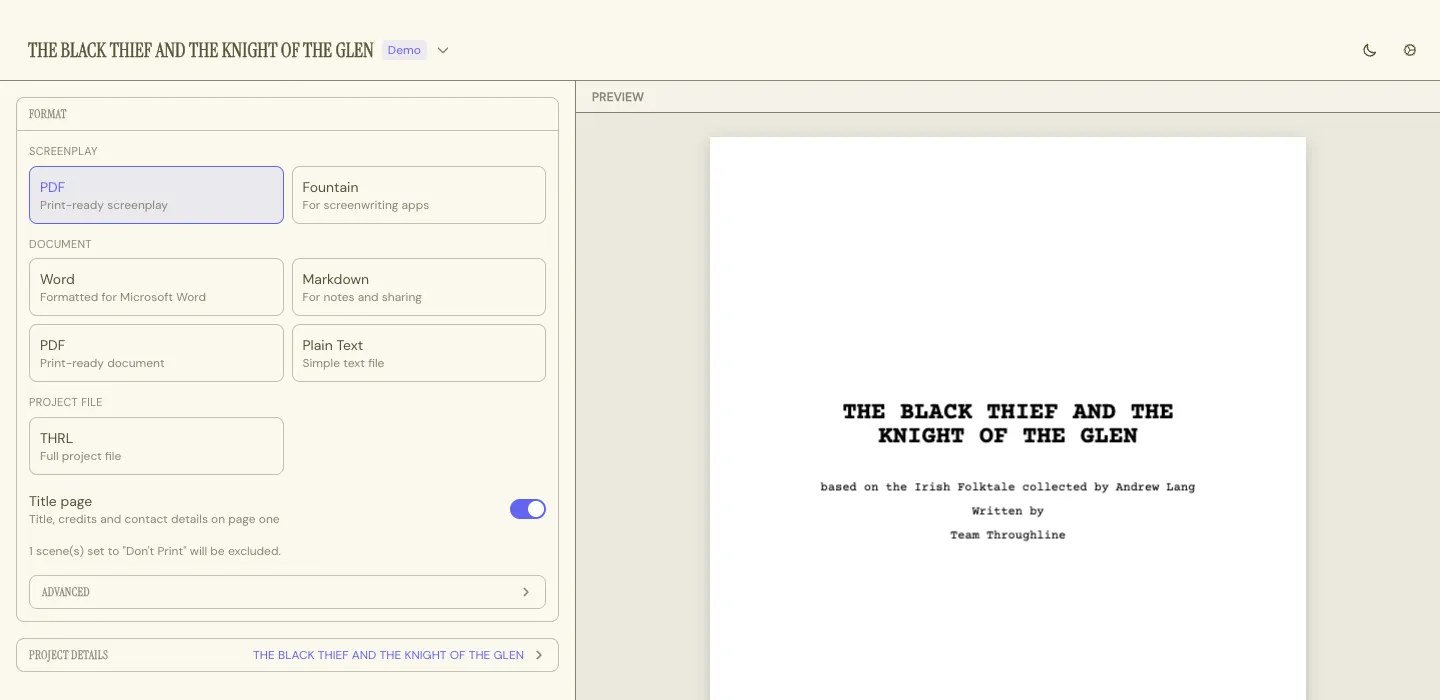
Section titled “Deliver a screenplay PDF”Cmd/Ctrl+4 opens Deliver. Pick the Screenplay PDF, switch on the Title page, and fill it in under Project Details (Cmd/Ctrl+P): title, credit line and contact details. The preview shows exactly what you’ll get. Hit Export and you have an industry-standard script, ready to send. Fountain sits right next to it, for any other screenwriting app.
Where next
Section titled “Where next”- Press
?anywhere in the app for every keyboard shortcut. - Draft for everything the board can do, from Stacks to the recycling bin.
- Characters for giving your cast a Want, a Need and a Flaw.
- Projects & Files for where your work lives and how autosaves work.