Deliver
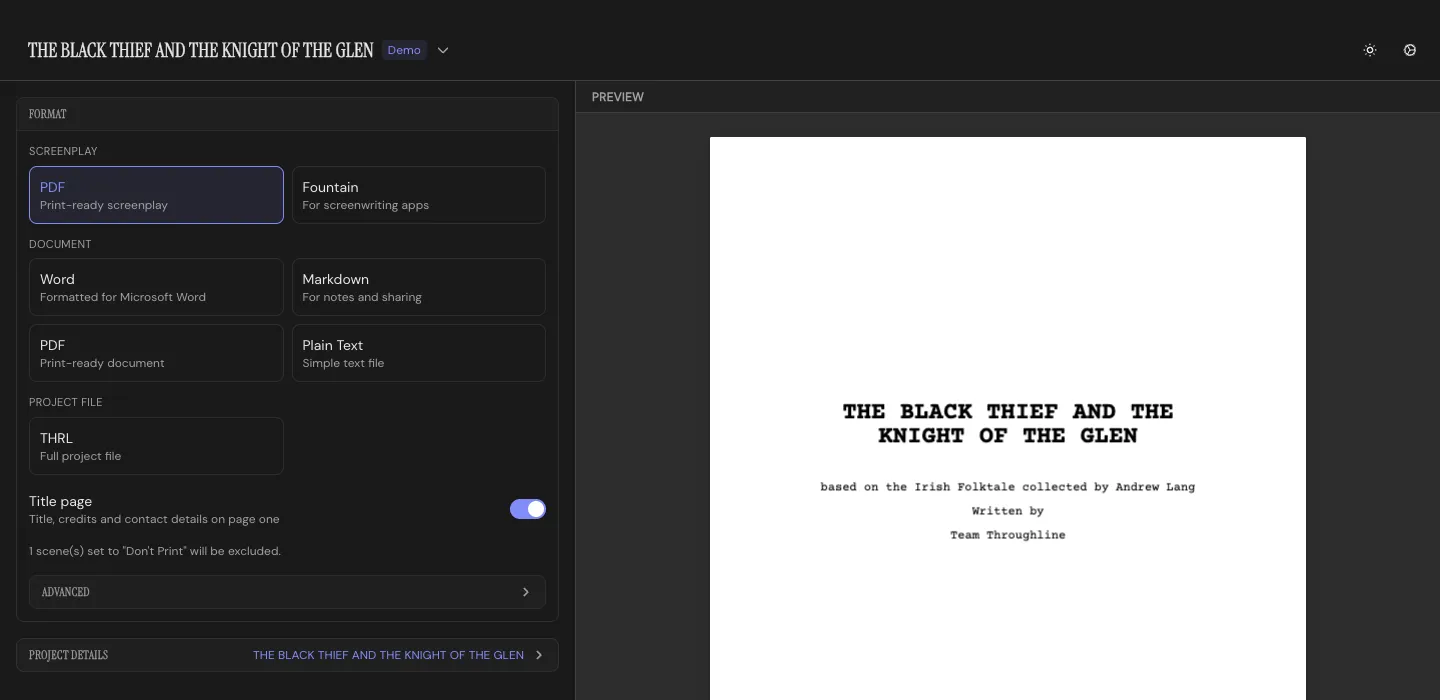
The Deliver Workspace has settings on one side and a live preview of the real output on the other. What you see in the preview is what you get.
Picking a format
Section titled “Picking a format”Every format sits at the top of the settings side, all at once, grouped by kind. Click one, or use the arrow keys to move between them:
- Screenplay: PDF, Fountain
- Document: Word, Markdown, PDF, Plain Text
- Project file: a full
.thrlfile with it all.
Right under the formats sits the switch you’ll reach for most:
- Outline mode for every document format: beat summaries instead of full text
- Title page for a screenplay PDF or Fountain file
Everything else is under Advanced, which opens below the formats, so you can still switch formats while it’s open:
- All document formats: outline mode (summaries instead of full text), toggles for including Character and Setting sections, Structure guidance, and Beat numbering
- Markdown: YAML front matter or formatted metadata, and scene headings or prose subheadings
- Document PDF: page numbers, page size, and page breaks before sections
- Screenplay PDF: title page, bold scene headings, dialogue highlighting by Character color, scene and dialogue numbers, and page size
- Fountain: the title page date and scene numbers. These are the same settings as for Screenplay PDF, so the two files hold the same script.
Beats marked Don’t Print in the Draft or Write workspaces are skipped by every document and screenplay format. A .thrl project file keeps them.
Project details
Section titled “Project details”Below the formats, the Project Details button shows your title. It opens a window with your title, logline, and author info (name, company, address, city, country, email, phone), plus a credit line (“Written by…”) and a source note (“Based on the novel by…”) if the project needs one. All of it feeds the title page on a screenplay export. The Project language there sets the language of every export: headings and labels in documents, and script terms such as (CONT'D) or (WEITER) in a Screenplay PDF. See Project language. The same window opens from any Workspace with Cmd/Ctrl+P, or with Edit Project Details in the project menu, so you never have to leave what you’re doing. The Add more details in Project Details link in the export options opens it too.
Exporting a screenplay as a document
Section titled “Exporting a screenplay as a document”Throughline warns you first: screenplay formatting doesn’t survive the trip to Markdown or Word, and you’ll lose the page layout. Switch straight to Screenplay PDF from that warning, or export anyway if that’s what you want.
Getting it out
Section titled “Getting it out”The Print and Export buttons stay at the bottom of the settings side, and the Export button names the format you picked. Copy straight to the clipboard, print natively on macOS, or export to a file. The preview regenerates as you change options, so you already know what you’re getting before you hit the button.