Interface Overview
Every project opens into the same shell, whichever Workspace you’re in.
The Workspace switcher
Section titled “The Workspace switcher”The tab bar along the bottom holds the four Workspaces: Draft, Shape, Write, and Deliver. Switch instantly, or use Cmd/Ctrl+1 through 4. Nothing exports or re-imports between them: it’s one project, four views of it. Each gets its own page under Workspaces.
The top bar
Section titled “The top bar”The top bar sits above whichever Workspace you’re in:
- Project Details (
Cmd/Ctrl+P, or Edit Project Details in the project menu): a window that opens over whichever Workspace you’re in: title, logline, project language, author info, and created and modified dates. The project language sets the script terms, the language of exported documents and new Structure Cards, and the spell check dictionary (see Project language). Title, logline, and author info end up on the title page - Export (
Cmd/Ctrl+E): takes you straight to the Deliver Workspace - Undo and Redo (
Cmd/Ctrl+Z,Shift+Cmd/Ctrl+Z, andCtrl+Yon Windows): undo takes back your most recent action, wherever you made it: the board, the Sparks inbox, Project Details, the Shape Workspace, and writing. In Write it also works with the cursor in the script. With a card open, it first takes back the changes you haven’t saved yet. The home screen has its own undo for folders and Remove from Projects Menu (see Folders)
Click the project title to open the project menu, which includes Duplicate…, Merge with… (with Merge Projects turned on), Show in Finder (on Windows, Show in Explorer), and Restore from Autosave. Your project saves to its file on its own, so a status shows up beside the title only when something needs your attention. See Projects & Files.
The gear icon opens Settings, with tabs for General (language, spell check, autosaves, license and reset options), Look (theme and fonts), AI Apps (the MCP connection for your own AI apps), Lab (new features to try early: Writer Assignment and Merge Projects), and About (version, licenses, privacy and legal notes). A light/dark toggle sits in the top bar on its own, separate from the theme picker in Settings, since it’s the one thing you’ll want to flip without digging through a menu.
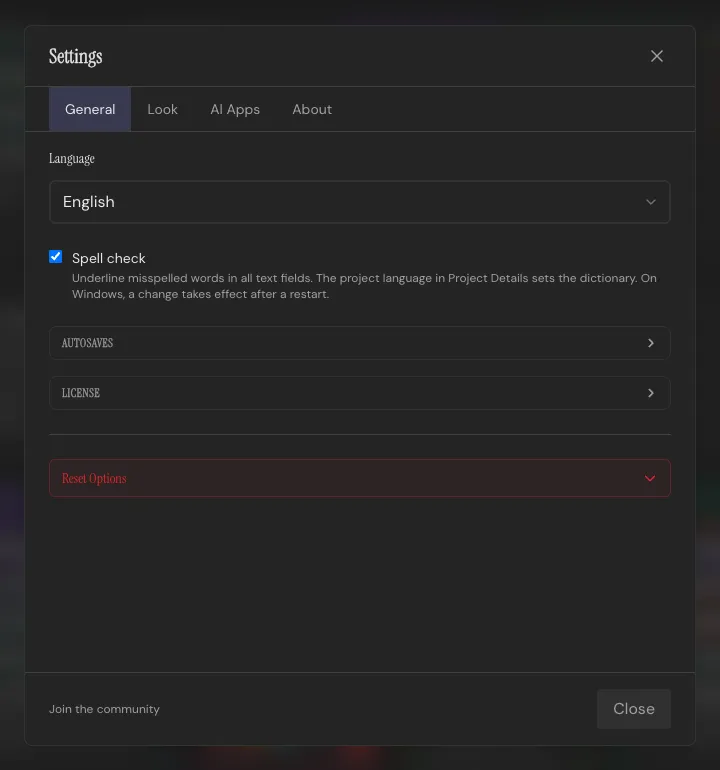
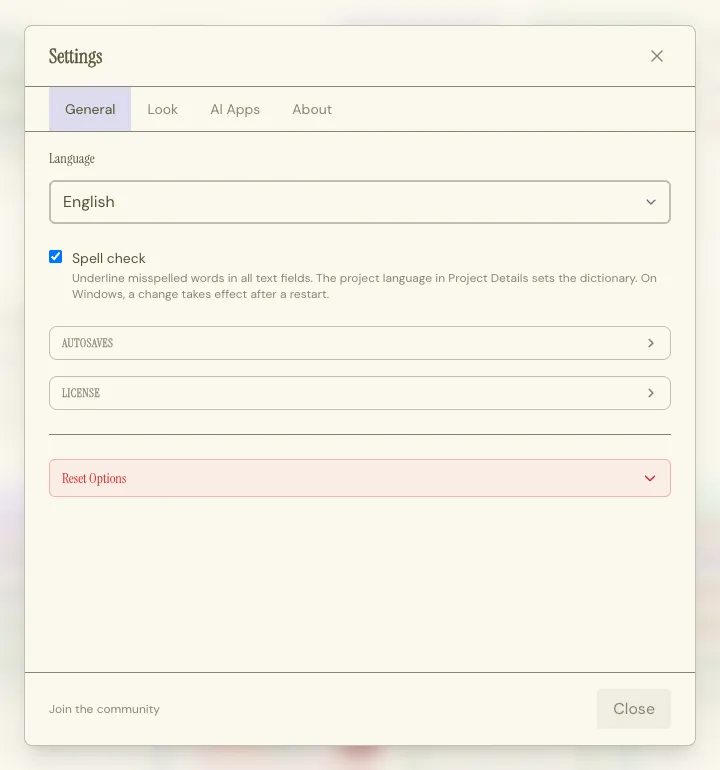
Spell check, under Settings → General, underlines misspelled words in every text field. It’s on by default and applies to the whole app. The dictionary follows the open project’s Project language, set in Project Details. On Windows, a language change takes effect after a restart, and Throughline offers one when it’s needed. See the FAQ.
See Themes for the customization side of it.
Getting help
Section titled “Getting help”Press ? anywhere in the app for the full keyboard shortcuts list. See Keyboard Shortcuts for the complete table.
These docs are one click away: the book icon in the bar at the bottom of the window opens them, on macOS and Windows. On macOS, Help → Documentation does the same.