Write
The Write Workspace is where the actual text gets written.
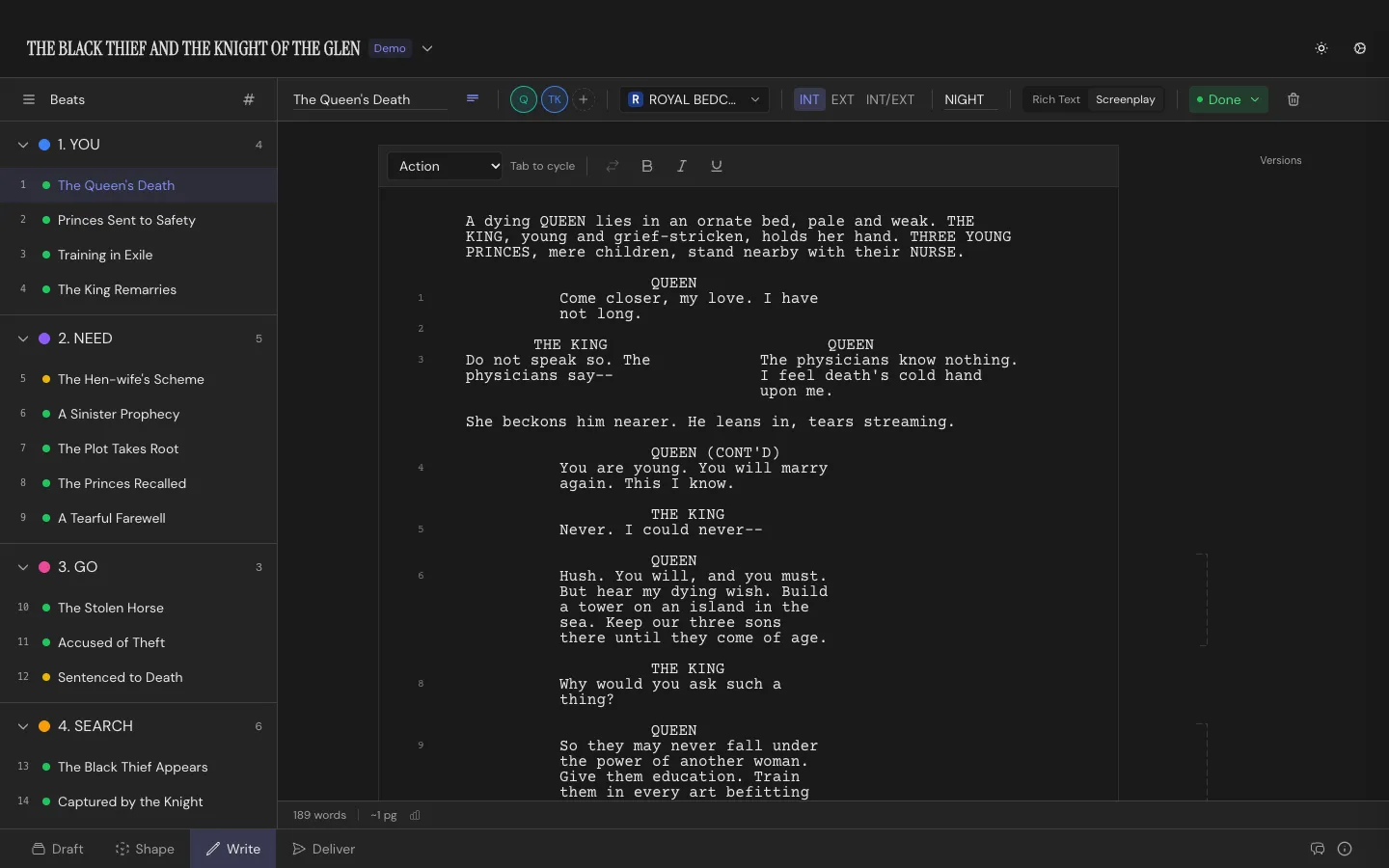
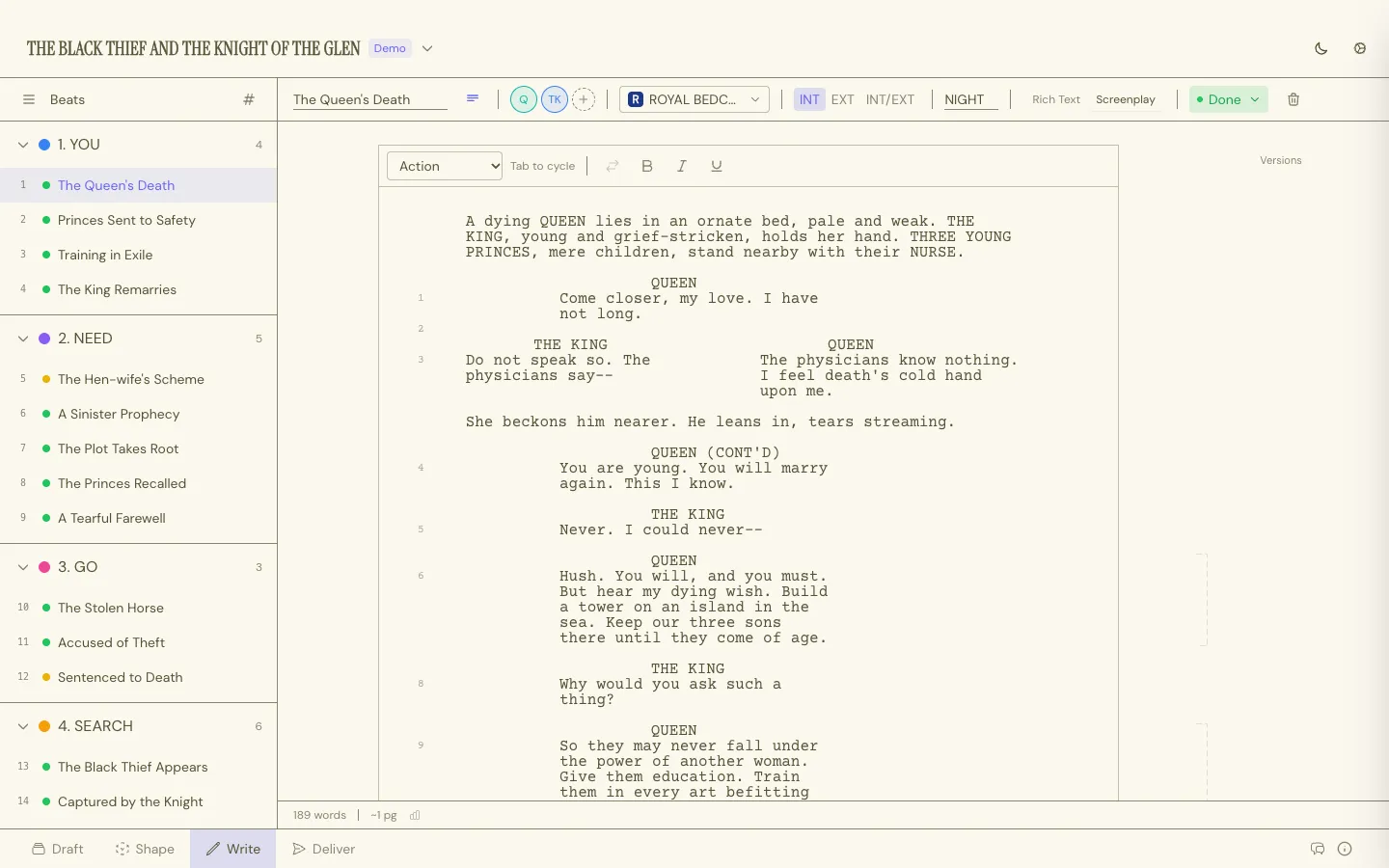
Two modes, one document
Section titled “Two modes, one document”Every project has a Rich Text mode and a Screenplay mode, toggled per project. The switch sits at the top right of the Write Workspace. Rich Text gets you bold, italic, and underline for prose. Screenplay mode gets you scene headings, action lines, character cues, dialogue, parentheticals, and transition elements, with Tab cycling between them as you type.
Scene headings build from INT/EXT plus a location and a time of day. Character names autocomplete from your project’s cast, and (V.O.) and (O.S.) cues stay linked to whichever Character they belong to. Scenes and dialogue can auto-number. See Formatting & Elements for the full element reference.
The Beat sidebar
Section titled “The Beat sidebar”A list of every Beat in the project, grouped under whatever Structure Card they’re stacked on. Click one to open it in the main editor, or add a new Beat right from the sidebar without leaving the Write Workspace.
Each row starts with a number. By default it’s the Beat’s place in story order, counted straight through from the first Beat to the last, across every Structure Card. It follows the story: move a Beat and the numbers update. AI apps you connect to Throughline use the same numbers, so “Beat 12” means the same Beat to you and to them.
Once you number your scenes, a Beat with a scene number shows that number in the row instead. Scene numbers stay fixed when you reorder, so after a move they can differ from the story order. See Numbering.
Hover a row and its number turns into a drag handle. Drag it to move the Beat in the story. To change a scene number by hand, click the handle and type the new one.
Scrolling from Beat to Beat
Section titled “Scrolling from Beat to Beat”Keep scrolling at the end of a Beat and the page stretches a little. A round arrow appears below the page, and a ring around it fills as you pull. When the ring is full, the arrow lights up. Pull firmly and the page pops over into the next Beat, so you can read and write through the story without reaching for the sidebar. Scrolling up past the start of a Beat works the same way: the previous Beat opens at its last line, right where it hands over to the one you left.
It works with a trackpad swipe and with a mouse wheel (about three notches past the end). A gentle scroll only stretches the page and lets go again, so you never leave a Beat by accident. On a Mac trackpad the stretch holds while your fingers rest, and a slow pull that fills the ring pops when you lift your fingers. Cmd/Ctrl+↑ and Cmd/Ctrl+↓ also jump to the previous and next Beat.
The taskbar
Section titled “The taskbar”Sits above the page for whichever Beat you’re on: title, Characters, Setting, INT/EXT and time of day, status, a short summary for the card back in Draft, and color. Create a new Character or Setting inline from here if the one you need doesn’t exist yet.
Undo while you write
Section titled “Undo while you write”Cmd/Ctrl+Z undoes your most recent action, also with the cursor in the script, the title or the summary. That can be typing, a Spark you saved, a Character you cast, a Replace All, or a change from a connected AI app. Typing undoes in steps: each pause in your typing ends one step. Shift+Cmd/Ctrl+Z redoes the steps you undid, the last one first. On Windows, Ctrl+Y redoes too.
An undo can reach a Beat that is not on screen, for example typing in the scene you just left. A short notice then names that Beat, such as Undid a change in “Arrival”. The Beat you are on stays open. Redo shows the same notice.
Saving a line as a Spark
Section titled “Saving a line as a Spark”Wrote a line that belongs somewhere else, or an idea for a later scene? Select the text, right-click it and choose Save as Spark. Shift+Cmd/Ctrl+K does the same without the menu. The selected text moves out of your script and into the Sparks inbox as a new Spark, and a Spark card flies to the Draft tab to show where it went. The script closes up as if you had pressed Delete.
Each screenplay element or paragraph becomes one line of the Spark, so the first line you selected is the name the Spark gets when it becomes a card. Changed your mind? One undo (Cmd/Ctrl+Z) puts the text back in the script and removes the Spark, even with the cursor still in the script. Redo moves it again.
Save as Spark sits in the system menu, right below Copy, so the spelling suggestions stay where they always are. The item shows only when you right-click text you have selected.
Versions
Section titled “Versions”Torn between two takes on a scene? Version it. Duplicate branches a new version from the current one; Start Fresh begins blank. Switch between versions, compare two side by side, or delete one you’ve decided against. Only the active version of a Beat is counted in scene and dialogue numbering. See Scene Versions.
Renaming a Character
Section titled “Renaming a Character”Rename a Character anywhere in Throughline and the Write Workspace offers to rename them everywhere they appear in the script too, cues and prose mentions both, with a preview of how many scenes and lines are affected before you commit. If the script doesn’t name them yet, the new name simply applies, with no question asked. The rename reaches every version of a scene, not only the active one.
Find and replace
Section titled “Find and replace”Cmd/Ctrl+F opens the find bar over the script. It searches every Beat in the story. Enter jumps to the next match and Shift+Enter to the previous one. Match case makes the search case-sensitive.
Replace changes the current match. Replace All changes every match in the story, in every version of a scene too, and one undo takes it all back. If the text you replace is a Character’s name in a cue, Throughline asks whether to rename the Character everywhere or to replace only the text.
With Writer Assignment on, Replace All skips the Beats assigned to someone else and says how many it skipped. Check Include beats assigned to others to change those too.